We advise that your web host to fulfill the following
minimal needs in order to guarantee the Bee Real Estate theme performs at
its best:
WordPress version: at least 6.9
PHP version: at least 7.4
Database: MariaDB 10.0+ or MySQL 5.6+
General
Thank you for choosing our WordPress theme! We're confident it will power your
website effectively. This documentation guides you from basic setup to advanced
management, with detailed explanations and examples for building your WordPress
website. Beginners and experienced users alike will find the knowledge to create
and maintain a successful website using our theme. We're dedicated to a smooth,
rewarding experience..
What is the content management system for WordPress? (CMS)
WordPress is a popular, open-source platform using PHP and MySQL for website
creation. As a user-friendly CMS and blogging platform, it allows anyone to
build websites and online applications easily, even without technical skills.
Its simplicity and adaptability make WordPress the most popular choice for
website development. Learn
More
How do you define a WordPress template?
WordPress templates easily control website appearance. Installing a new template
quickly refreshes your site's look. Templates are flexible and customizable to
meet specific branding needs. Source files included allow advanced design and
functionality modifications.
We Offer Assistance and Support
For assistance, click this button:
Template File Structure: Overview
Template files are organized for easy asset access. Subdirectories contain
specific elements:
Screenshot: - The "Screenshot" folder shows template usage
examples for inspiration. These images are illustrative, not for
production use..
Theme : WordPress theme materials are included in the theme.
bee-real-estate.zip: This folder contains every file
required for the theme.
license.txt :contains information on licenses
readme.txt : This file contains details regarding the
theme's font, usage script, and images.
My own website utilized to work well. How were the
files' permissions changed?
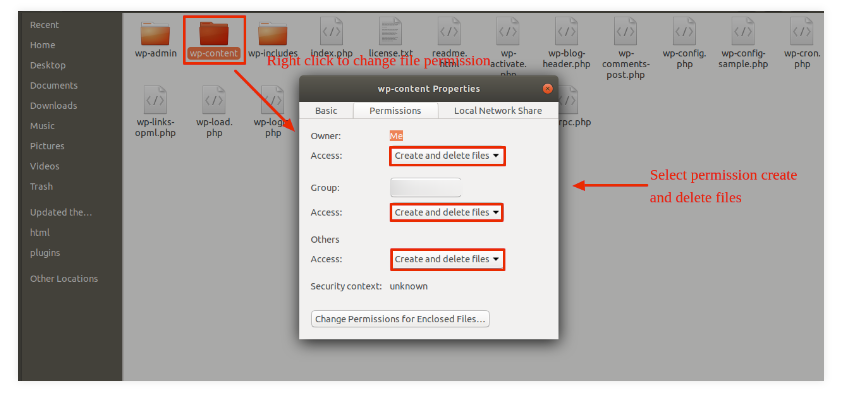
WordPress may not be able to run scripts, upload images, or create directories if
file permissions are incorrect.
Permission is needed for WordPress to create directories and manage files on the
server.
The context menu will show up when you right-click on any folder in the main
directory. From there, select File Permissions.
wp-config
dialog window for
permissions
Select the checkbox.
read and write
Click OK to
continue..
Use the same procedures for the wp-content subfolder.
Installing A Design Template
The process of establishing a template is quick.
The installation can be finished via the WordPress interface. As a result,
the process is speedier and more comfortable.
Two methods of implementation are available.
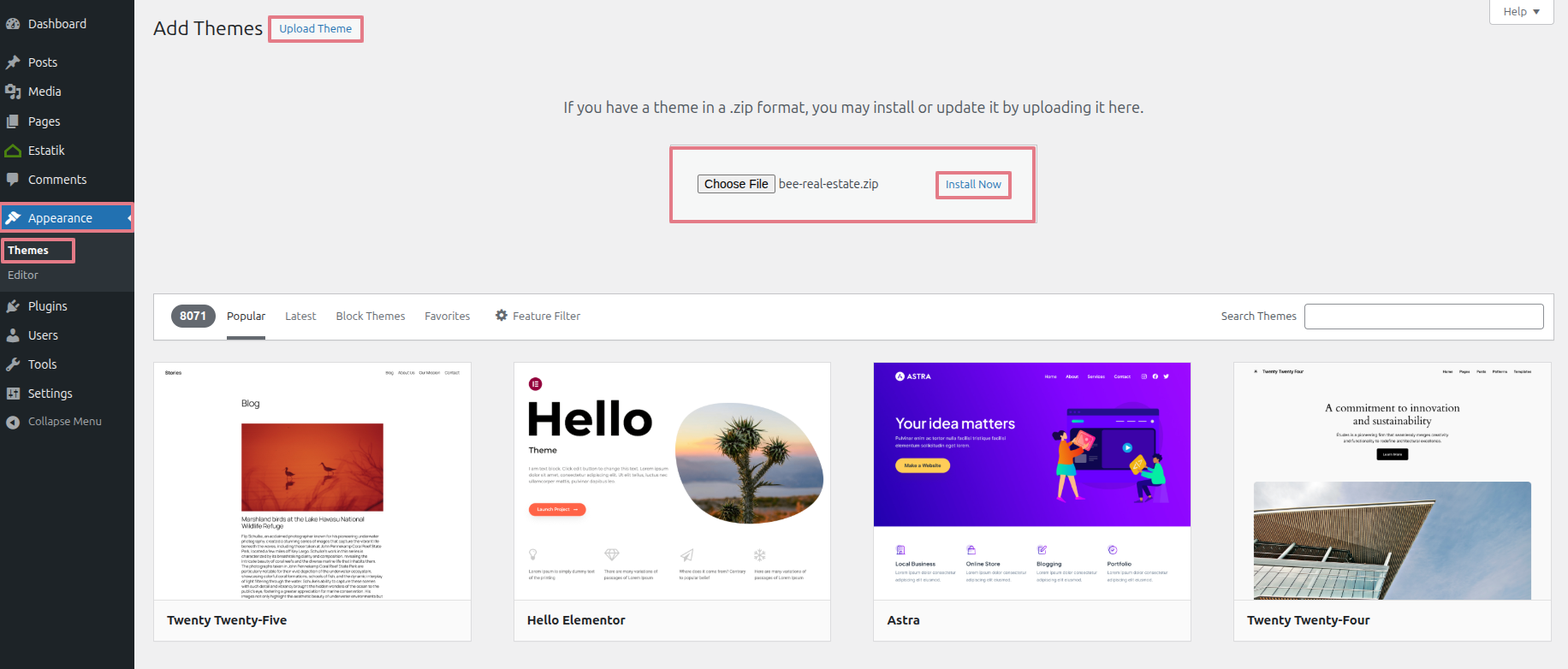
1- Install a theme using the
WP admin.
To begin, navigate to the WP admin area.
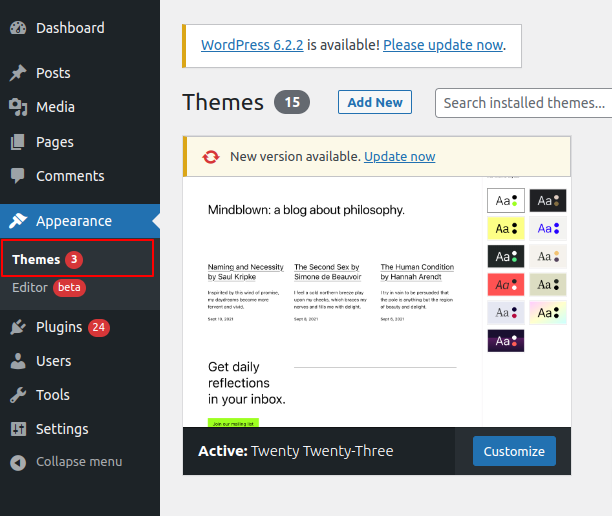
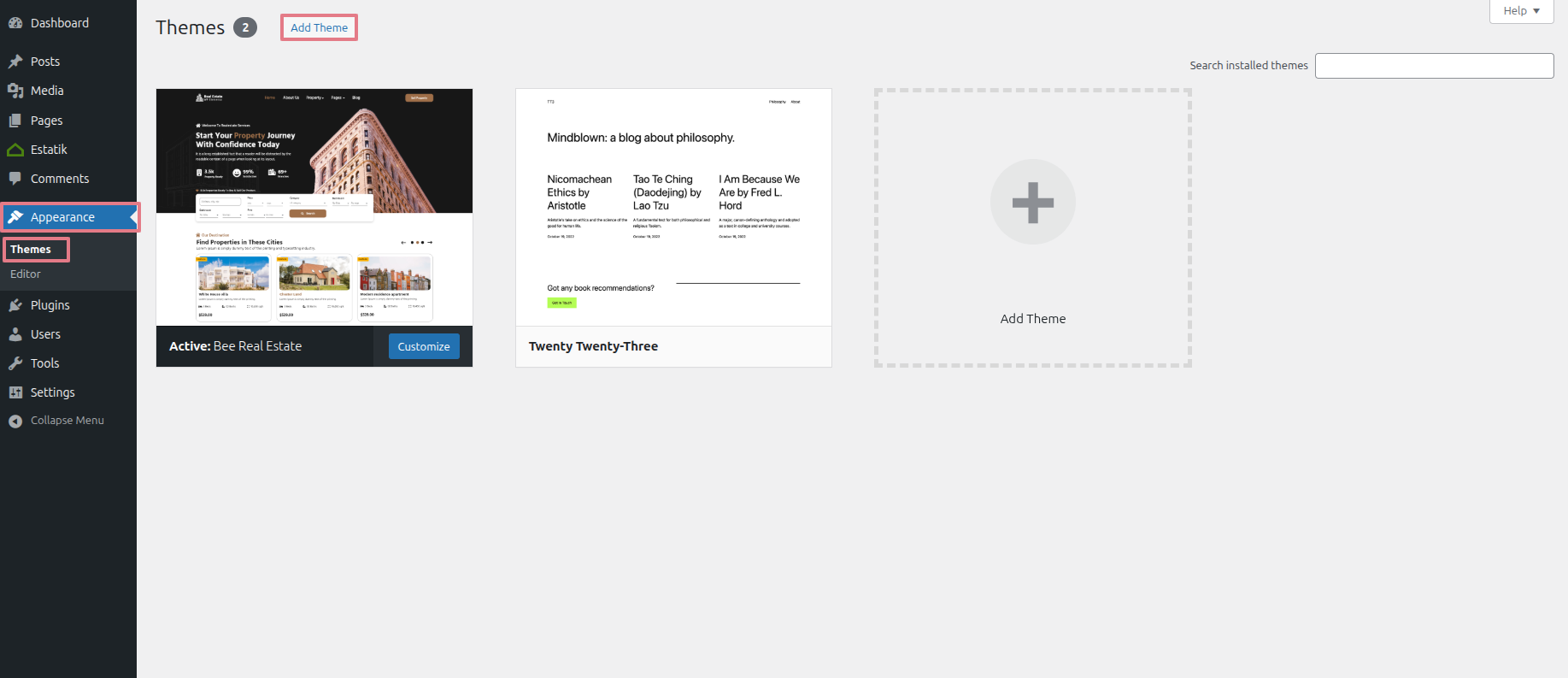
1. Start by selecting Appearance >> Than Tab
Themes
2. On the themes page, click the Add New button..
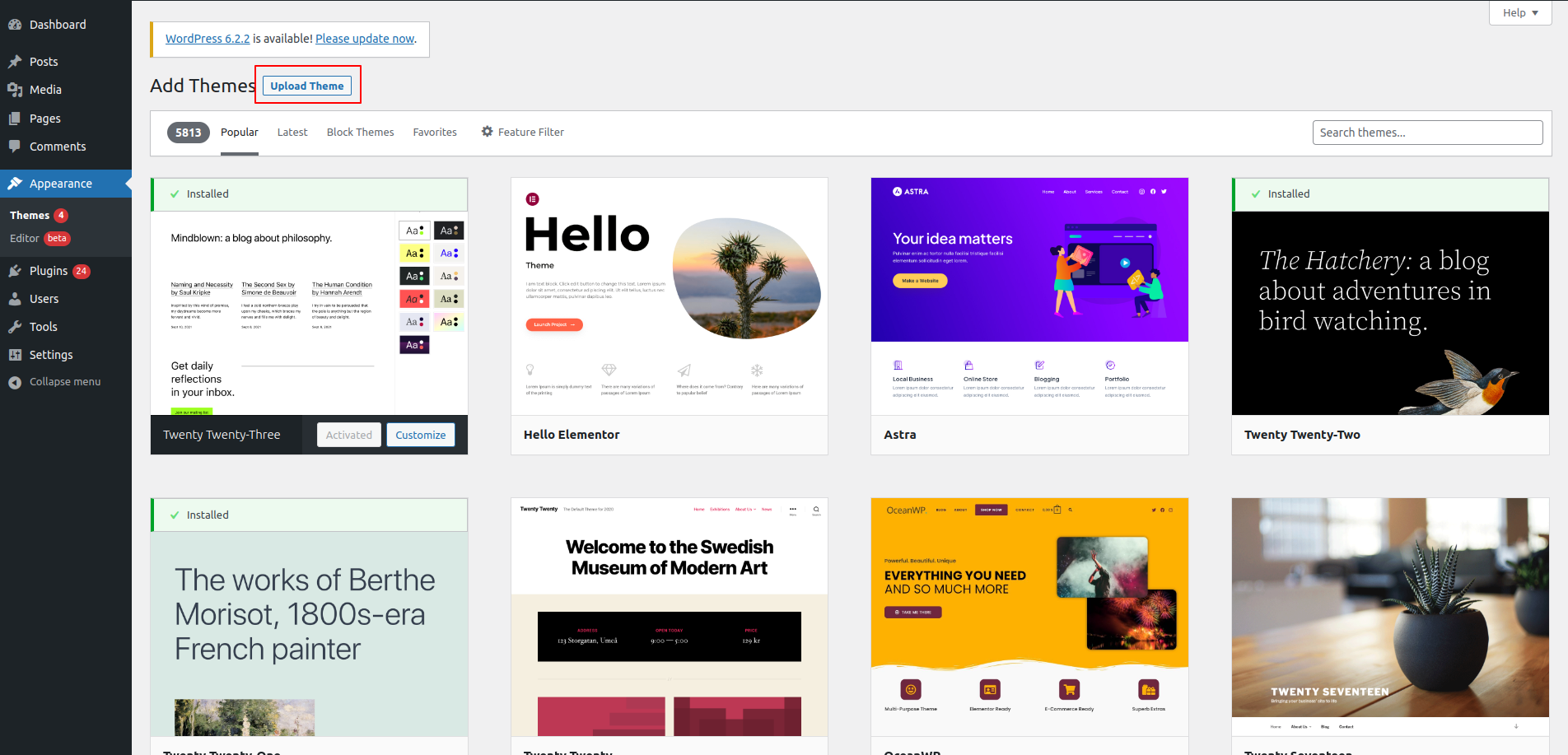
3.To add the theme, click the upload button..
4. After choosing your bee-real-estate zip file, click Browse and then
choose Install right away..
The Utilization Regarding A Theme
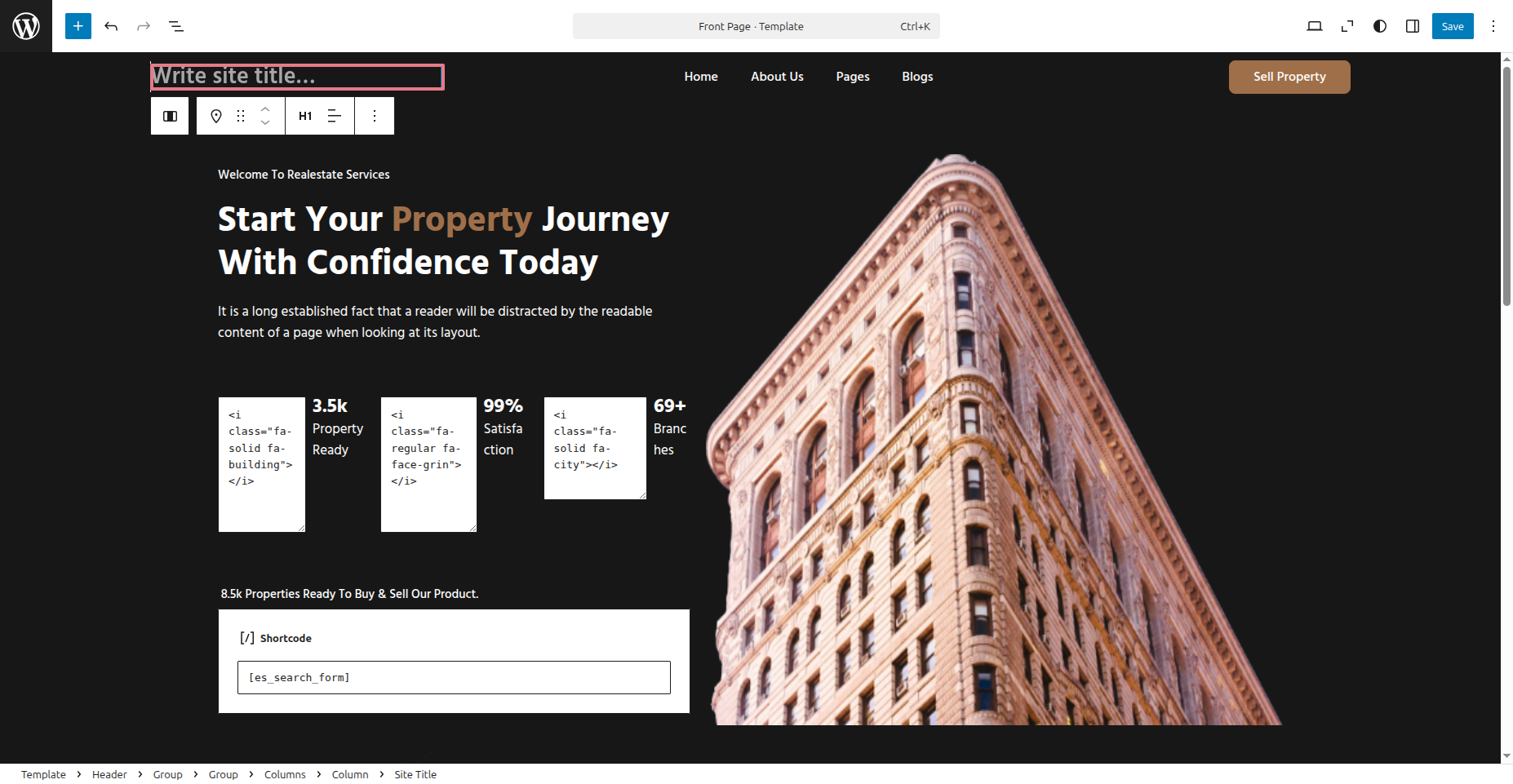
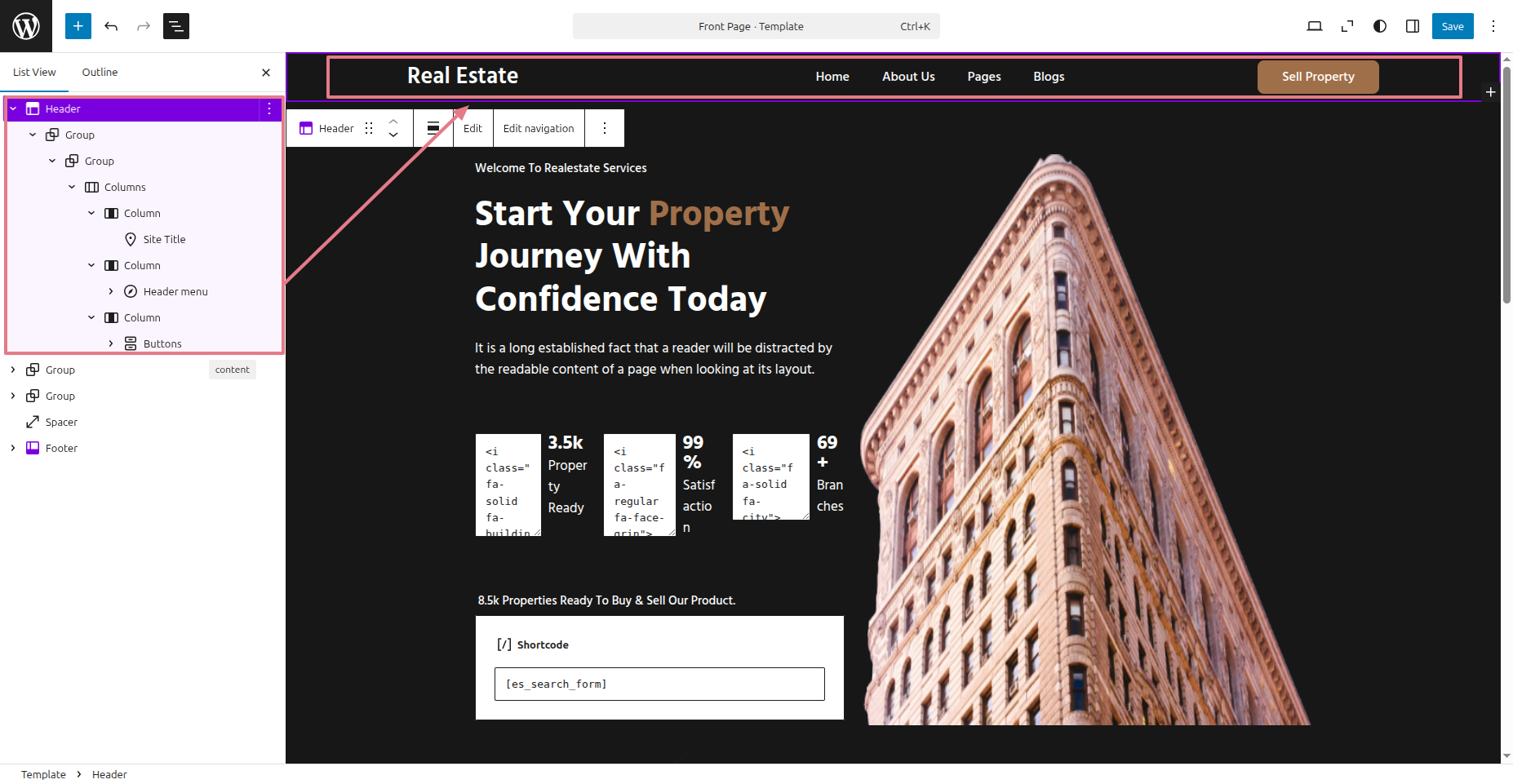
To configure the Header section
in order to configure the Header section. the guidelines listed below..
1) Navigate to the Dashboard
then to Appearance
Select Editor Write Site
Title.
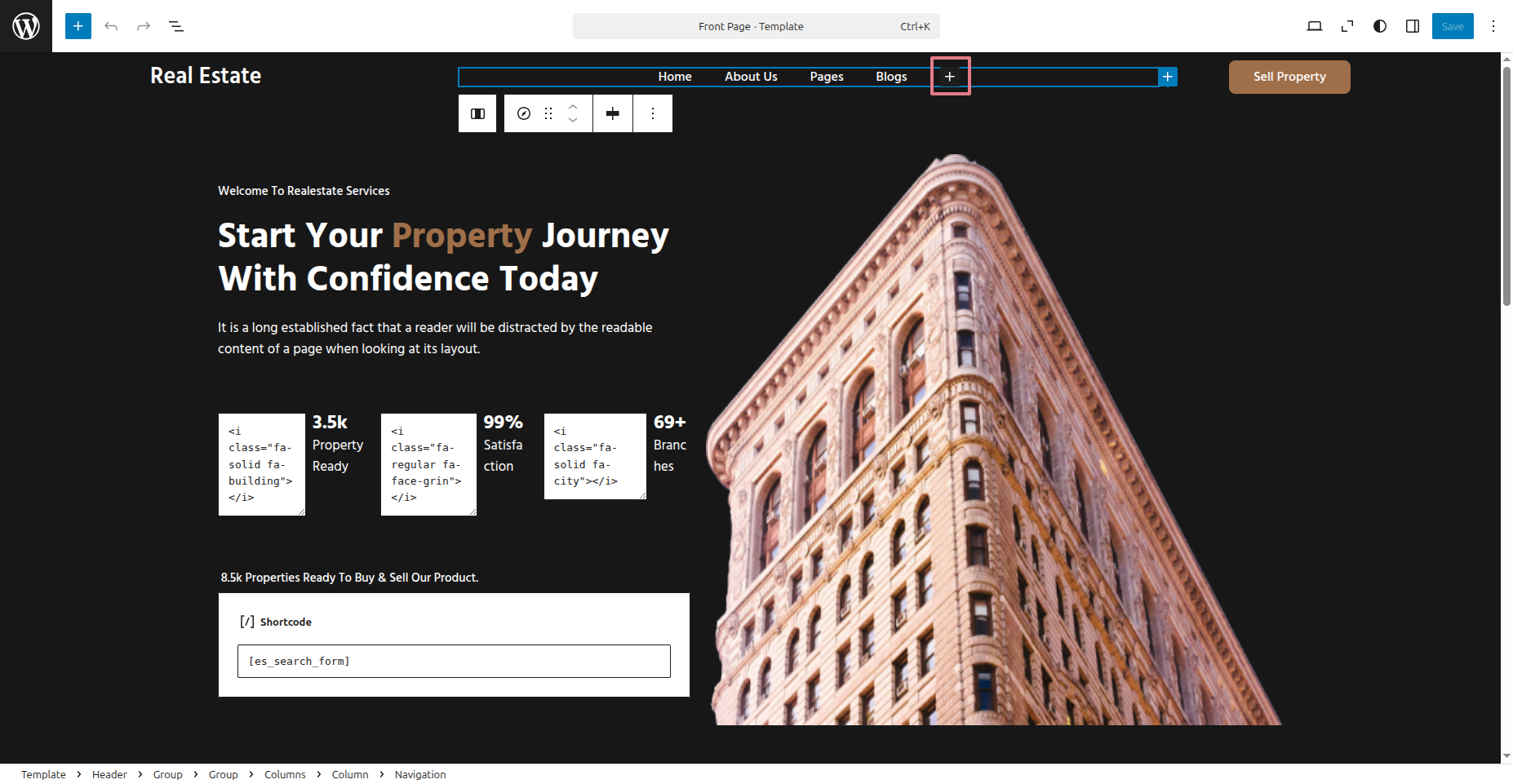
2) Navigate to the Dashboard
then to Appearance
Select Editor Tap +
Icons.
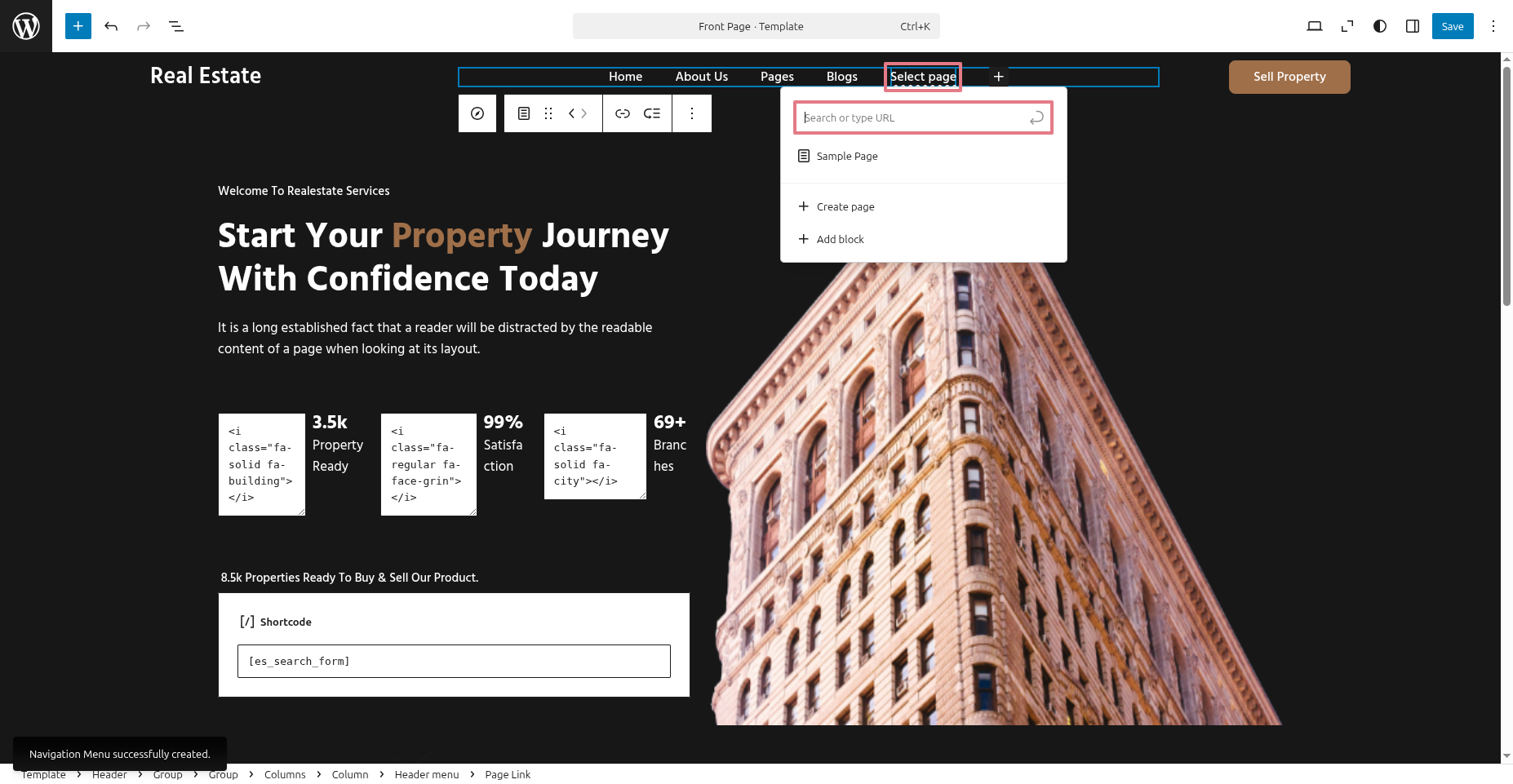
3) Navigate to the Dashboard
then to Appearance
Select Editor Tap Select
Page. Enter
Page Name.
6) Navigate to the Dashboard
then to Appearance
Select Editor Tap
Save.
This represents how a header part can be added and set up..
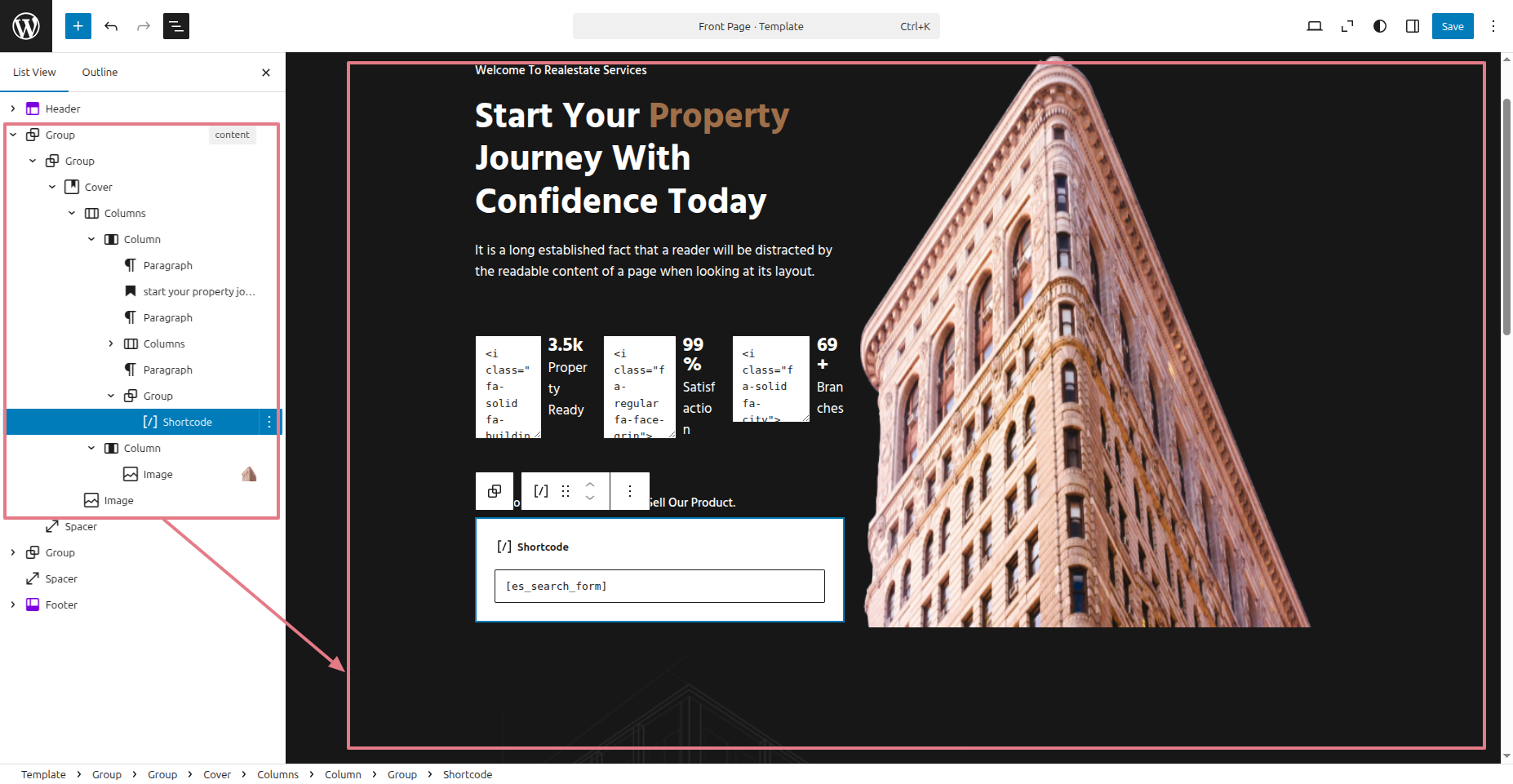
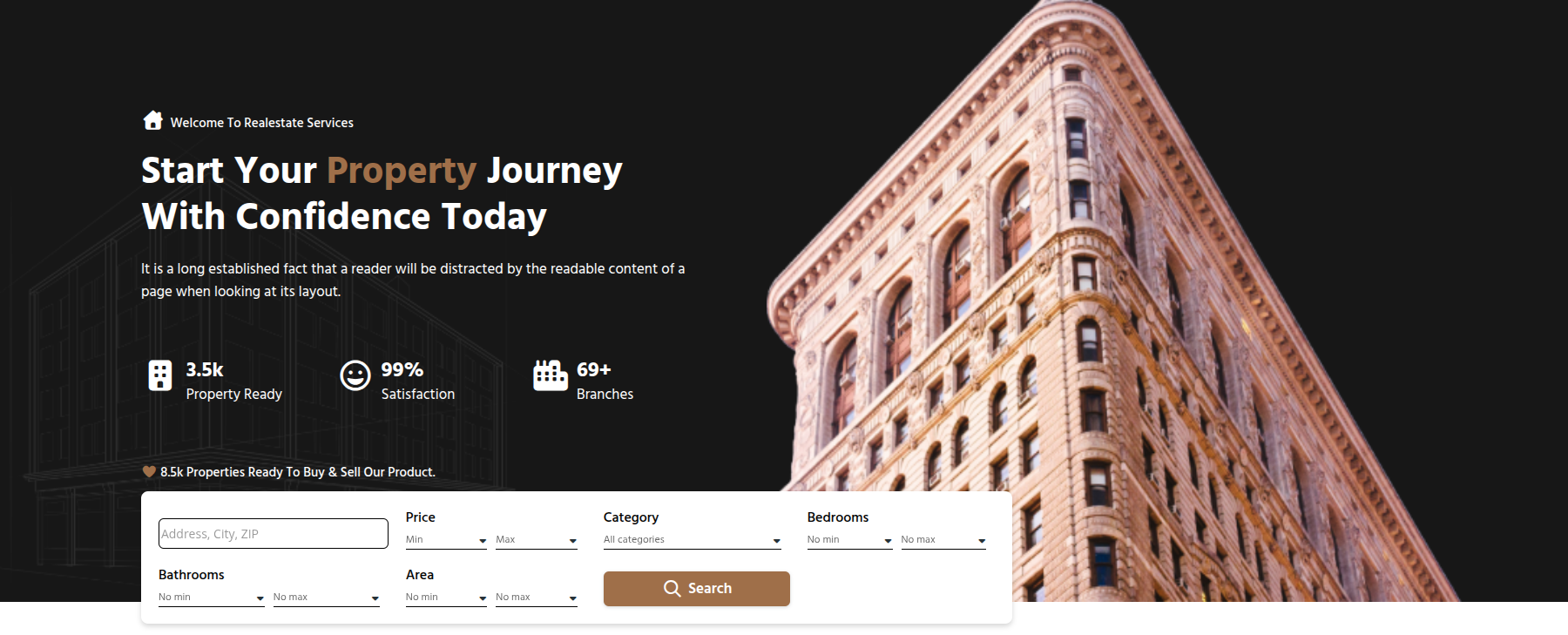
To configure the Banner section
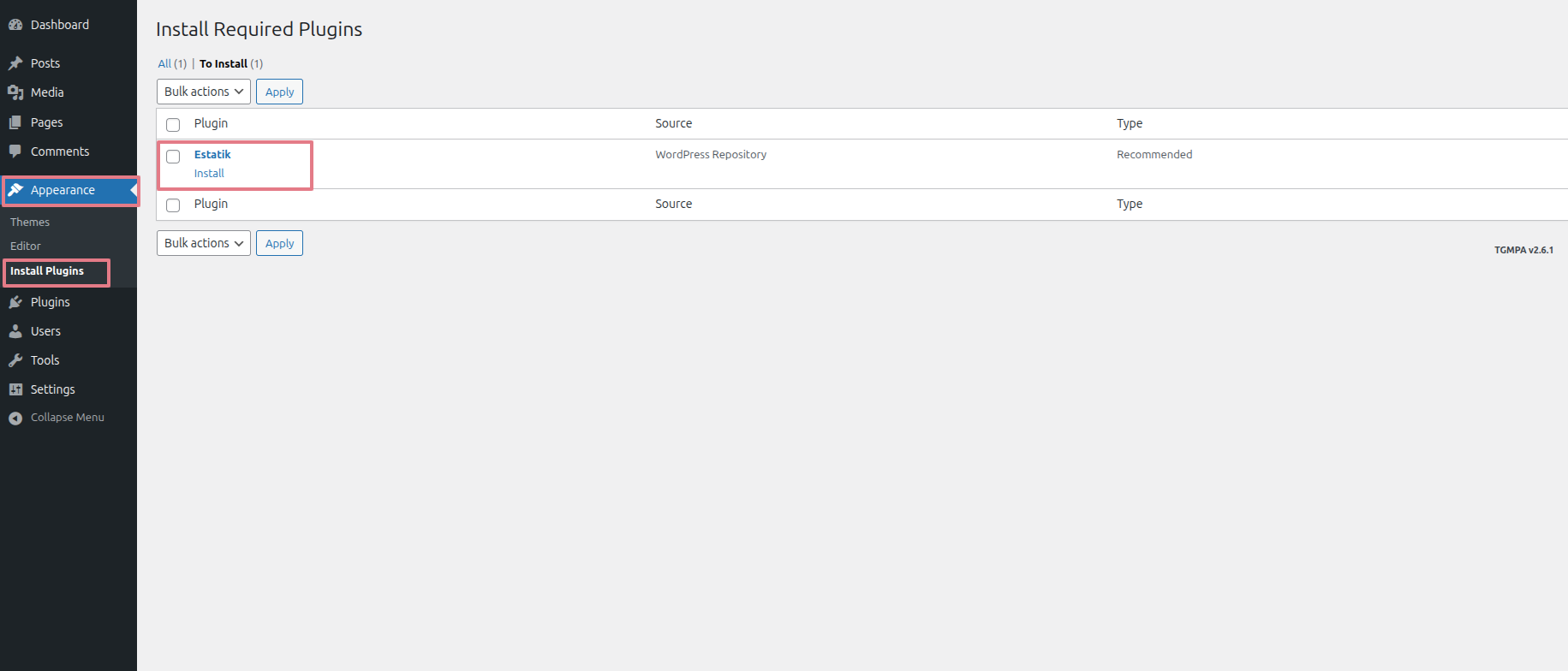
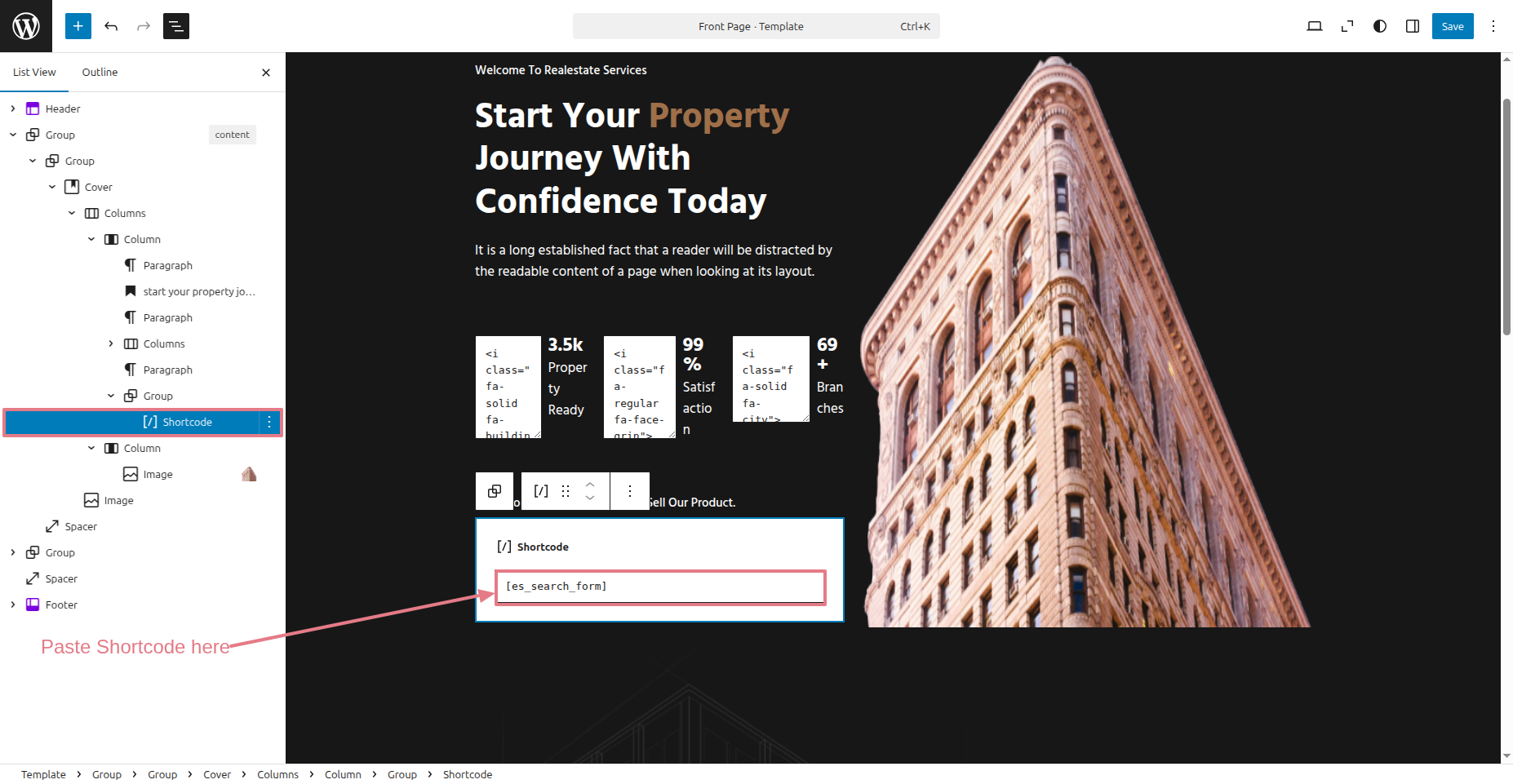
in order to configure the Banner section. the guidelines listed below.
1) Navigate to the Dashboard
then to Appearance
Install Plugins Install.
2) Navigate to the Dashboard
then to Appearance
Select Editor Tap
Save.
[es_search_form] Copy this Shortcode.
This represents how a Banner part can be added and set up..
To configure the Our Destination section
in order to configure the Our Destination section. the guidelines listed below.
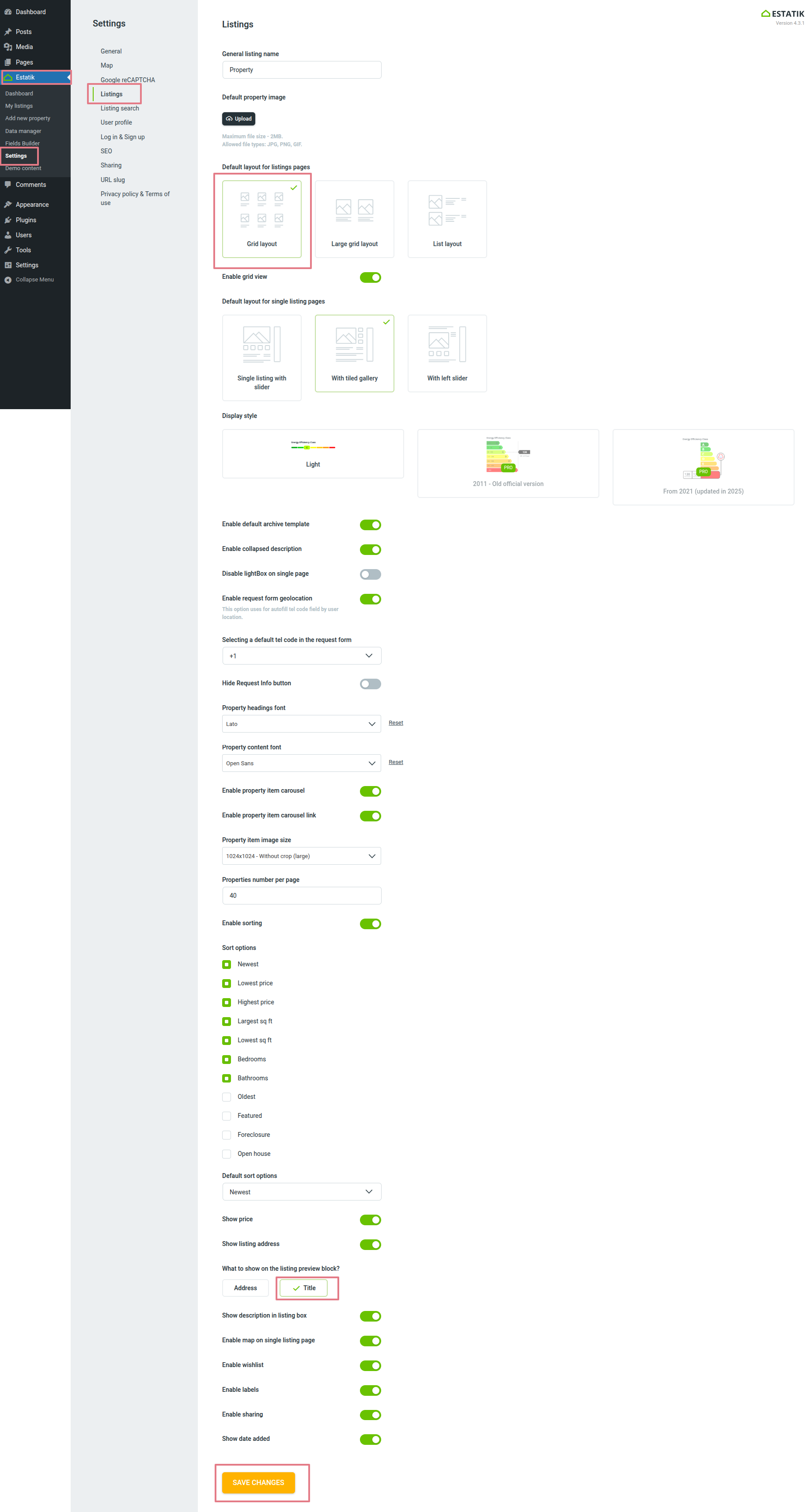
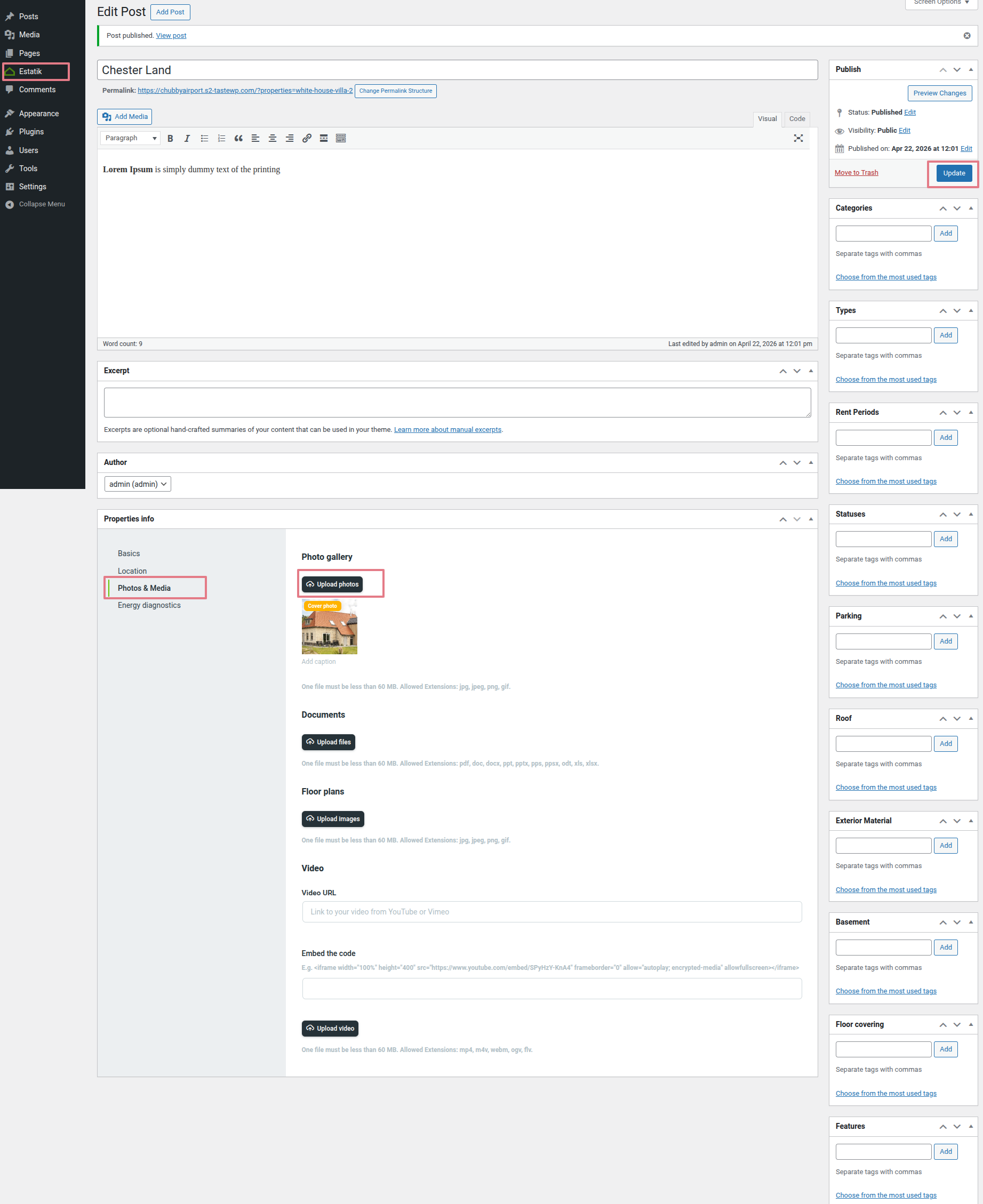
1) Navigate to the Dashboard
then to Estatik
Settings Listings.
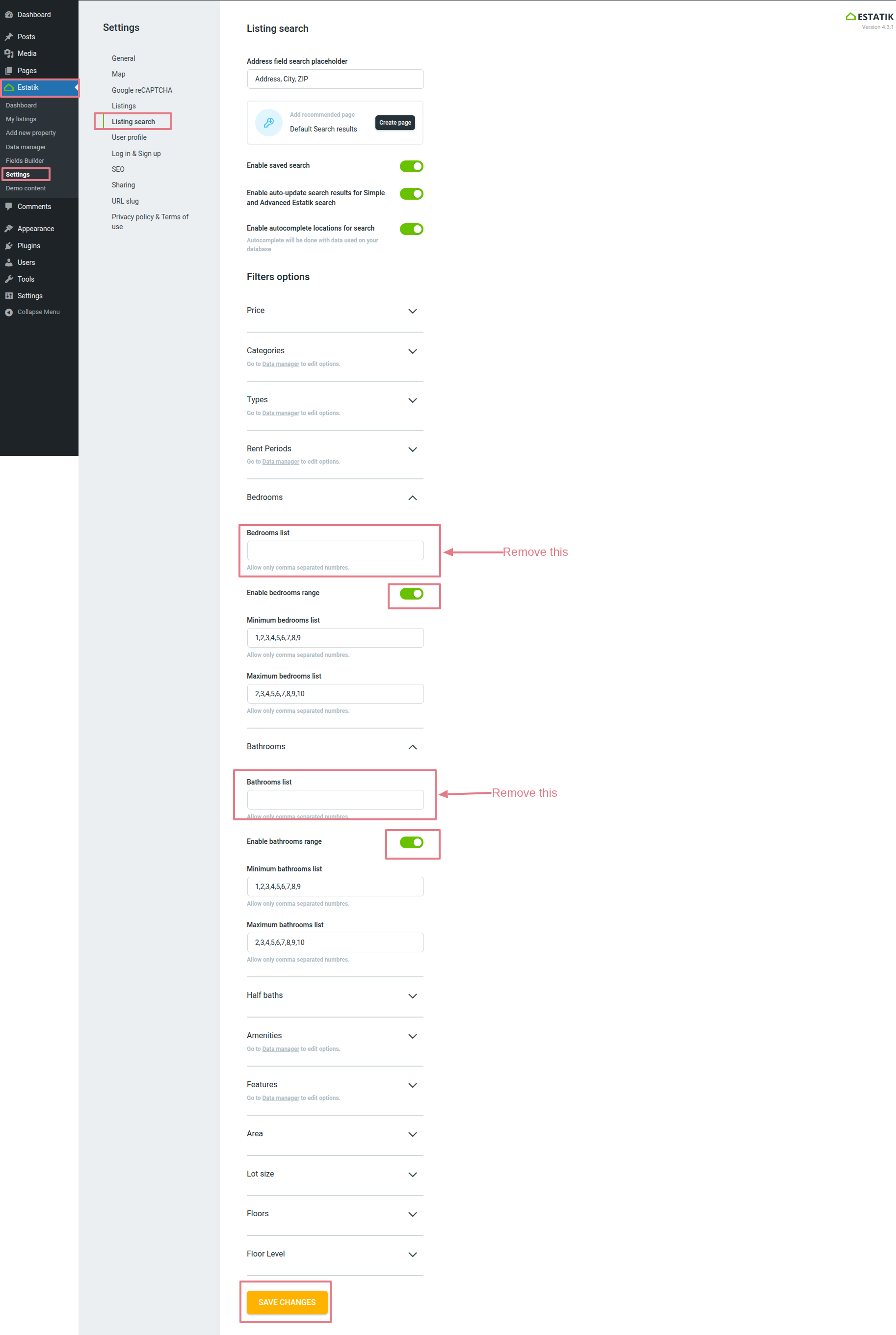
2) Navigate to the Dashboard
then to Estatik
Settings Listings Search.
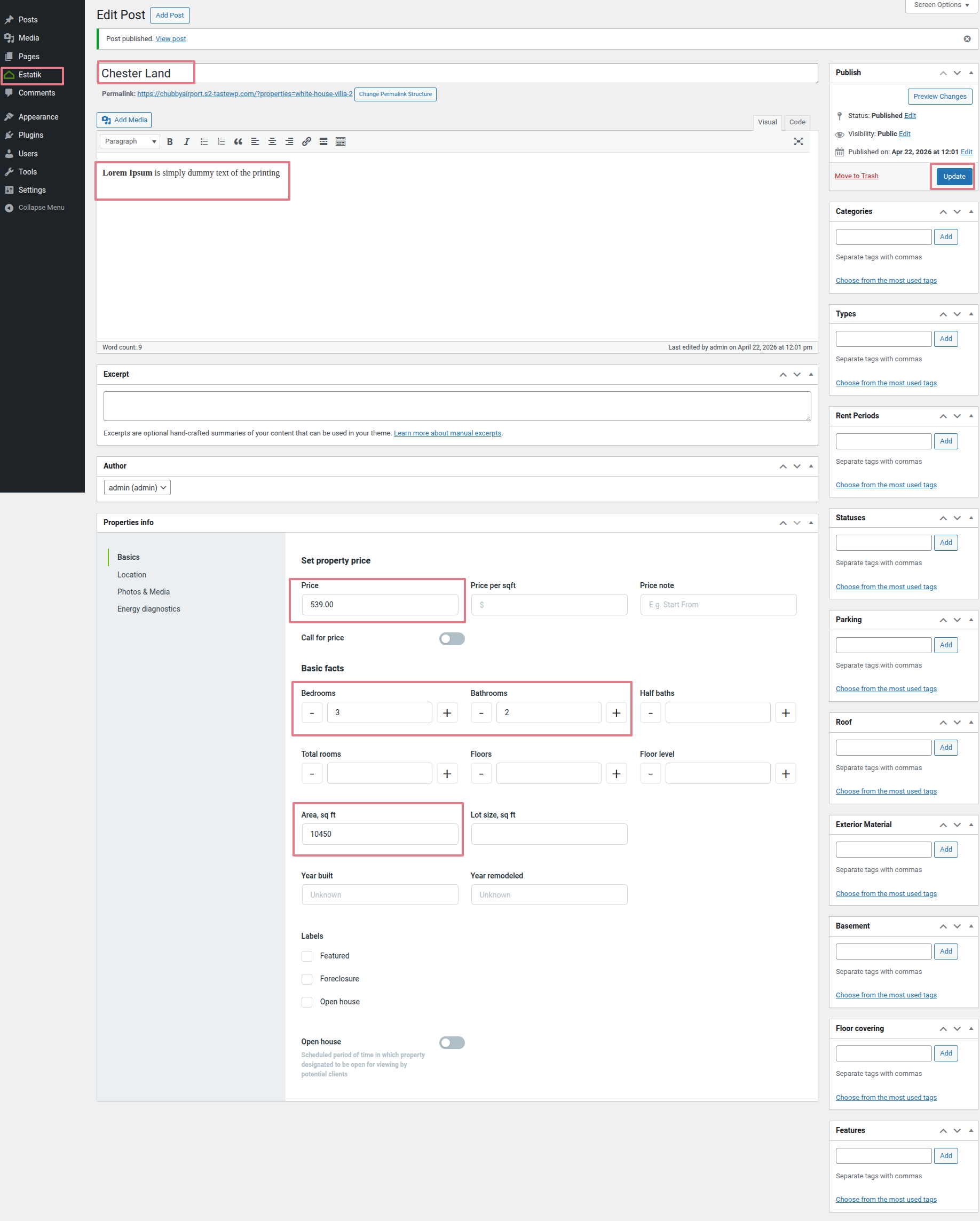
3) Navigate to the Dashboard
then to Estatik
My Listings Publish.
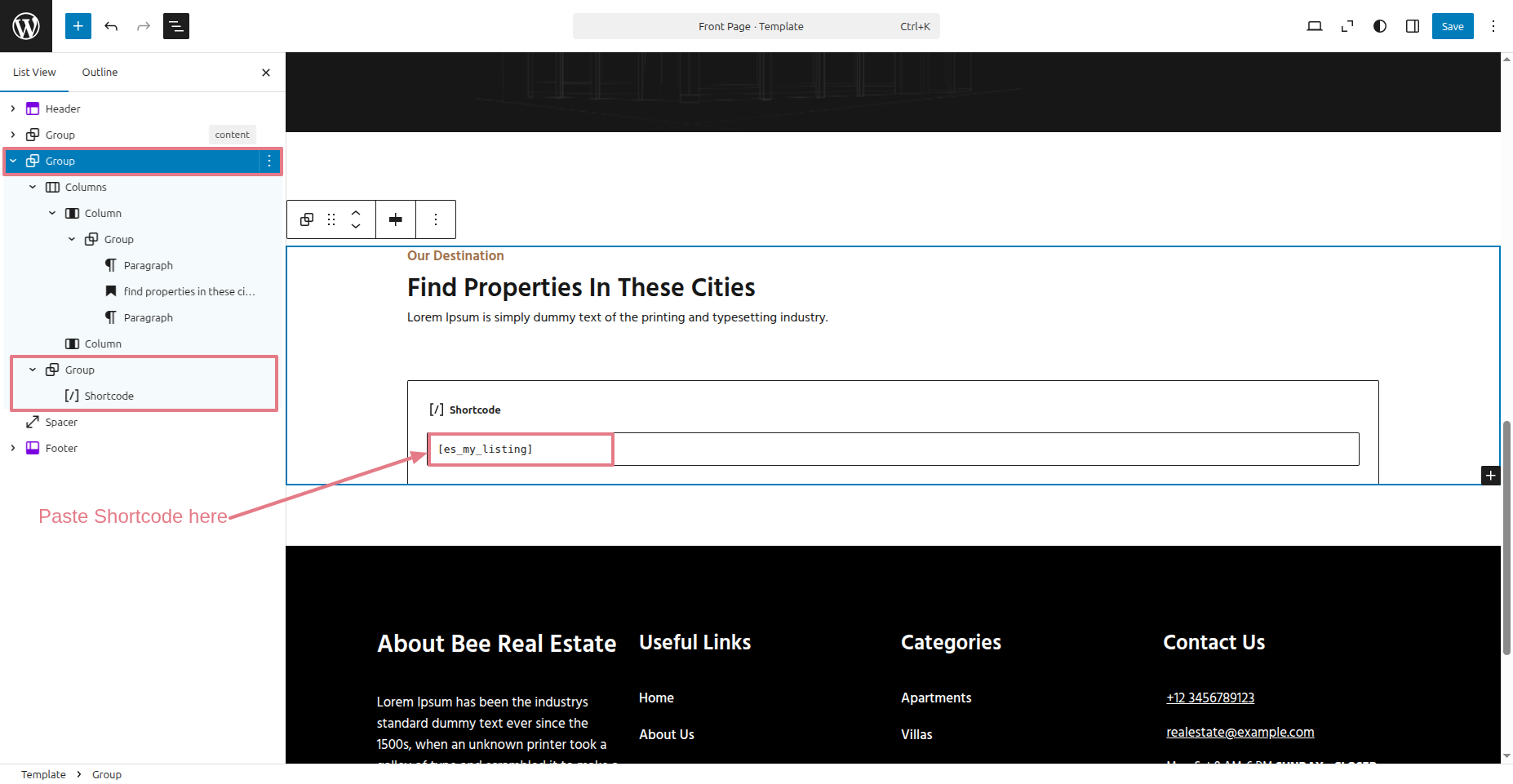
4) Navigate to the Dashboard
then to Appearance
Select Editor Tap
Save.
[es_my_listing] Copy this Shortcode.
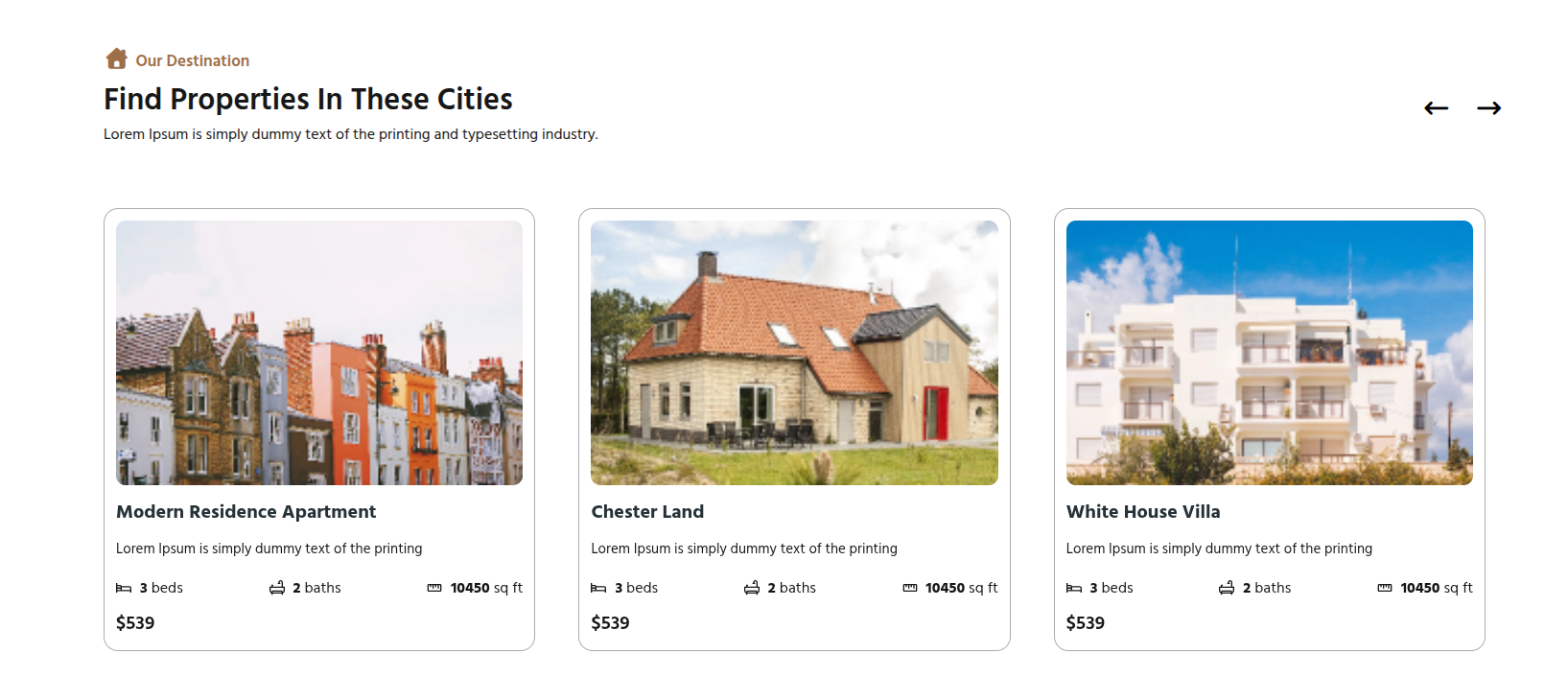
This represents how a Our Destination part can be added and set up..