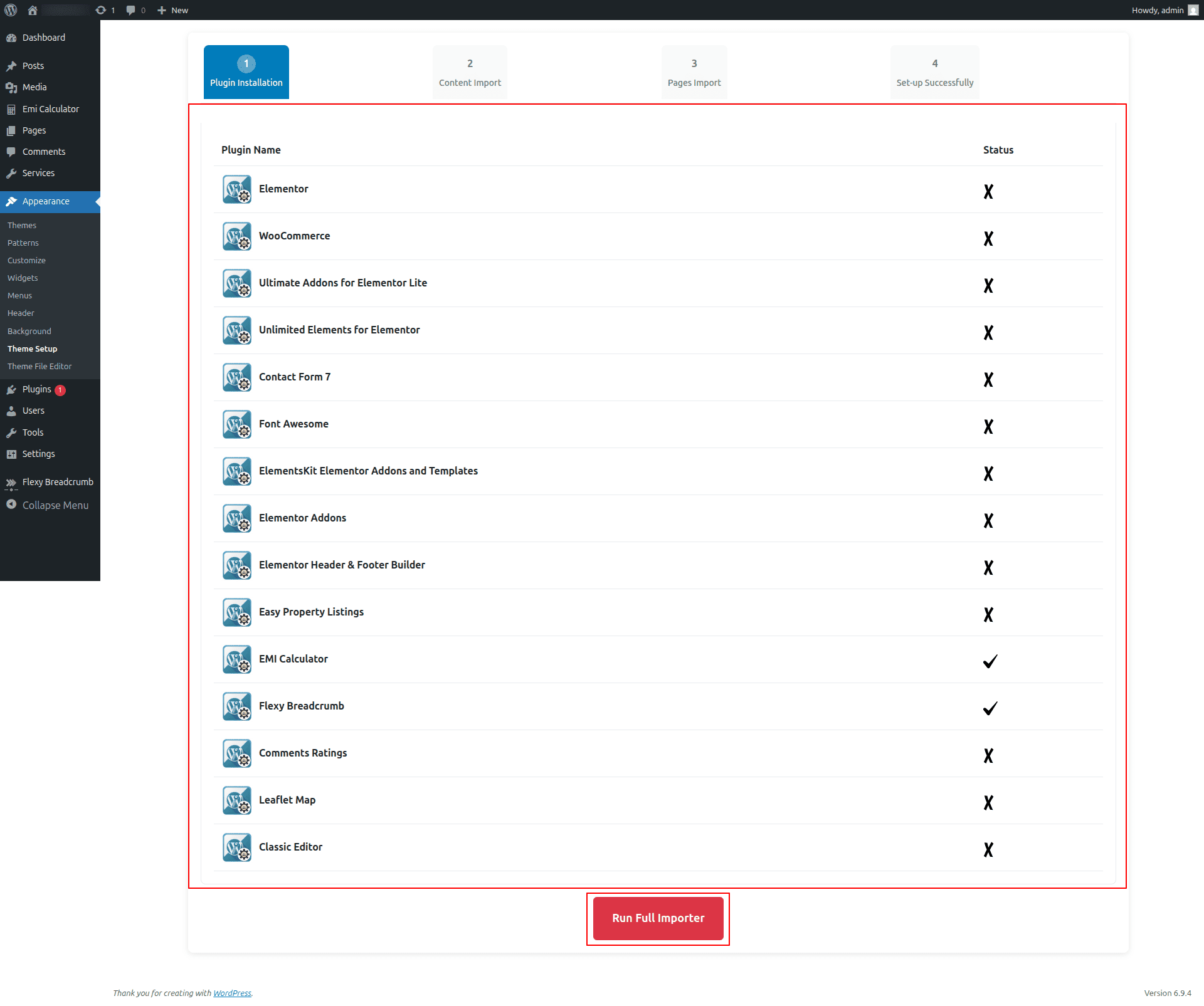
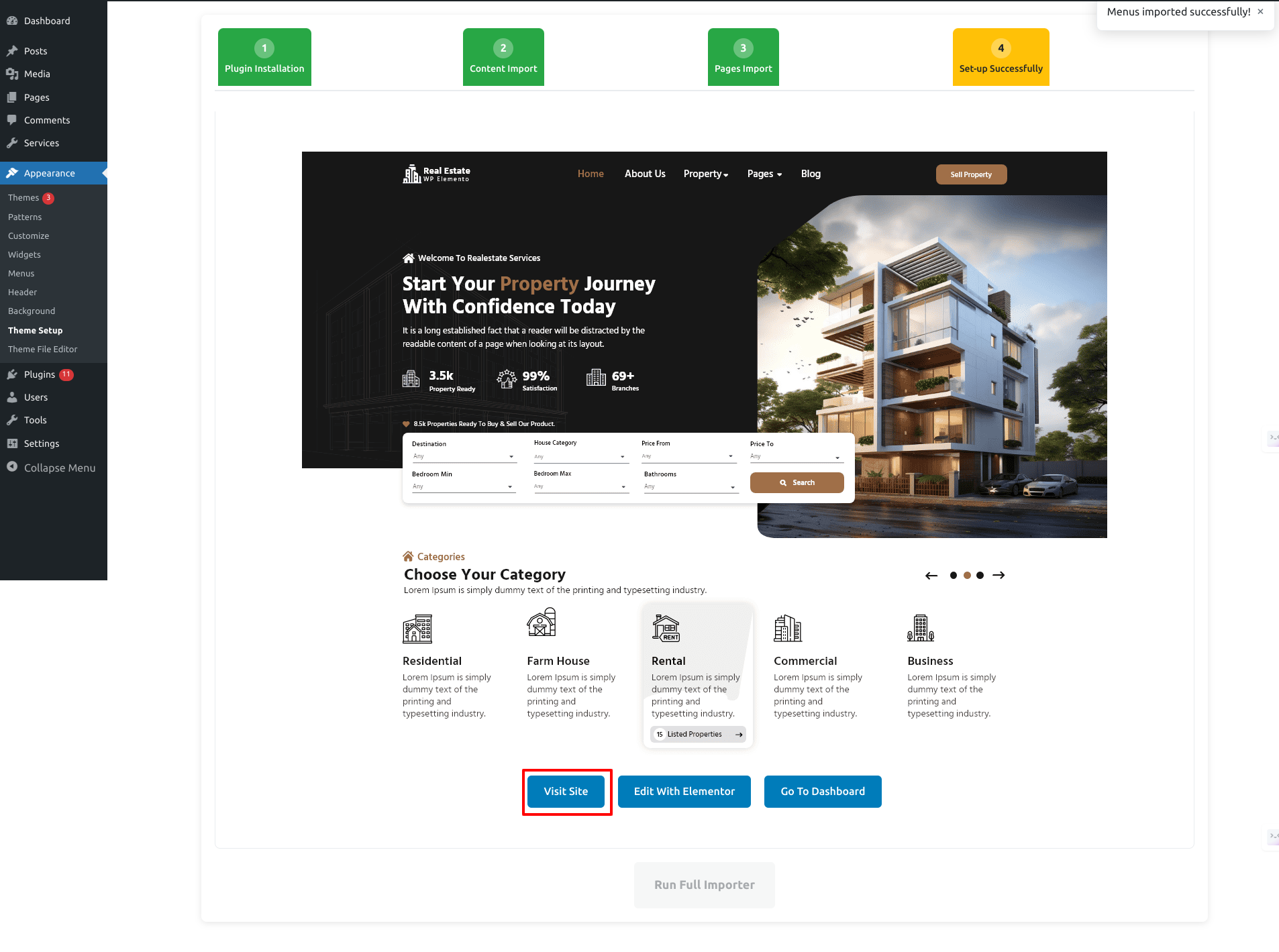
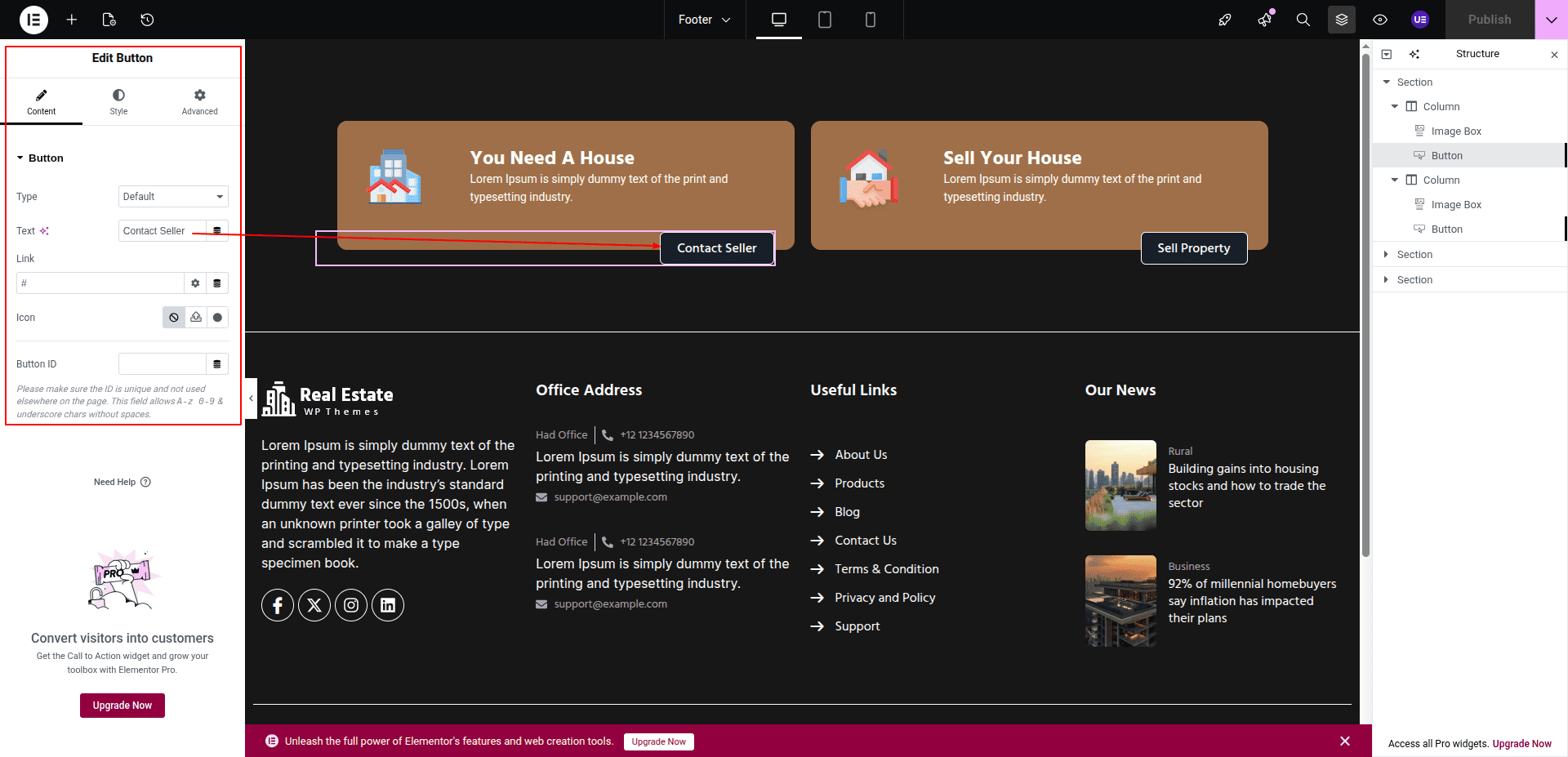
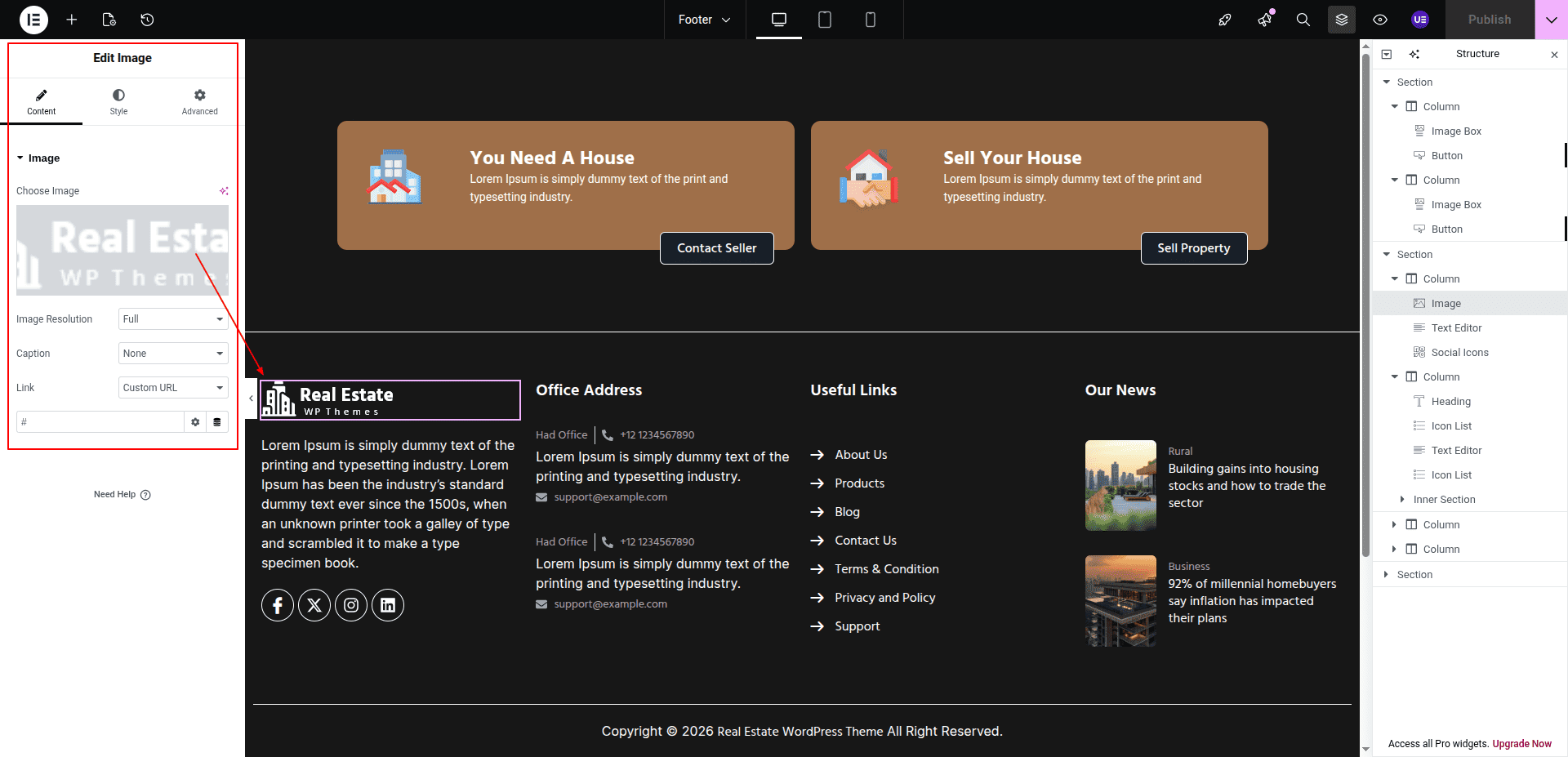
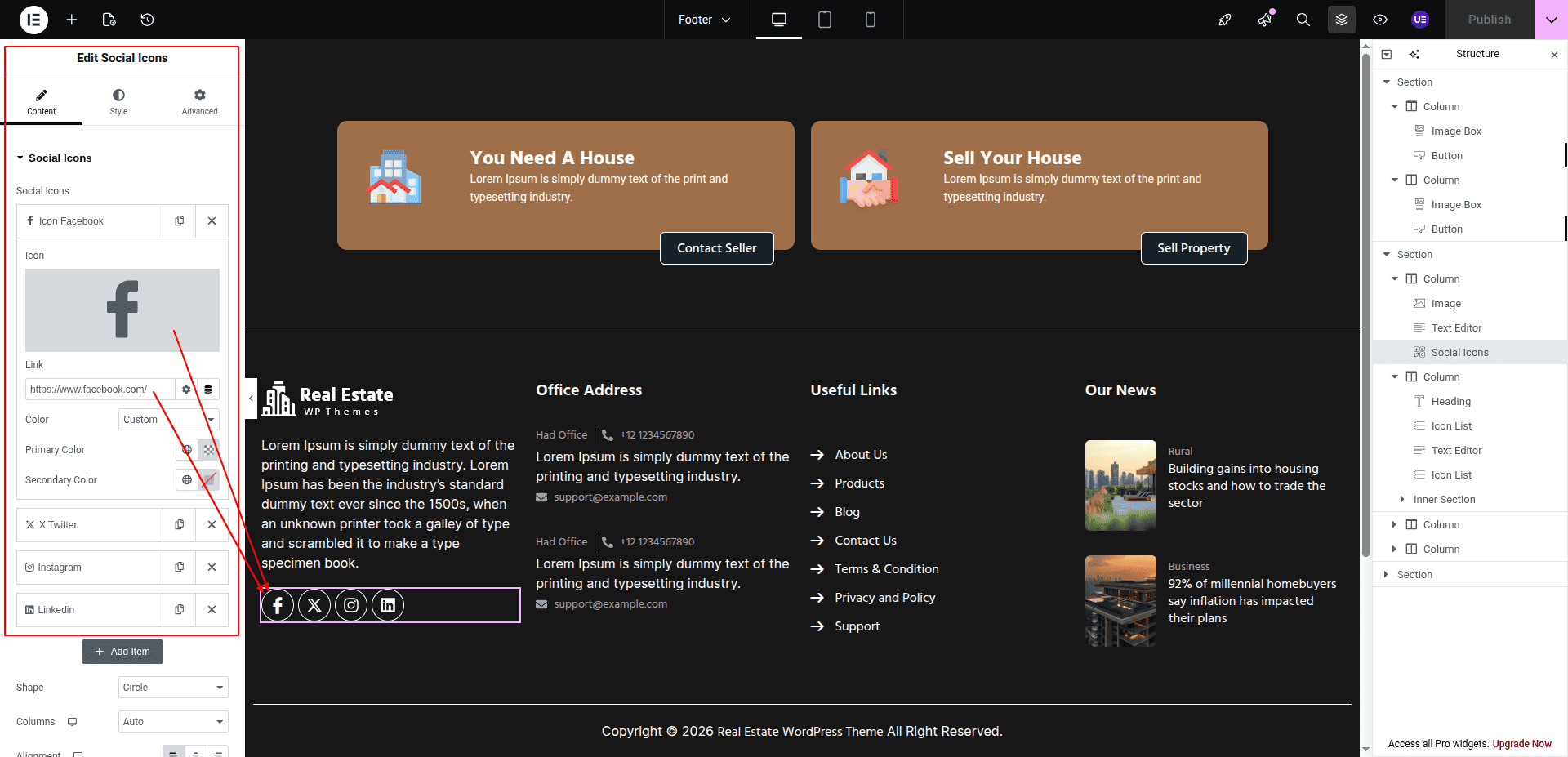
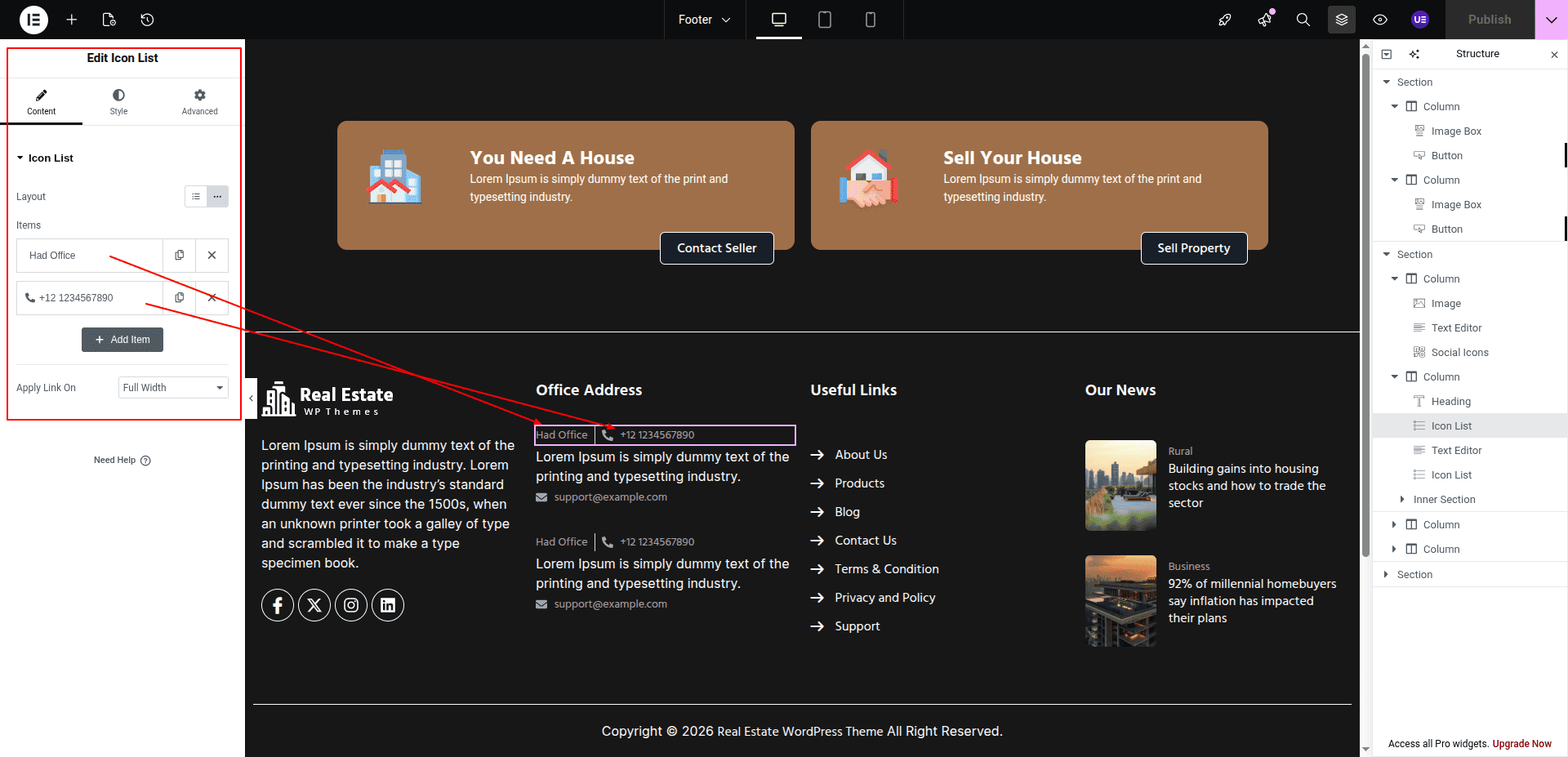
The process of establishing a template is quick.
The installation can be finished via the WordPress interface. As a result,
the process is speedier and more comfortable.
Two methods of implementation are available.
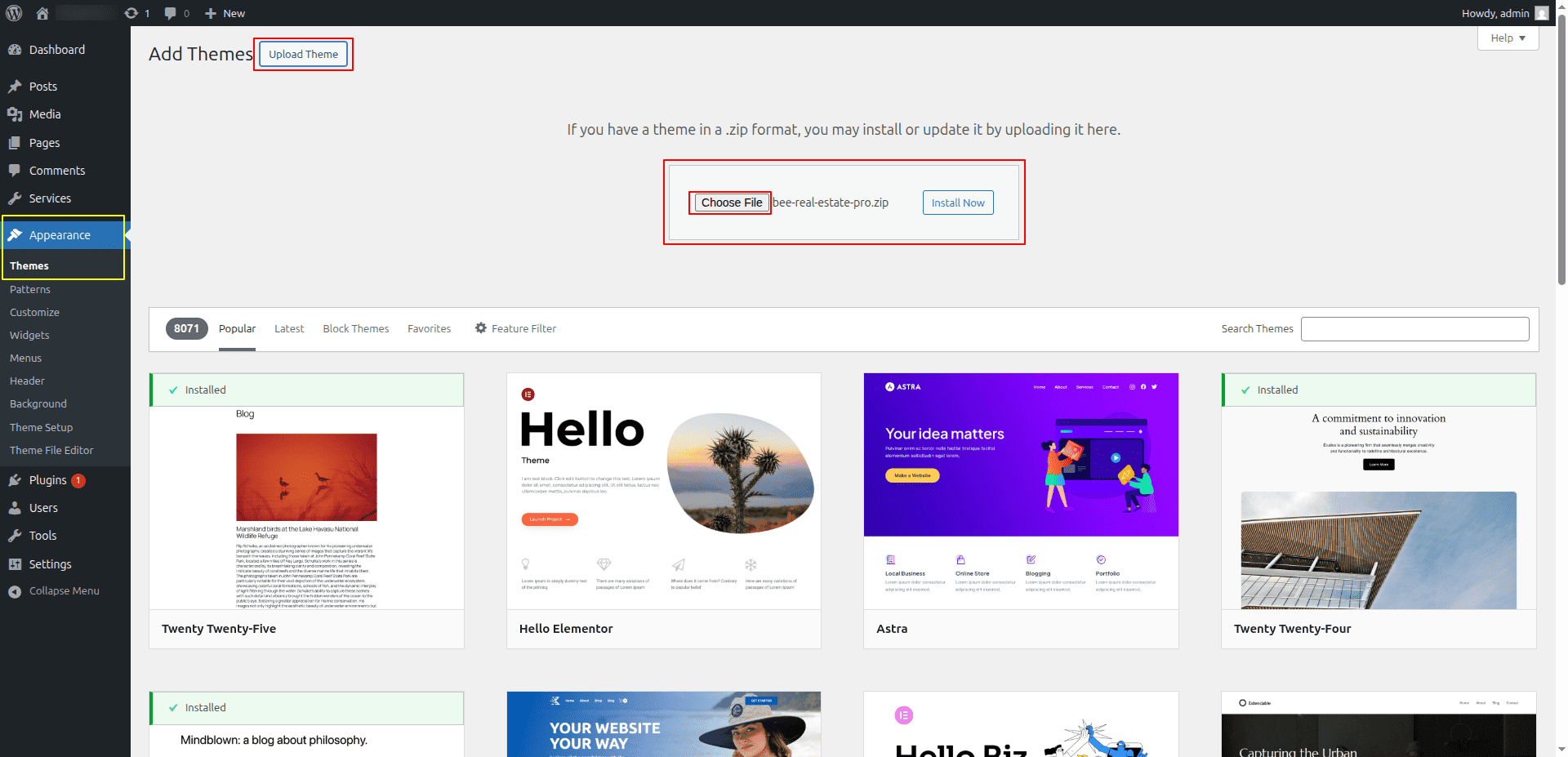
1- Install a theme using the
WP admin.
To begin, navigate to the WP admin area.
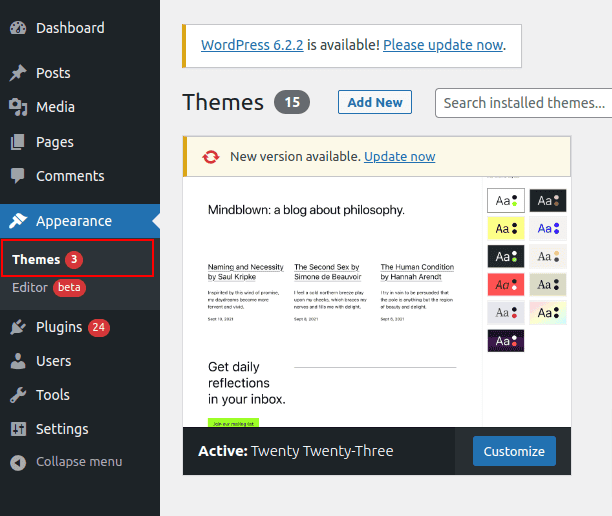
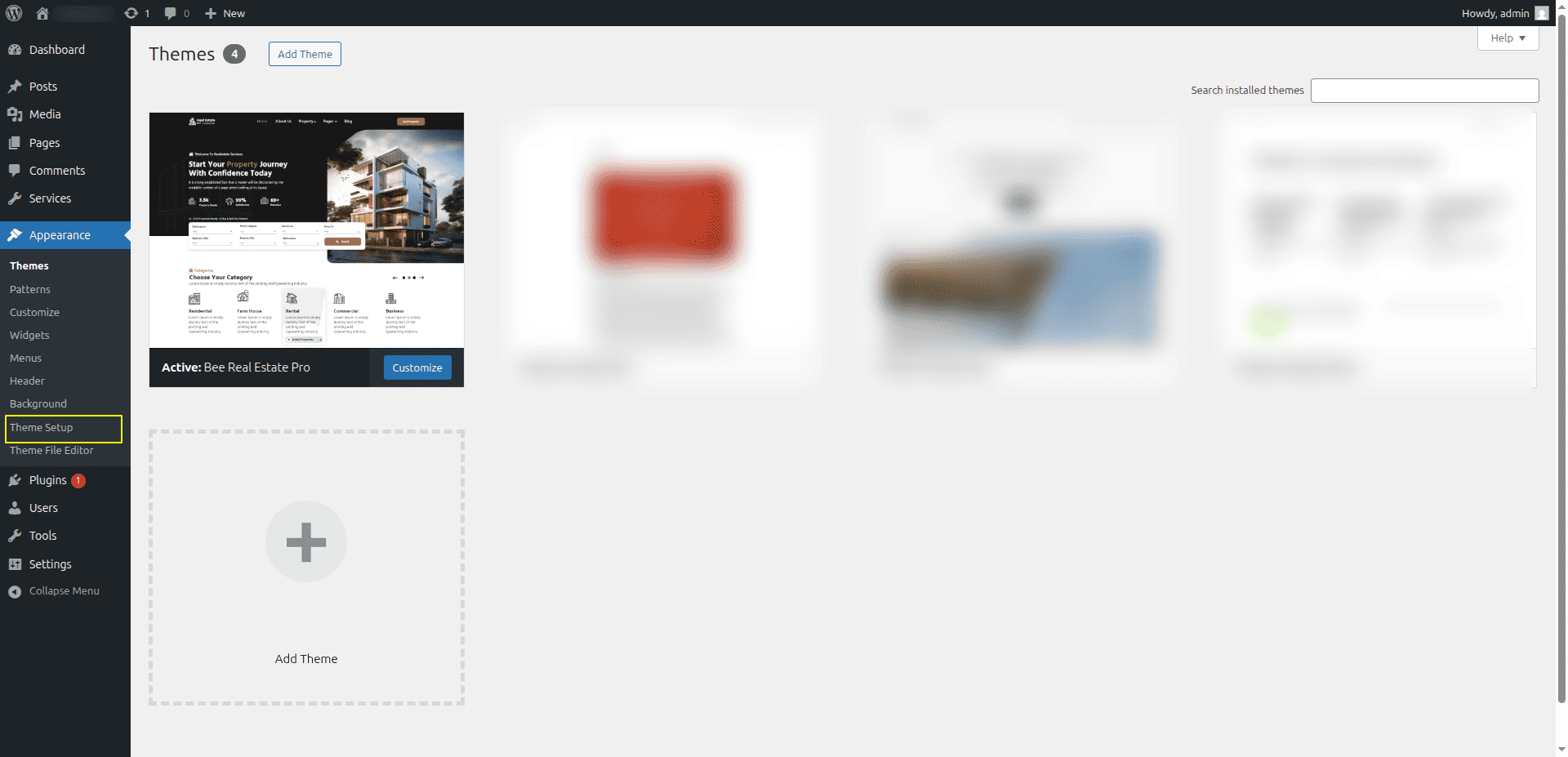
1. Start by selecting Appearance >> Than Tab
Themes
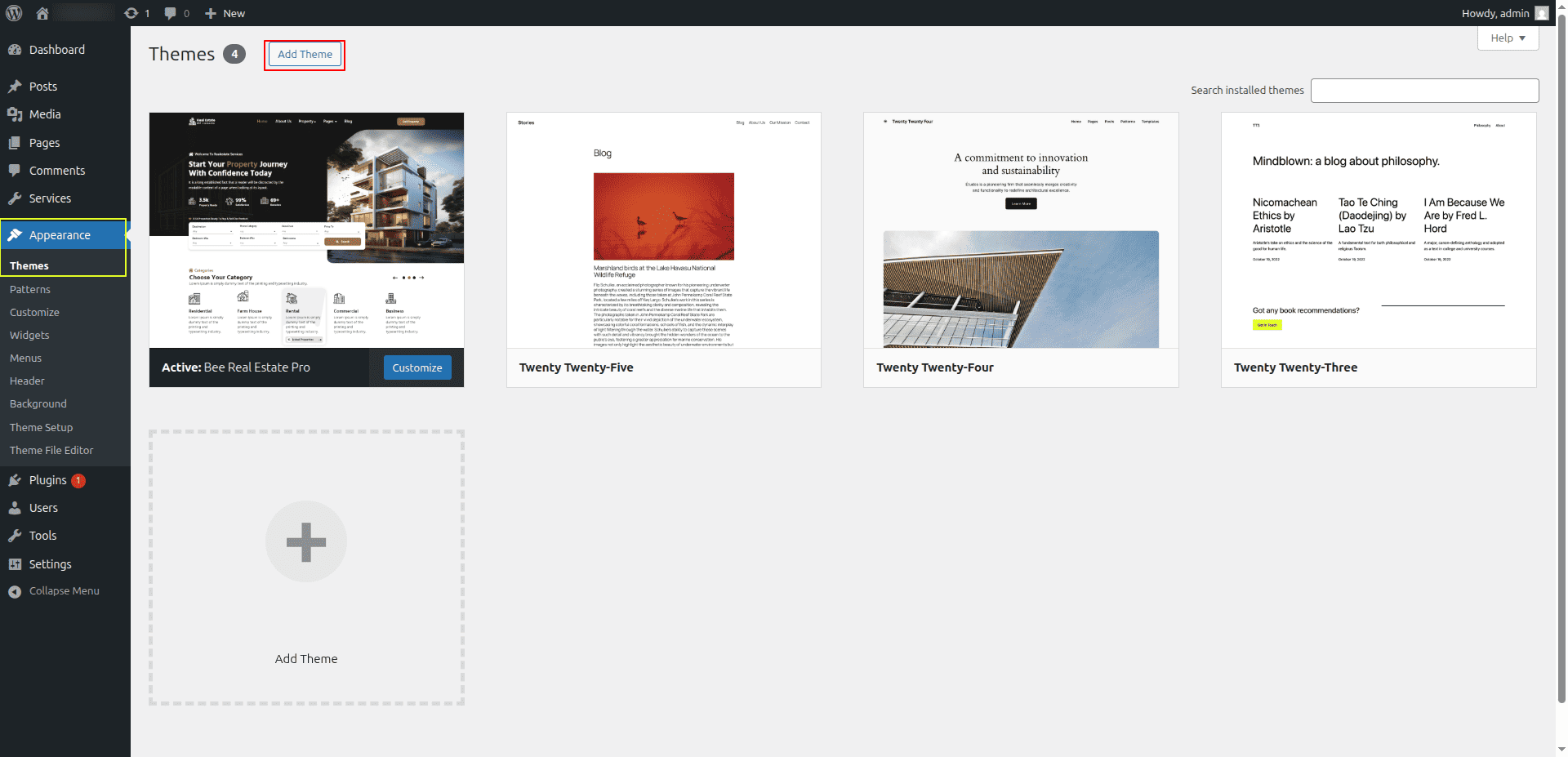
2. On the themes page, click the Add New button..
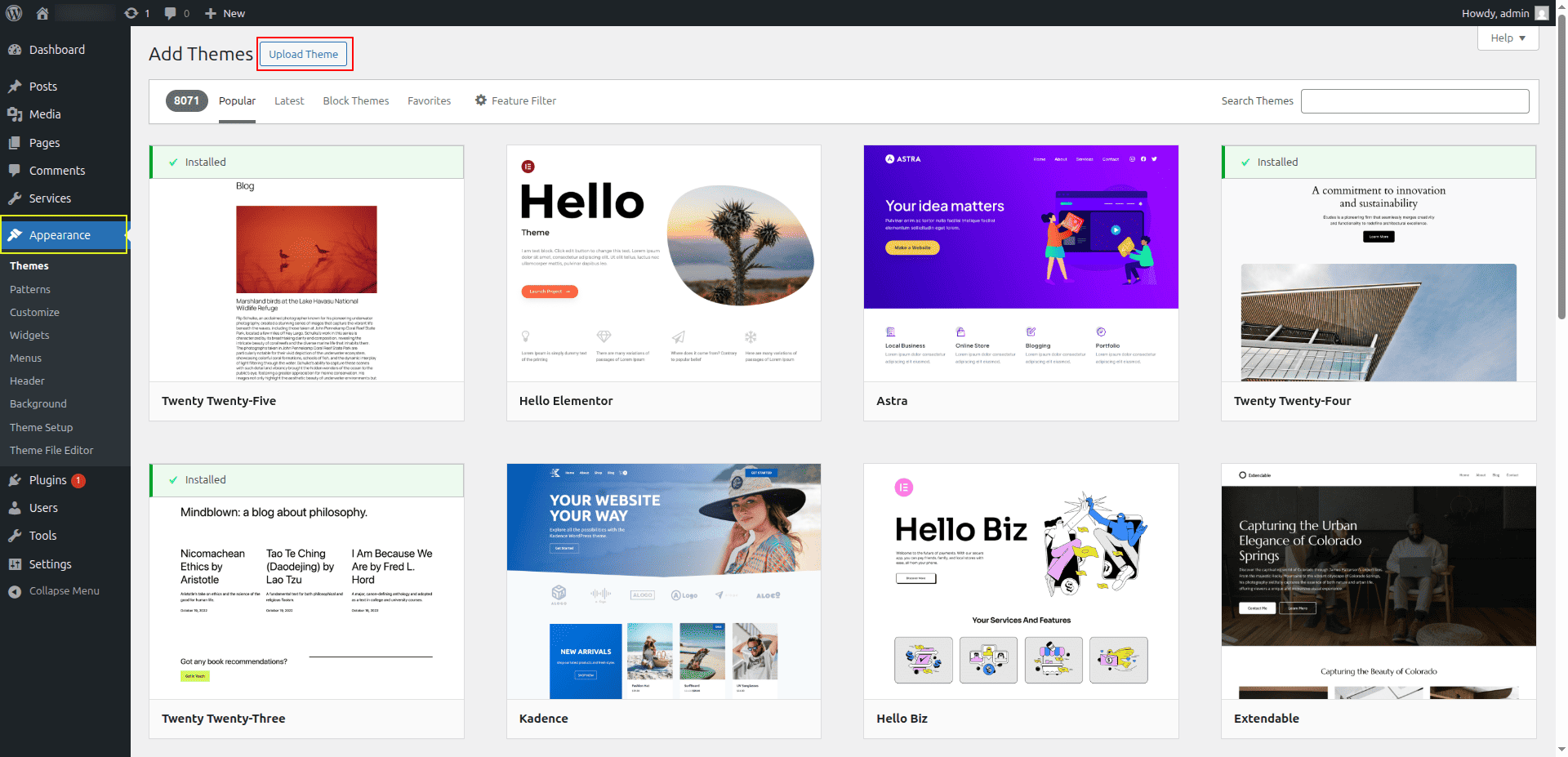
3.To add the theme, click the upload button..
4. After choosing your bee-real-estate-pro zip file, click Browse and then
choose Install right away..
The Utilization Regarding A Theme
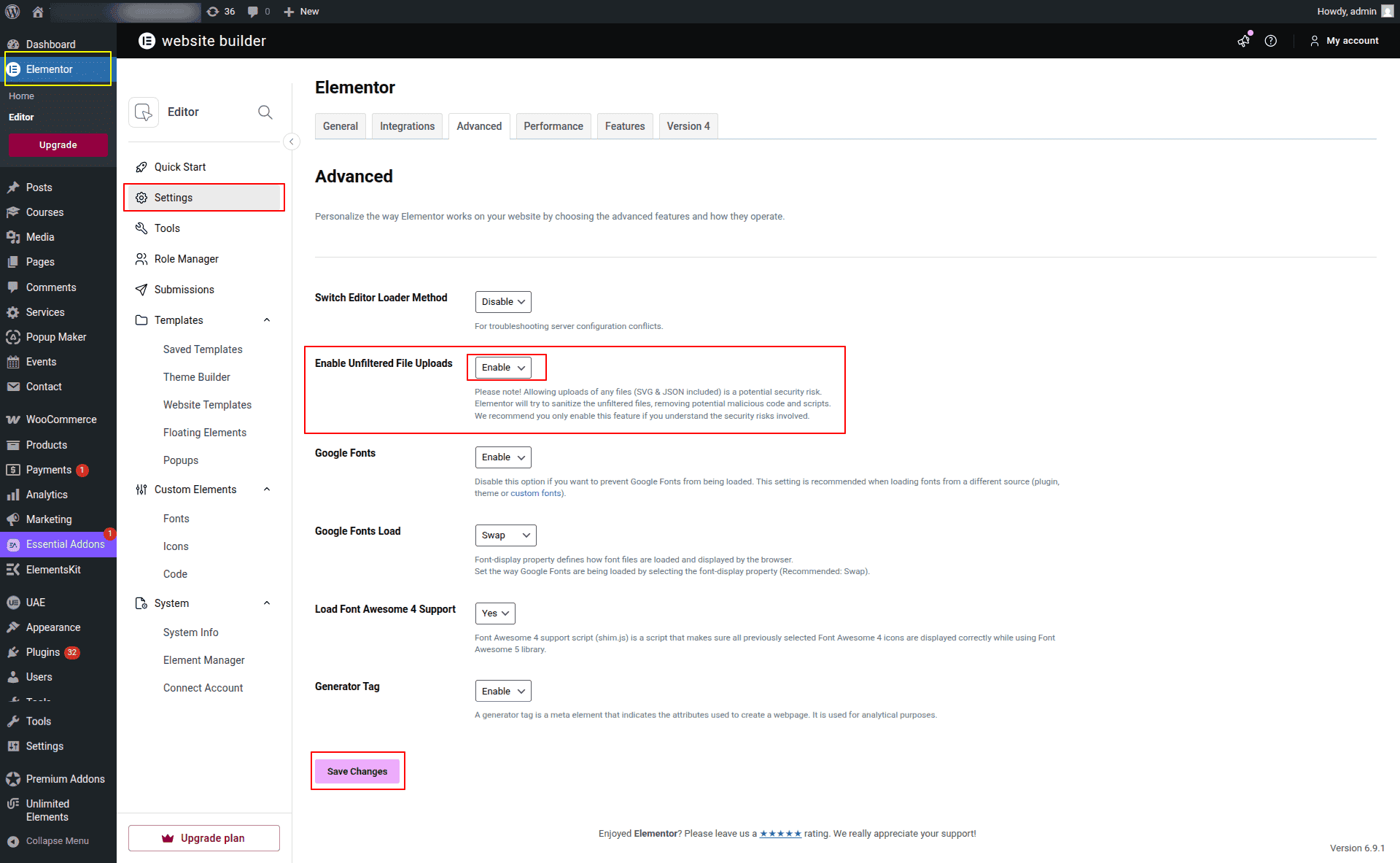
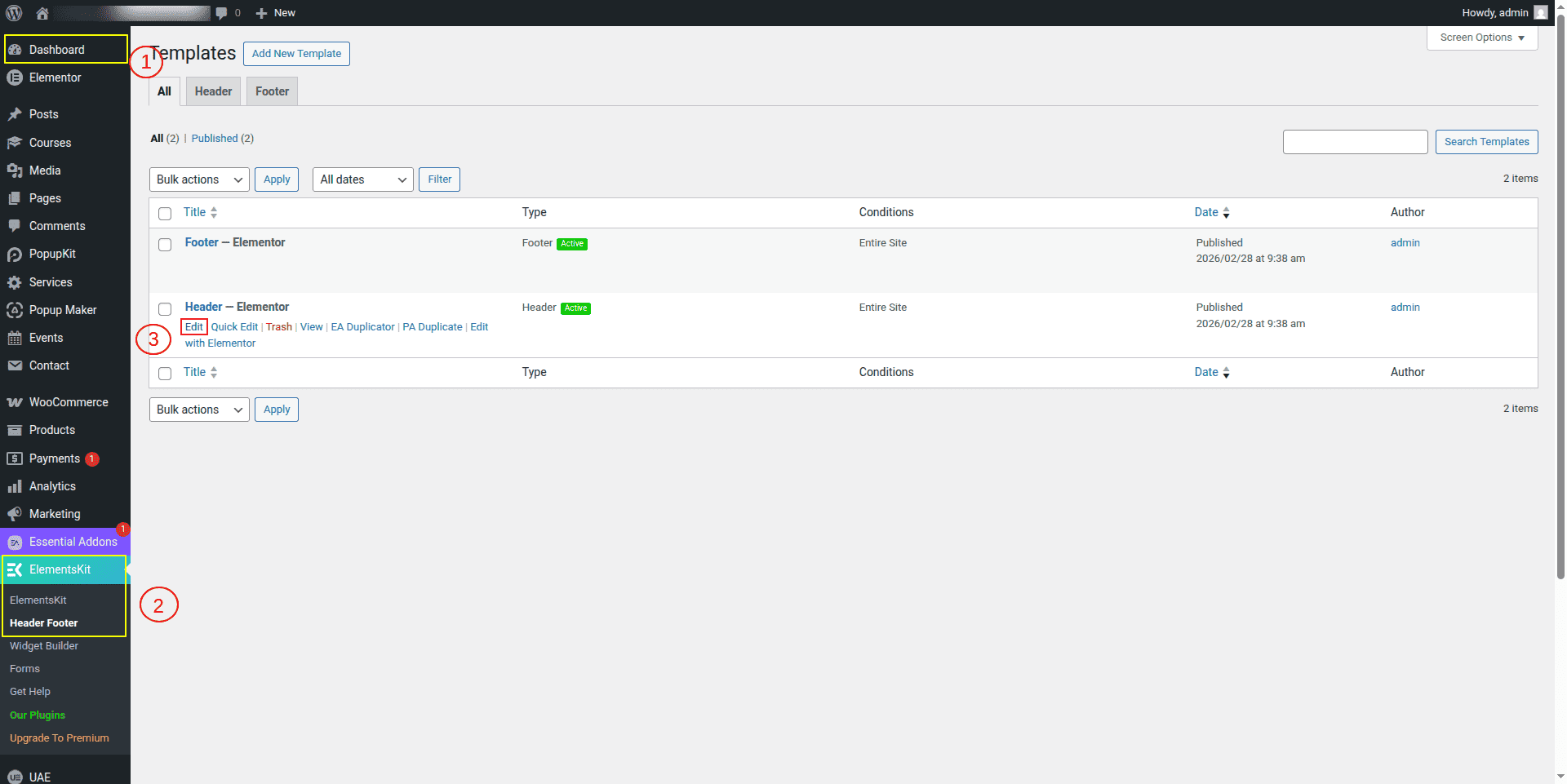
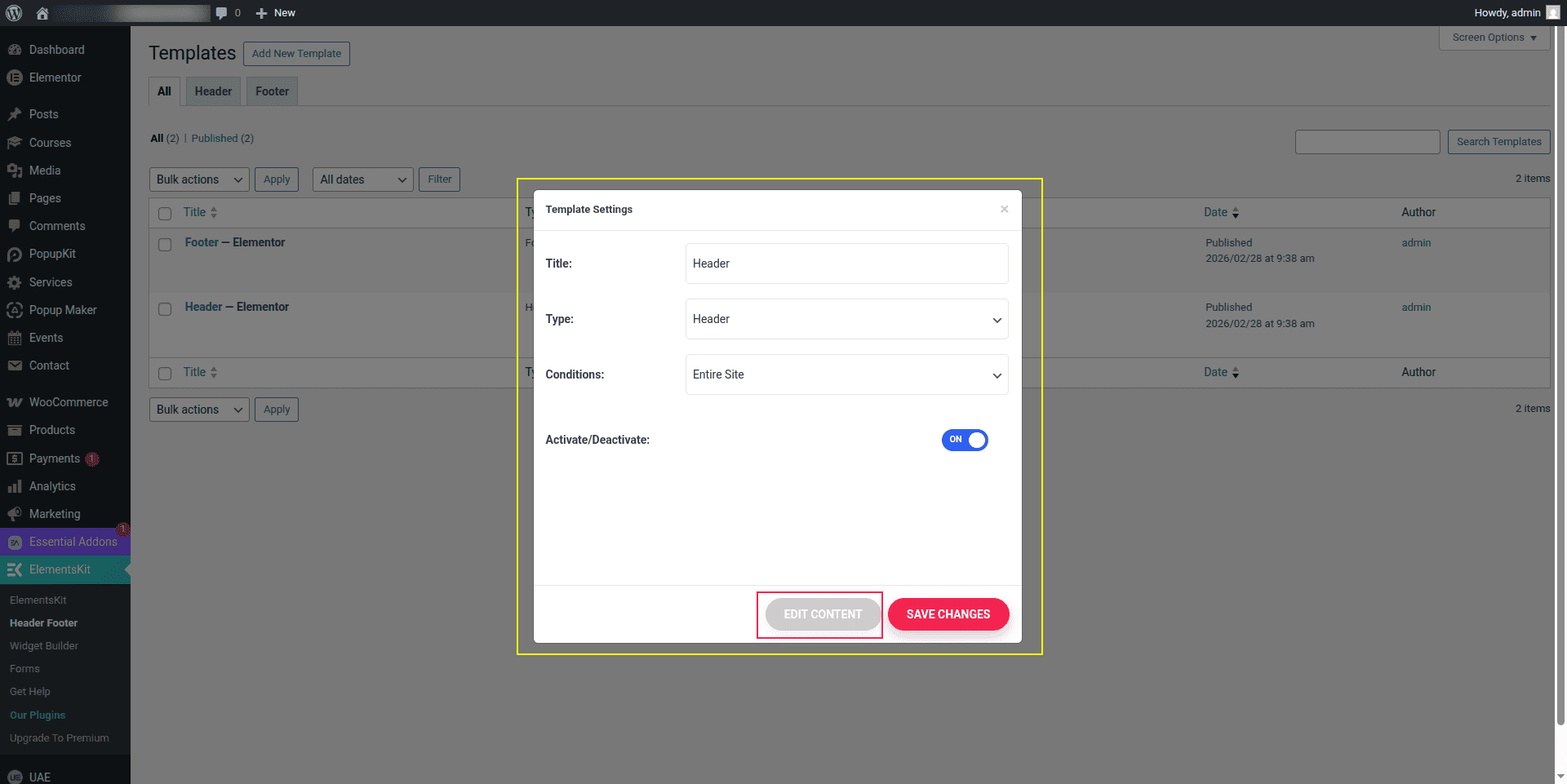
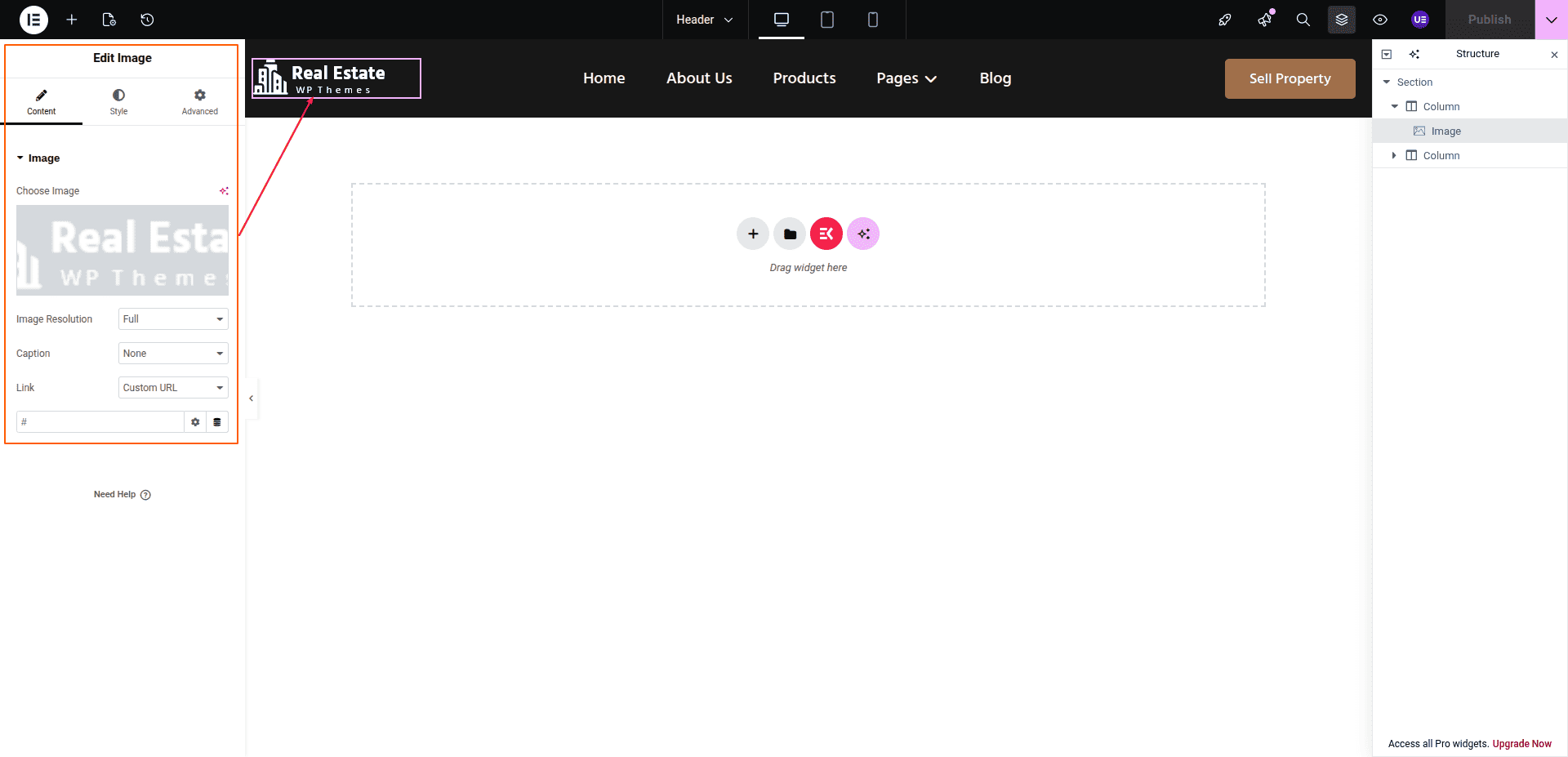
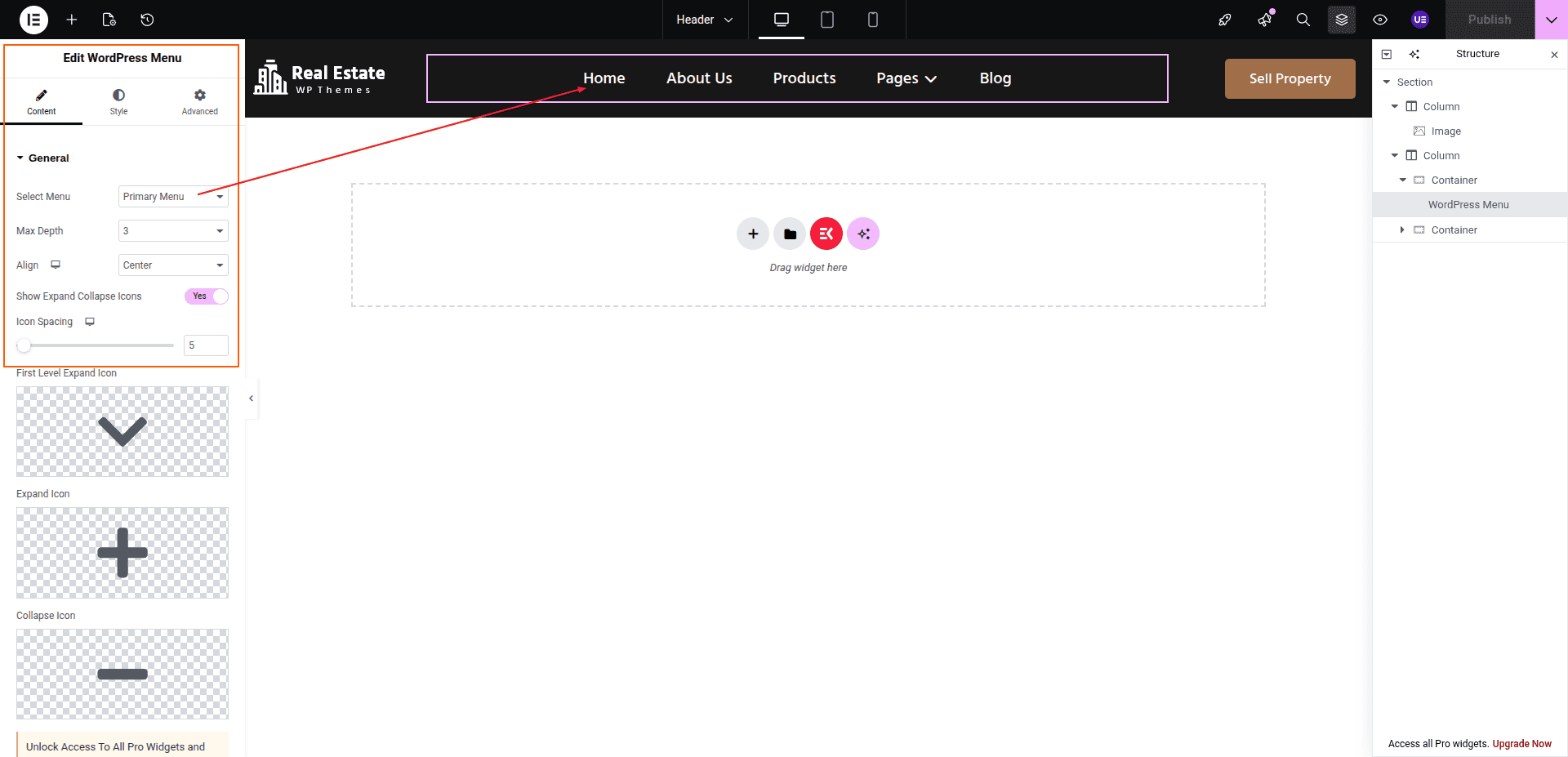
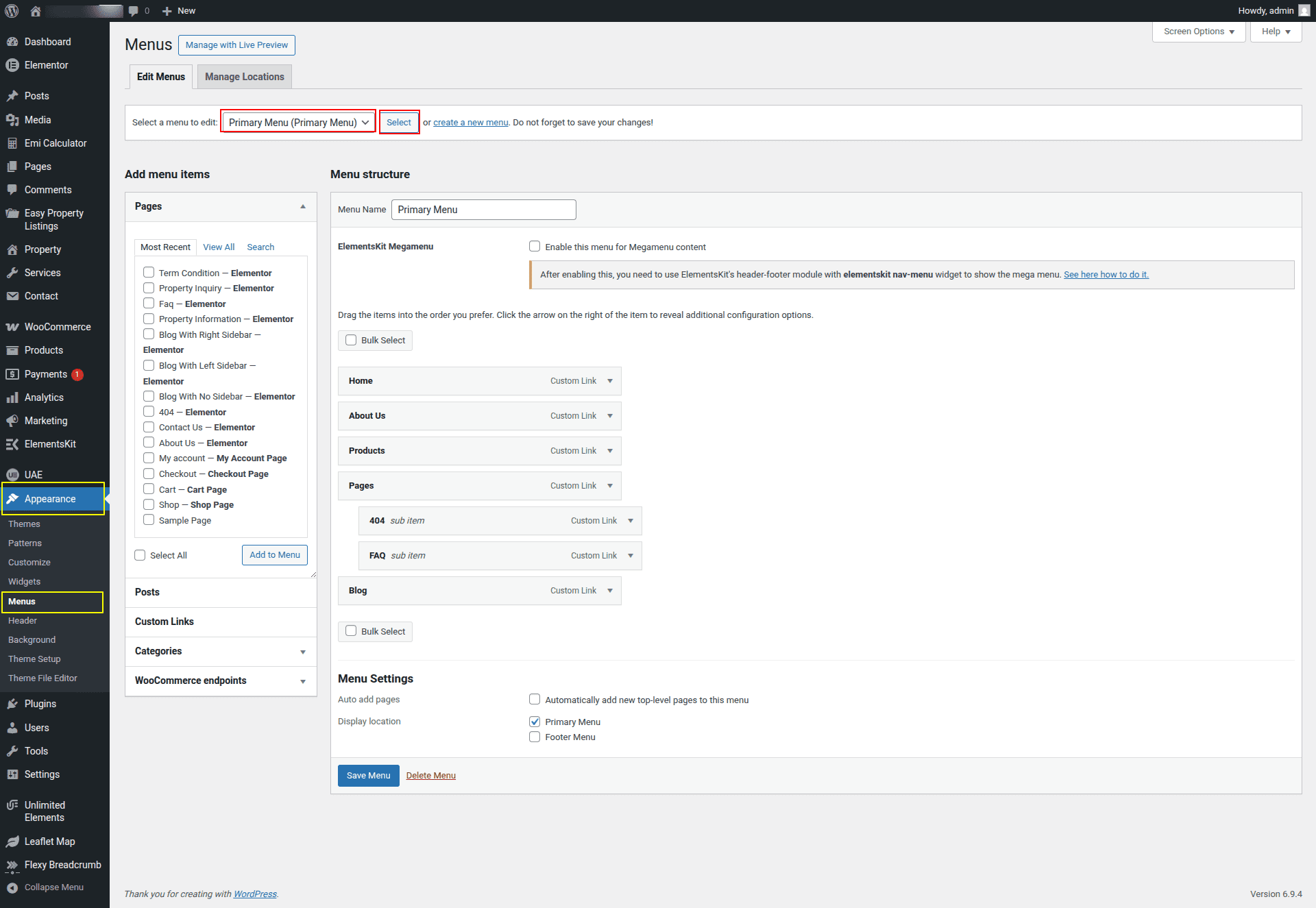
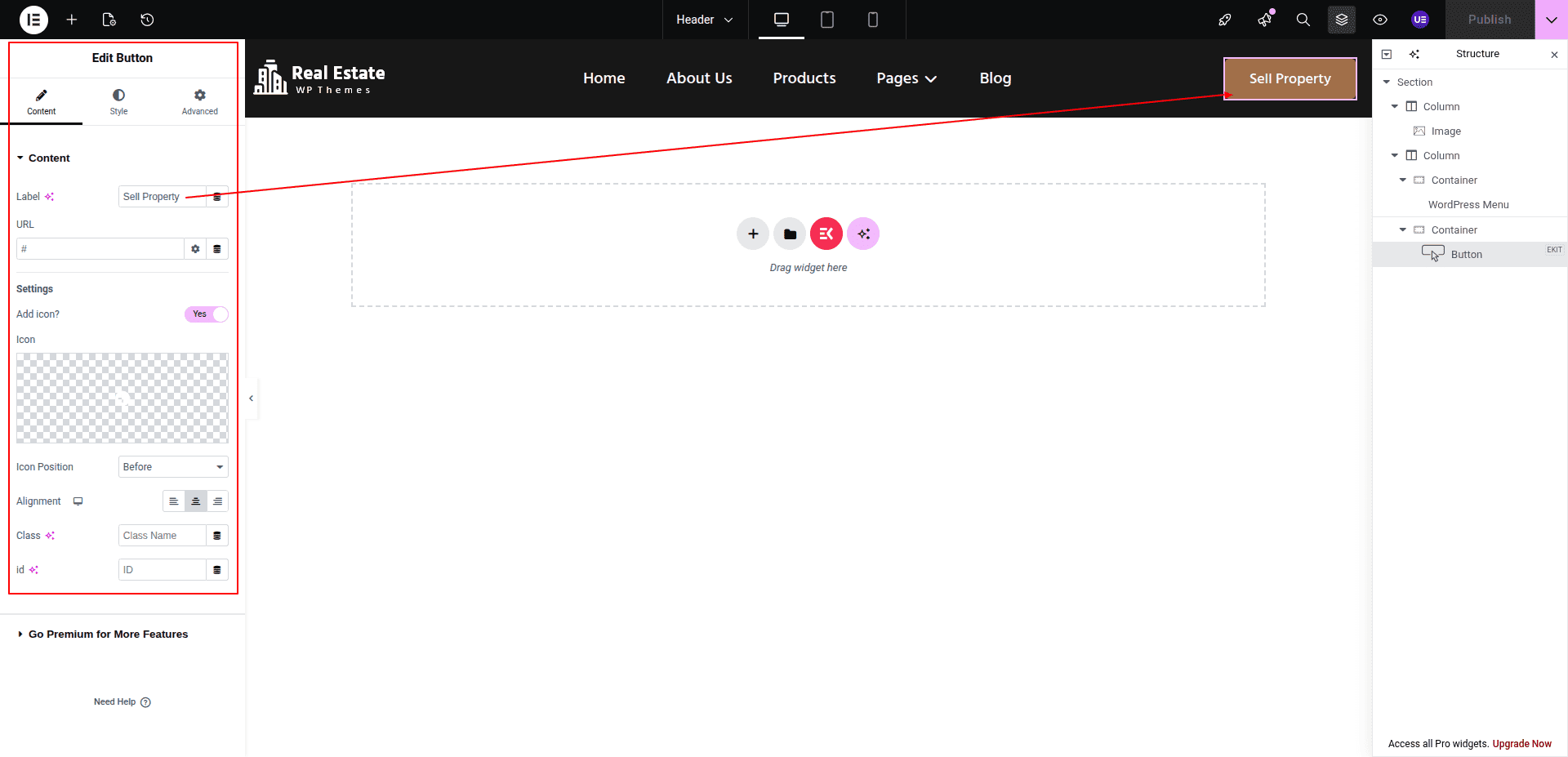
This represents how a header can be added and set up.
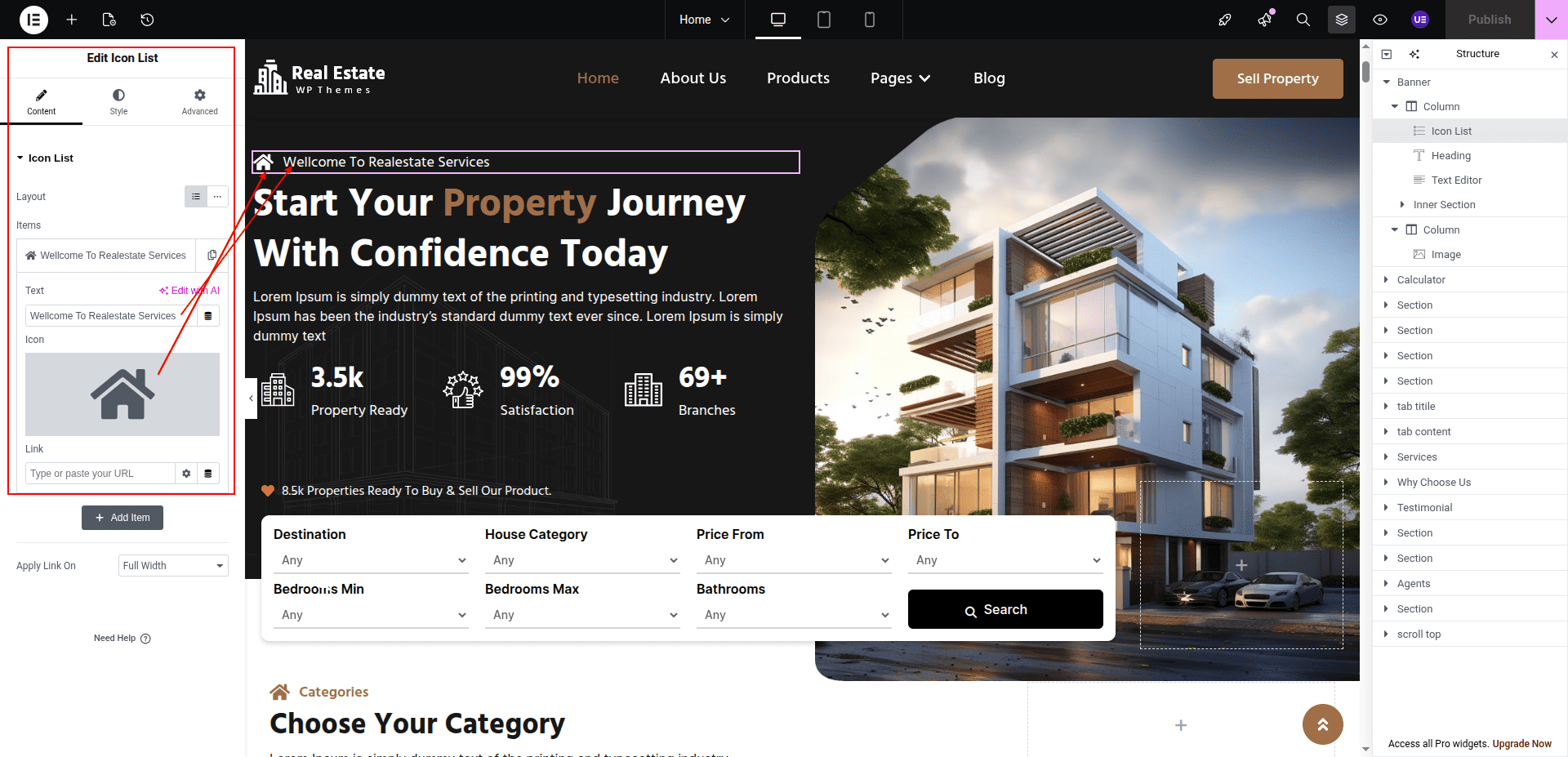
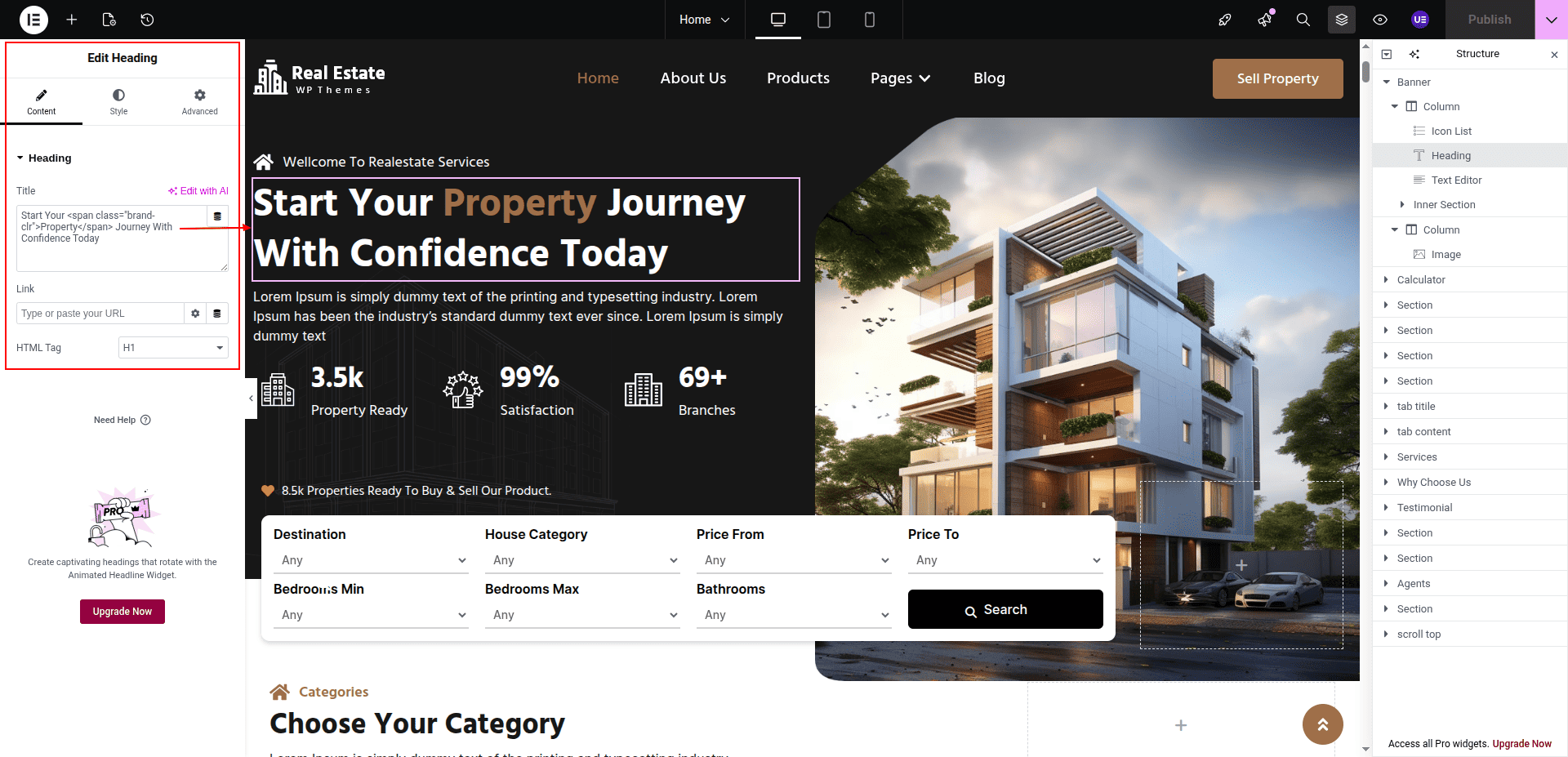
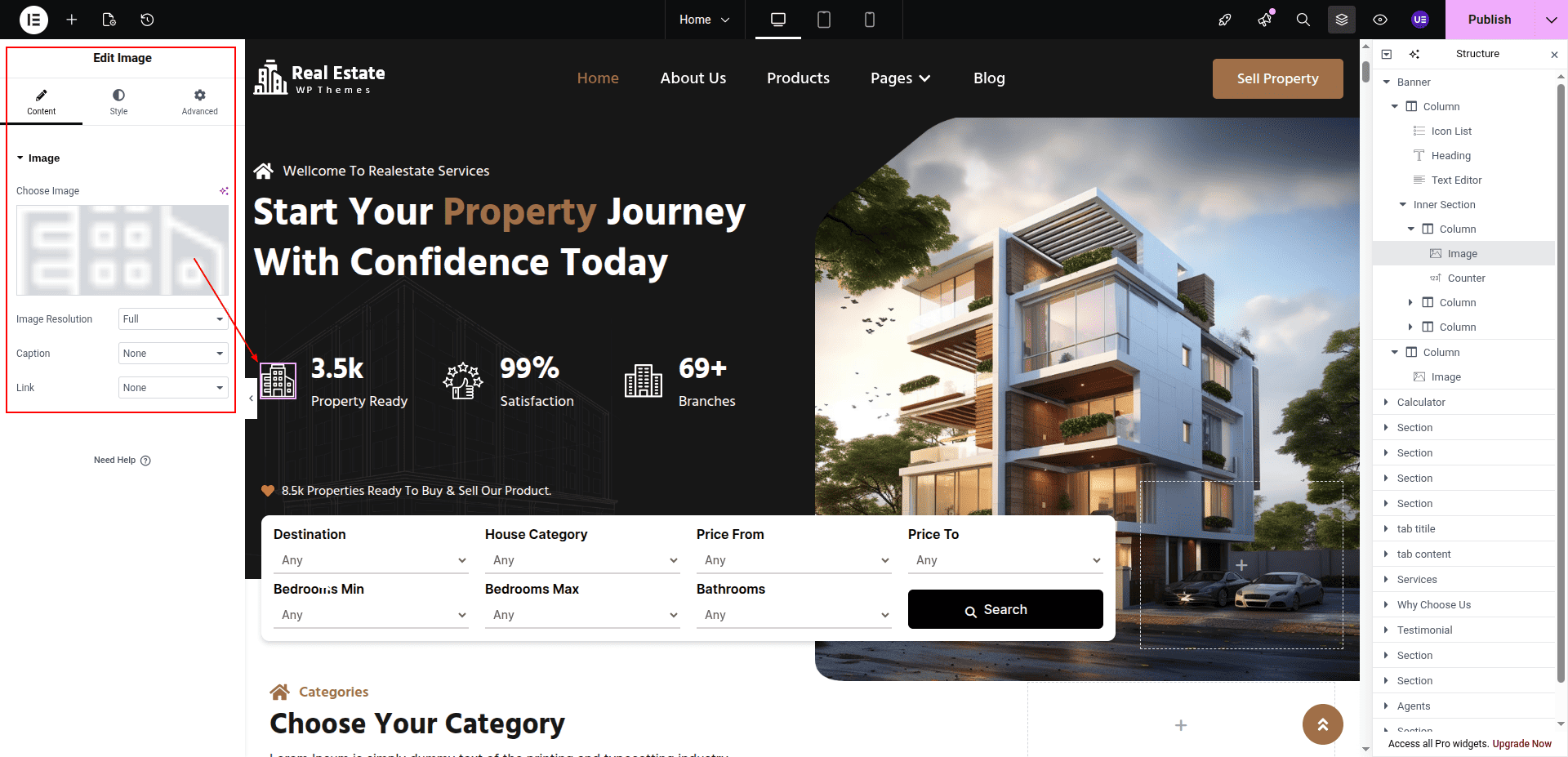
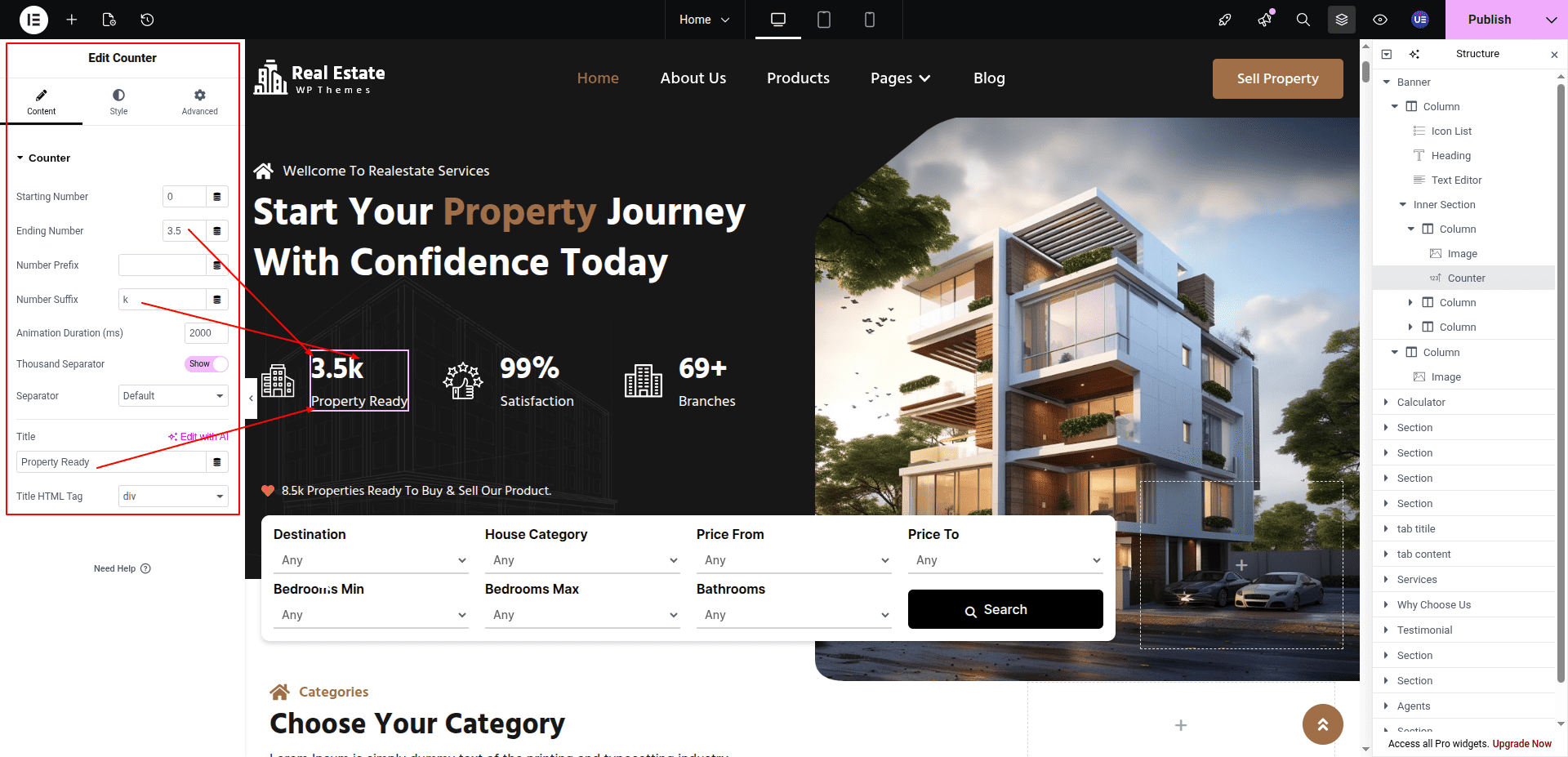
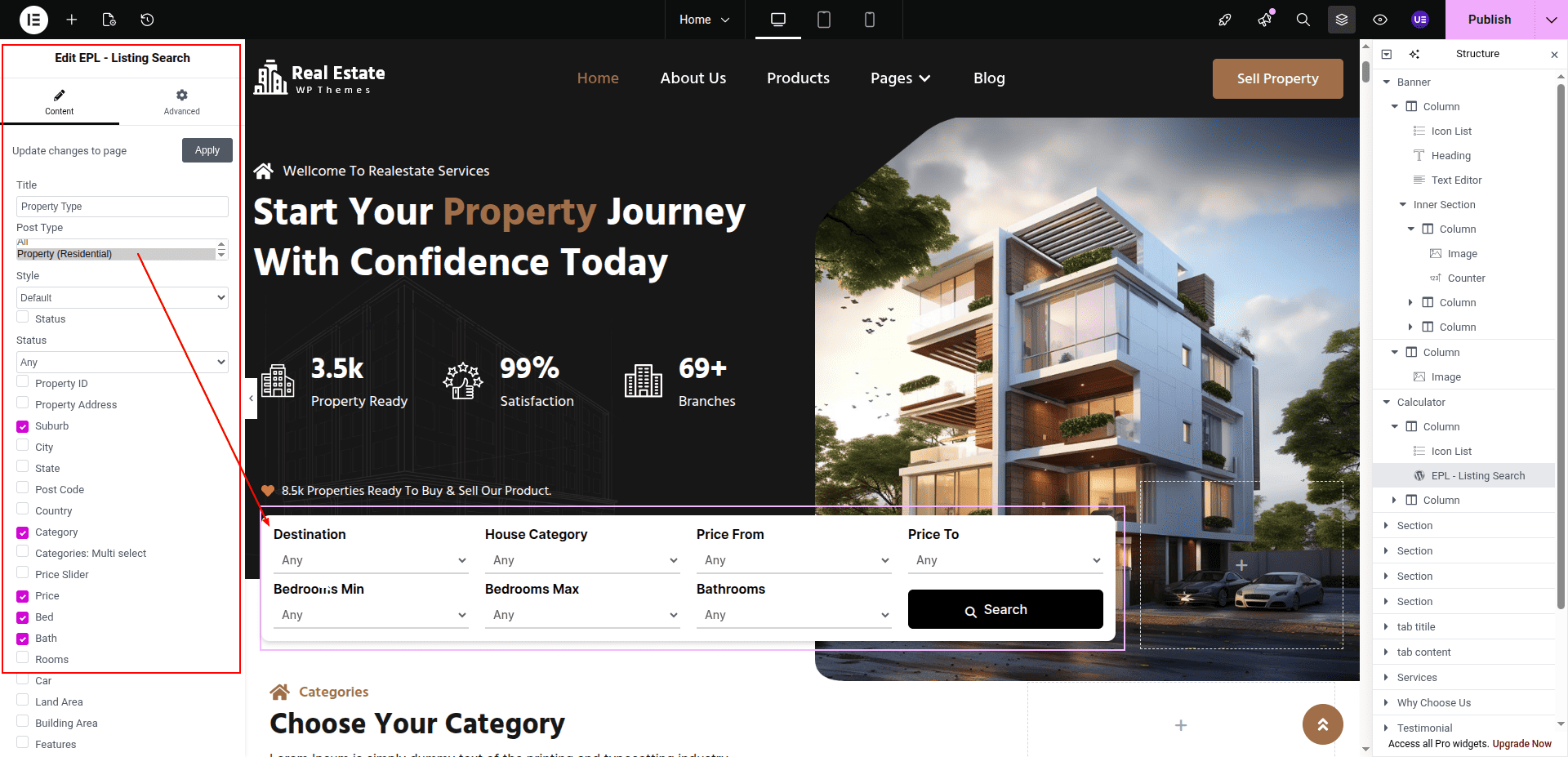
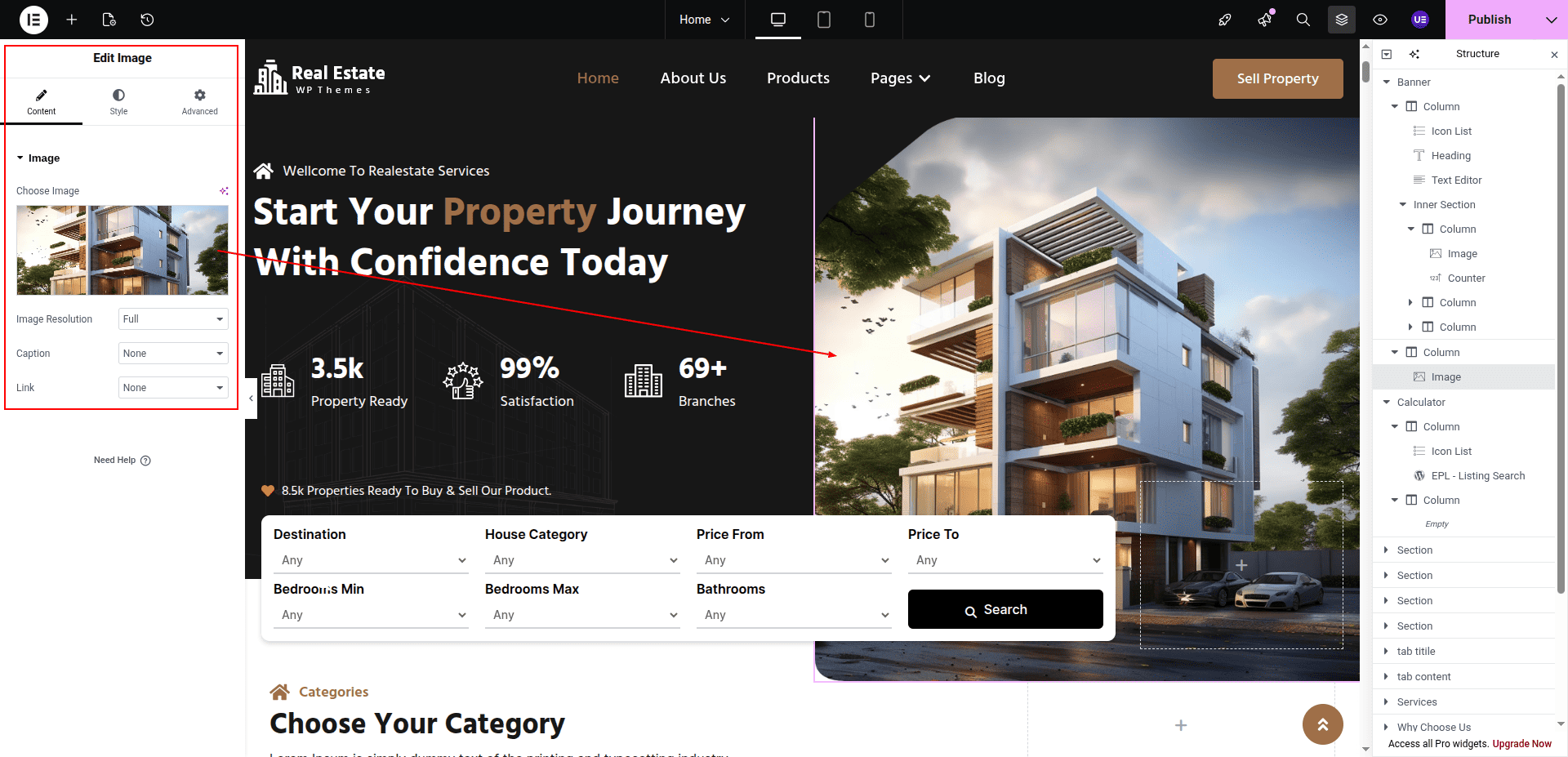
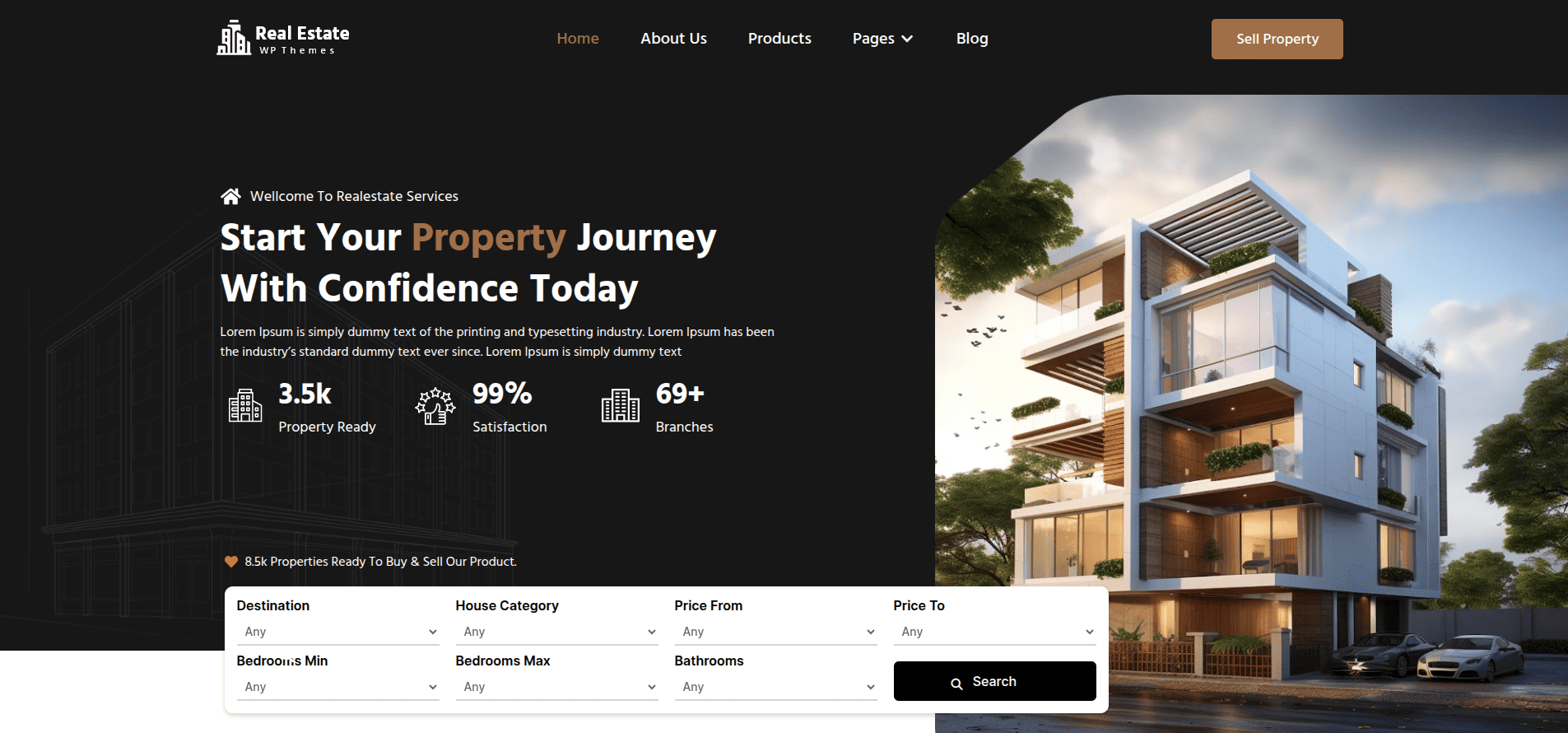
Here you can edit the top Banner section
This represents how a top banner section can be added and set up.
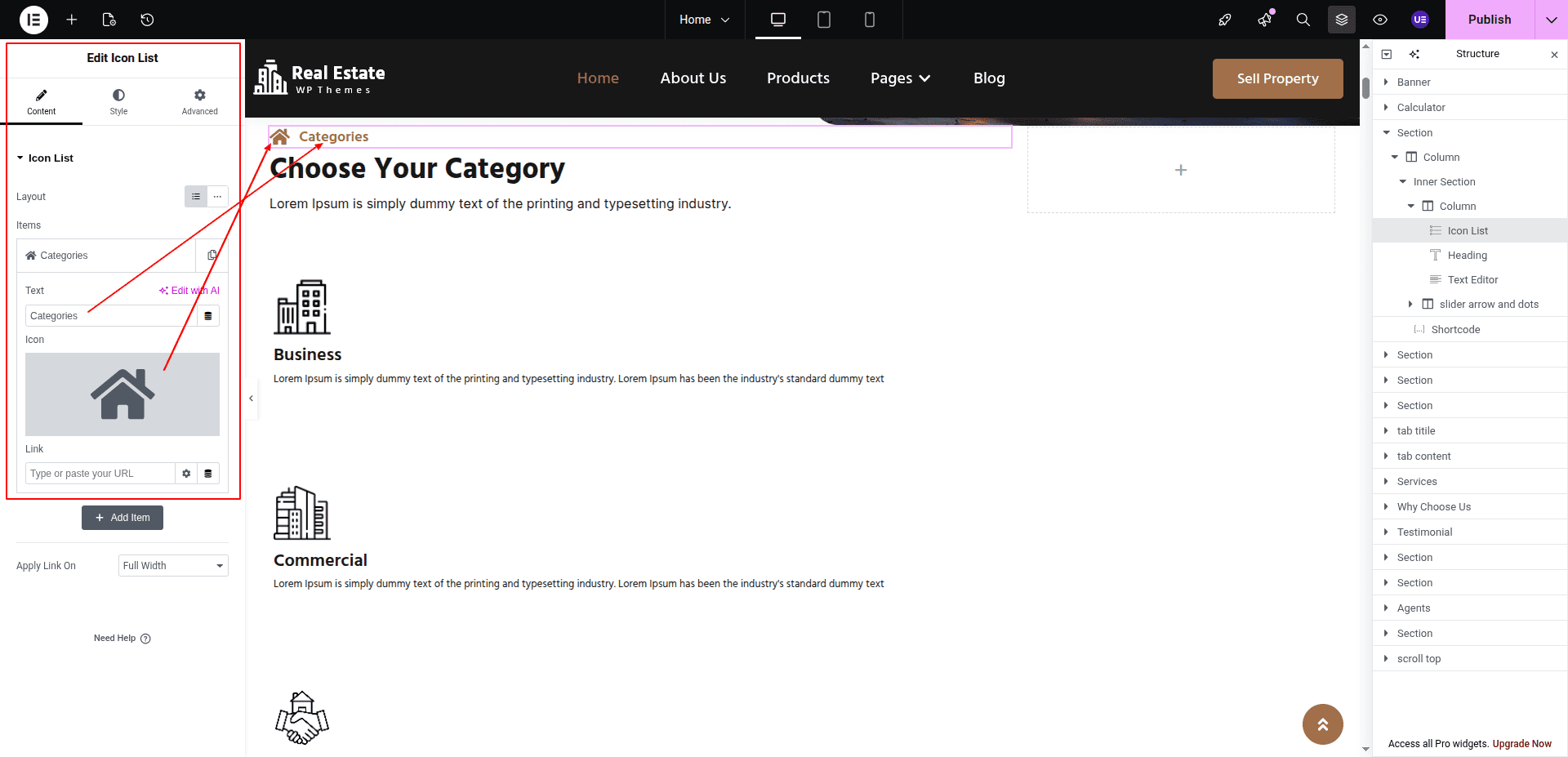
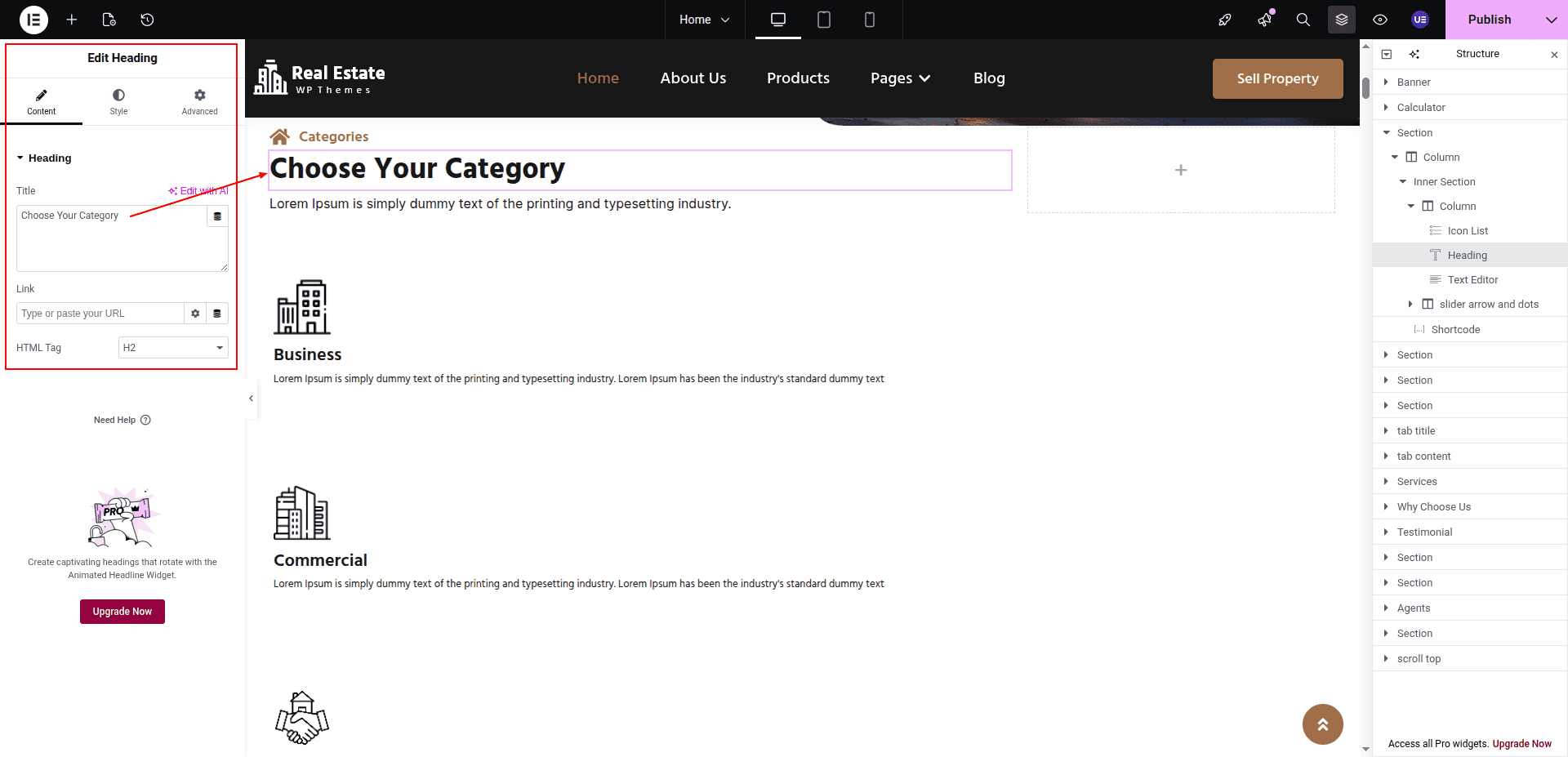
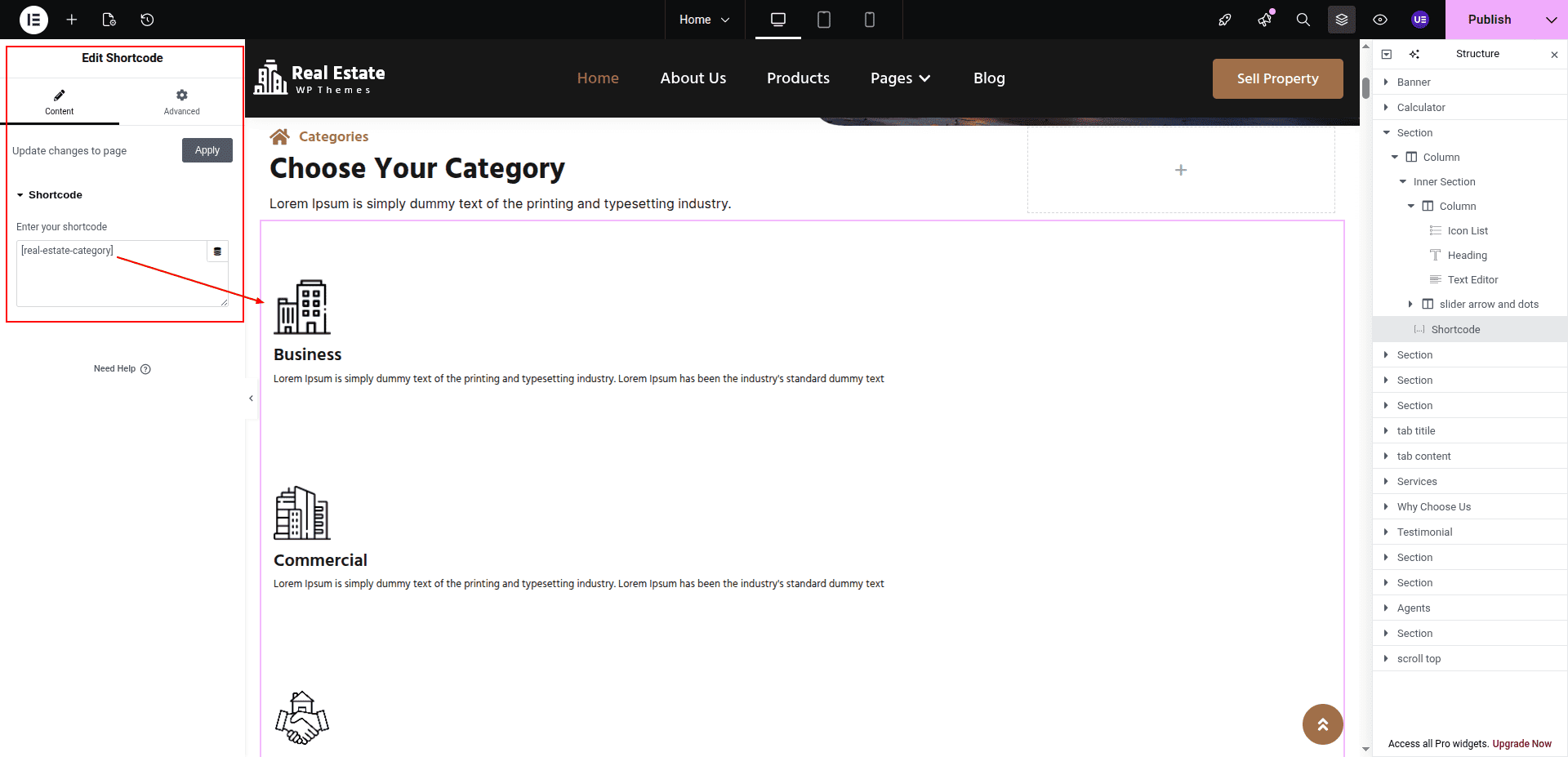
To configure the Property Category section
Set up the property Category section according to the instructions below.
To Edit this Section, Click On the "Edit With Elementor" Button which will open the Elementor Widget editor.
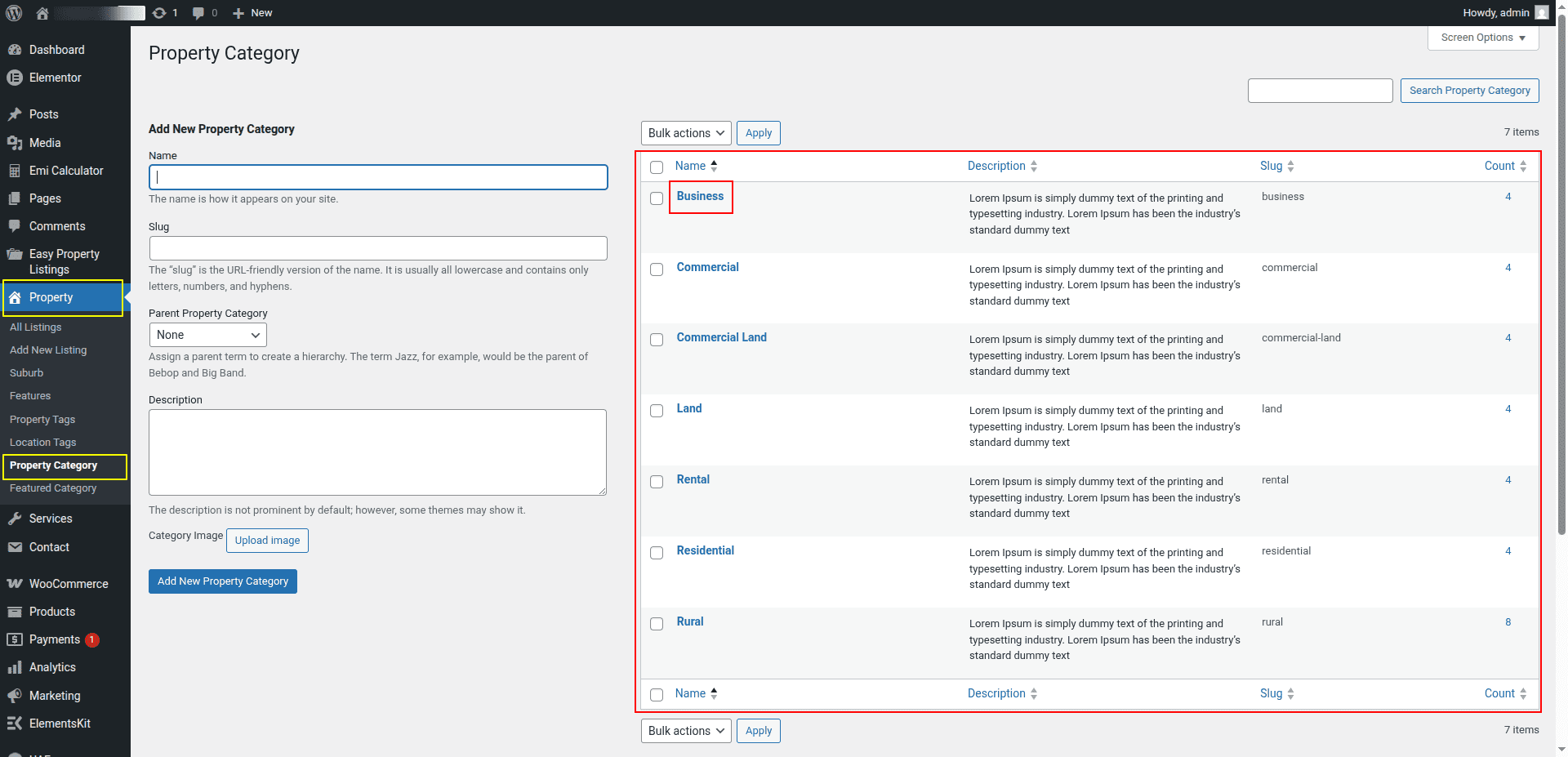
Property Category shown in this section come directly from the dashboard.
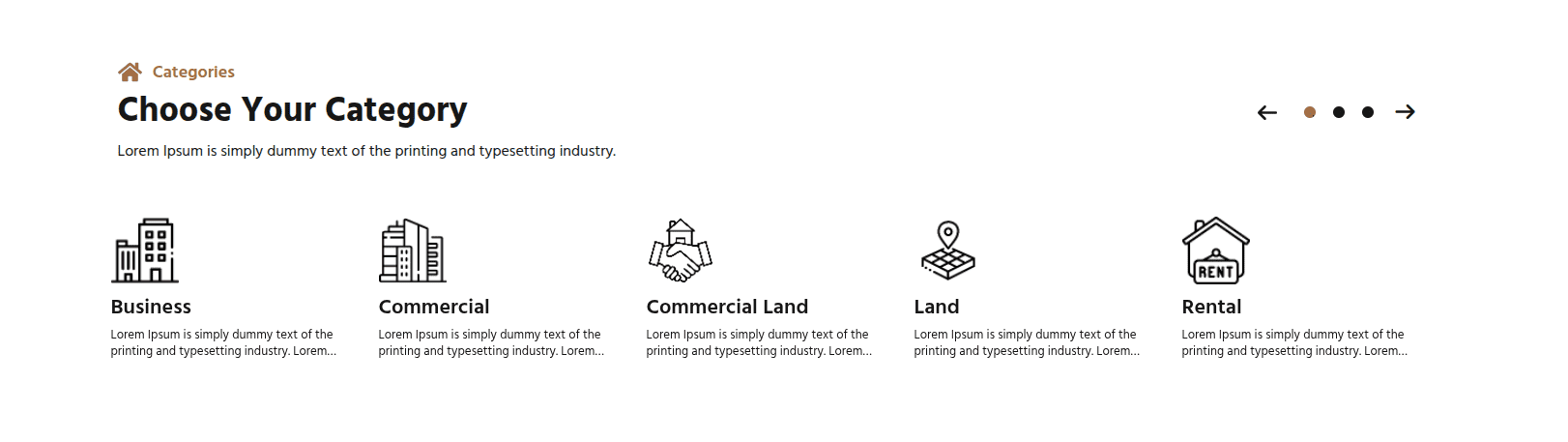
This represents how a property category section can be added and set up.
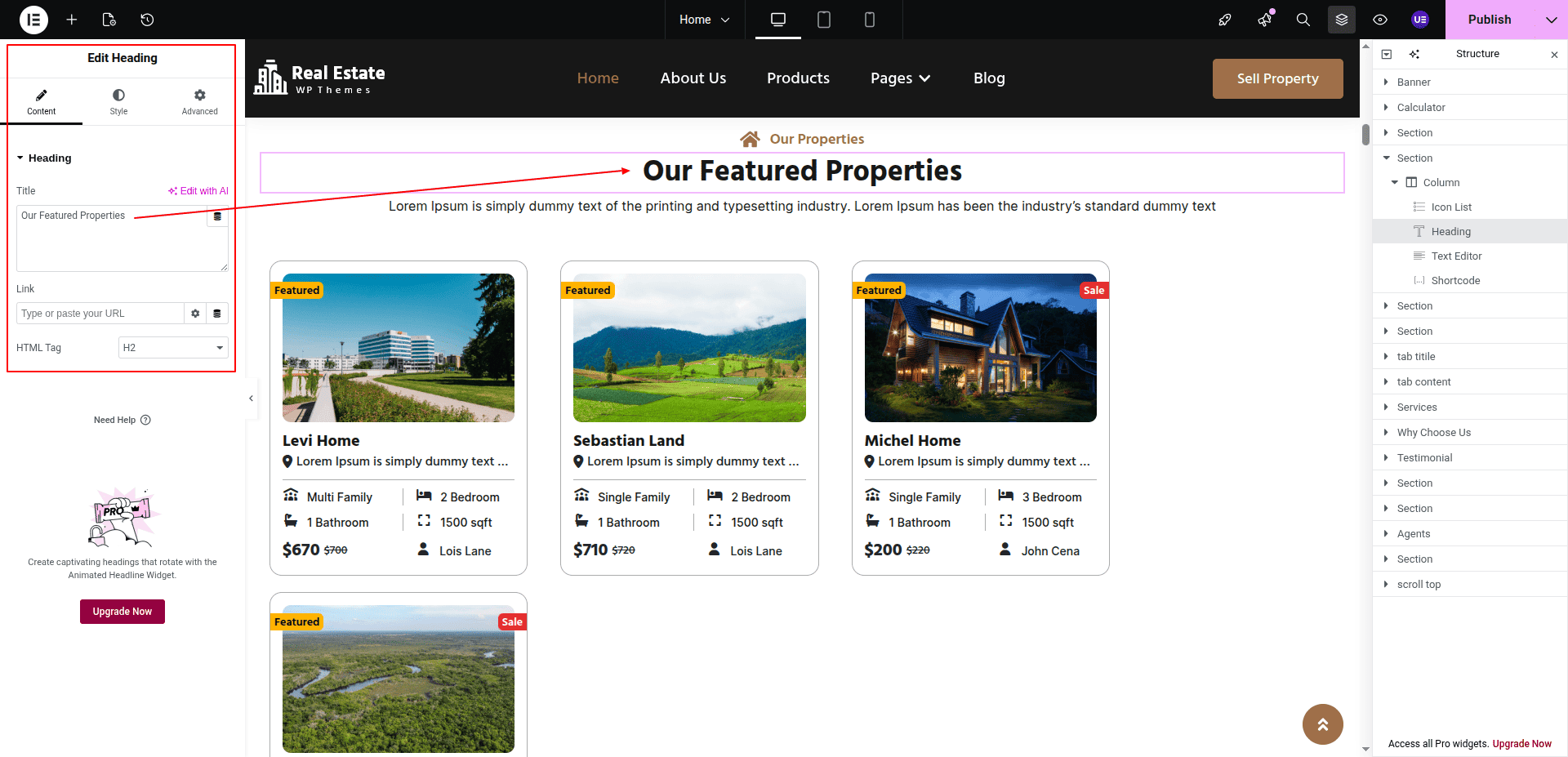
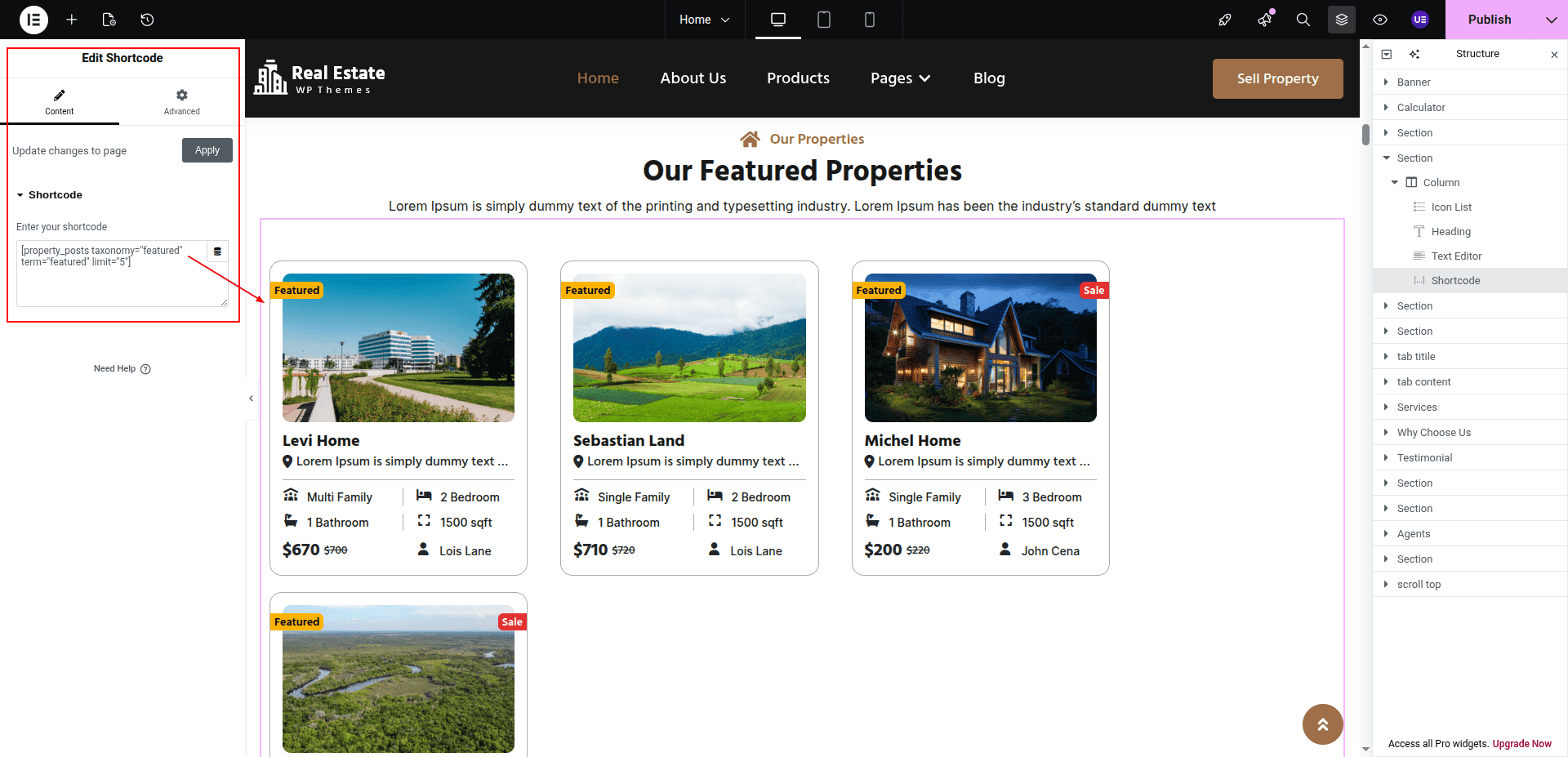
To configure the Our Featured Properties section
Set up the Featured Properties Section according to the instructions below.
To Edit this Section, Click On the "Edit With Elementor" Button which will open the Elementor Widget editor.
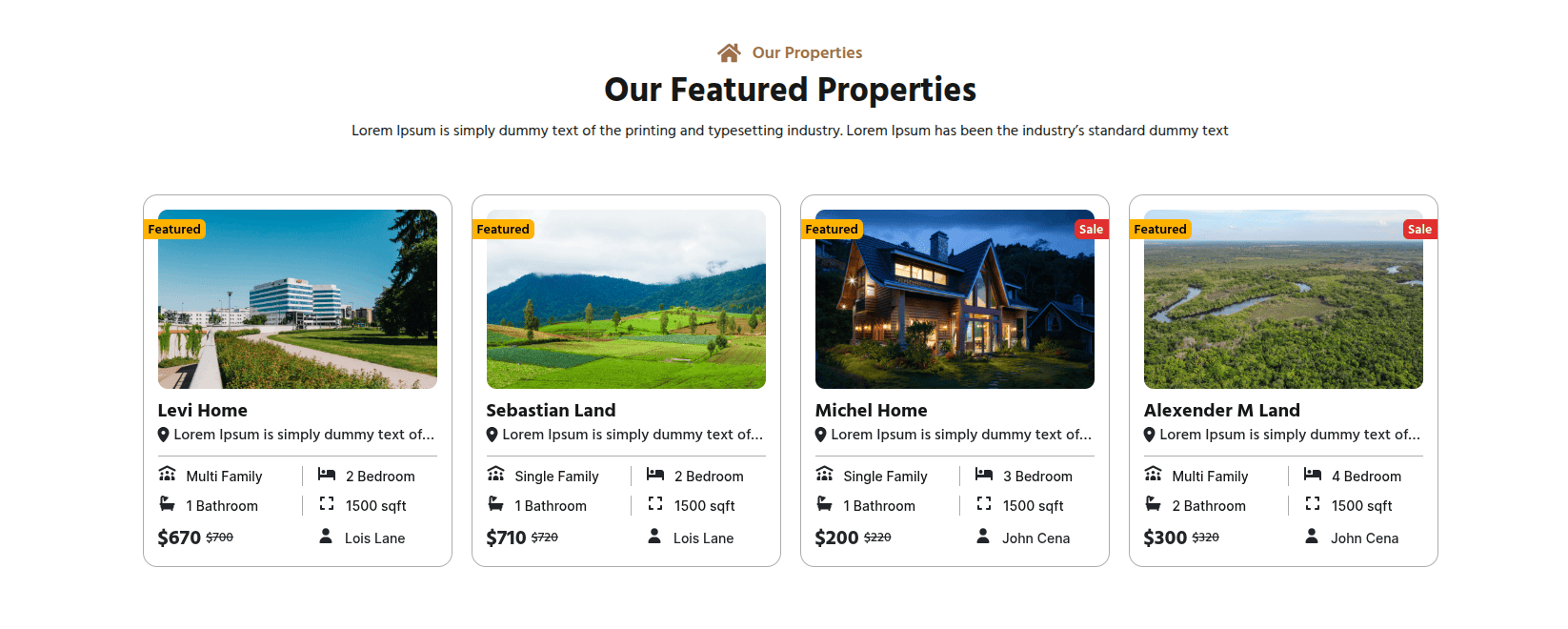
This represents how a Featured Properties section can be added and set up.
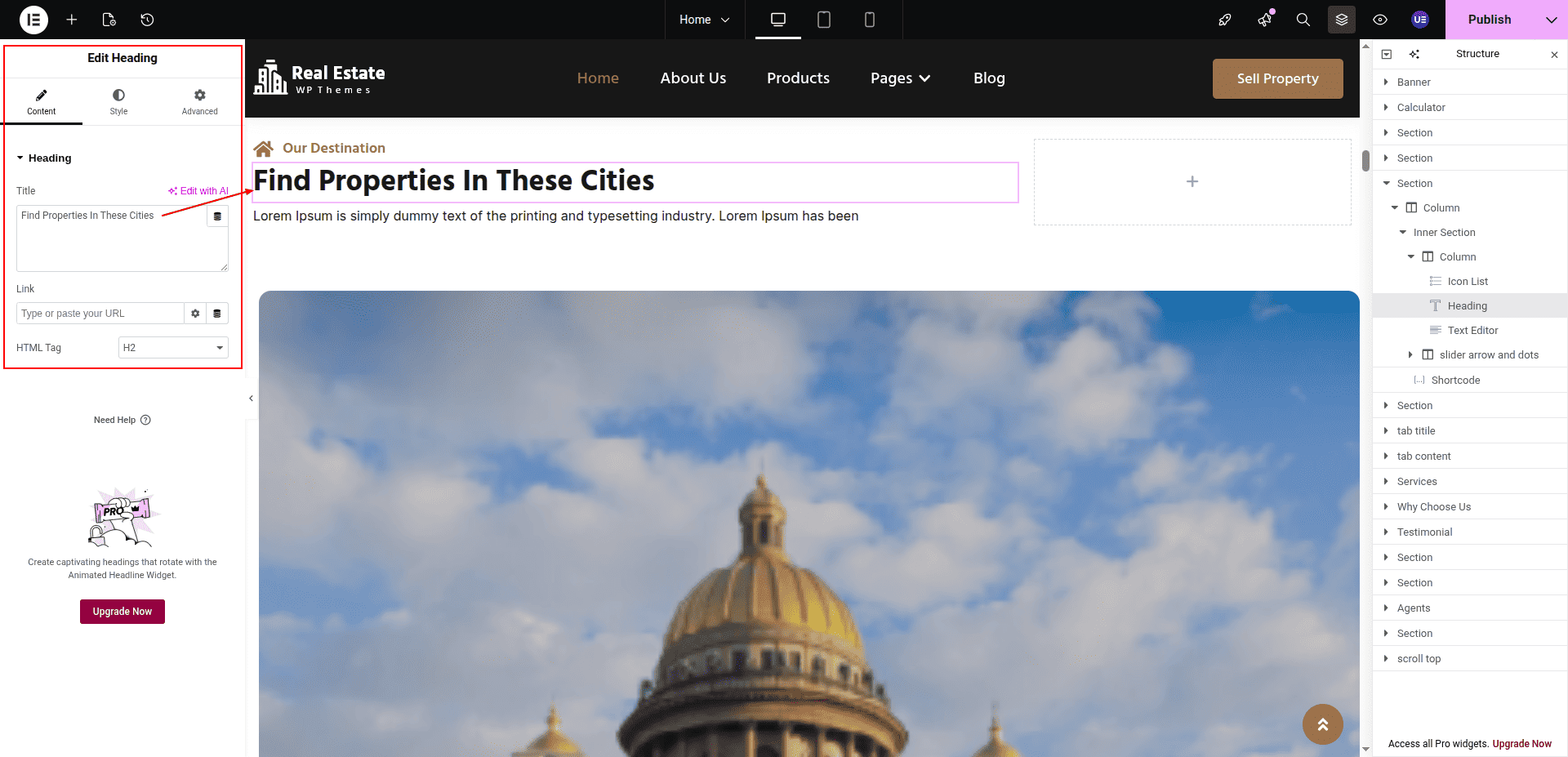
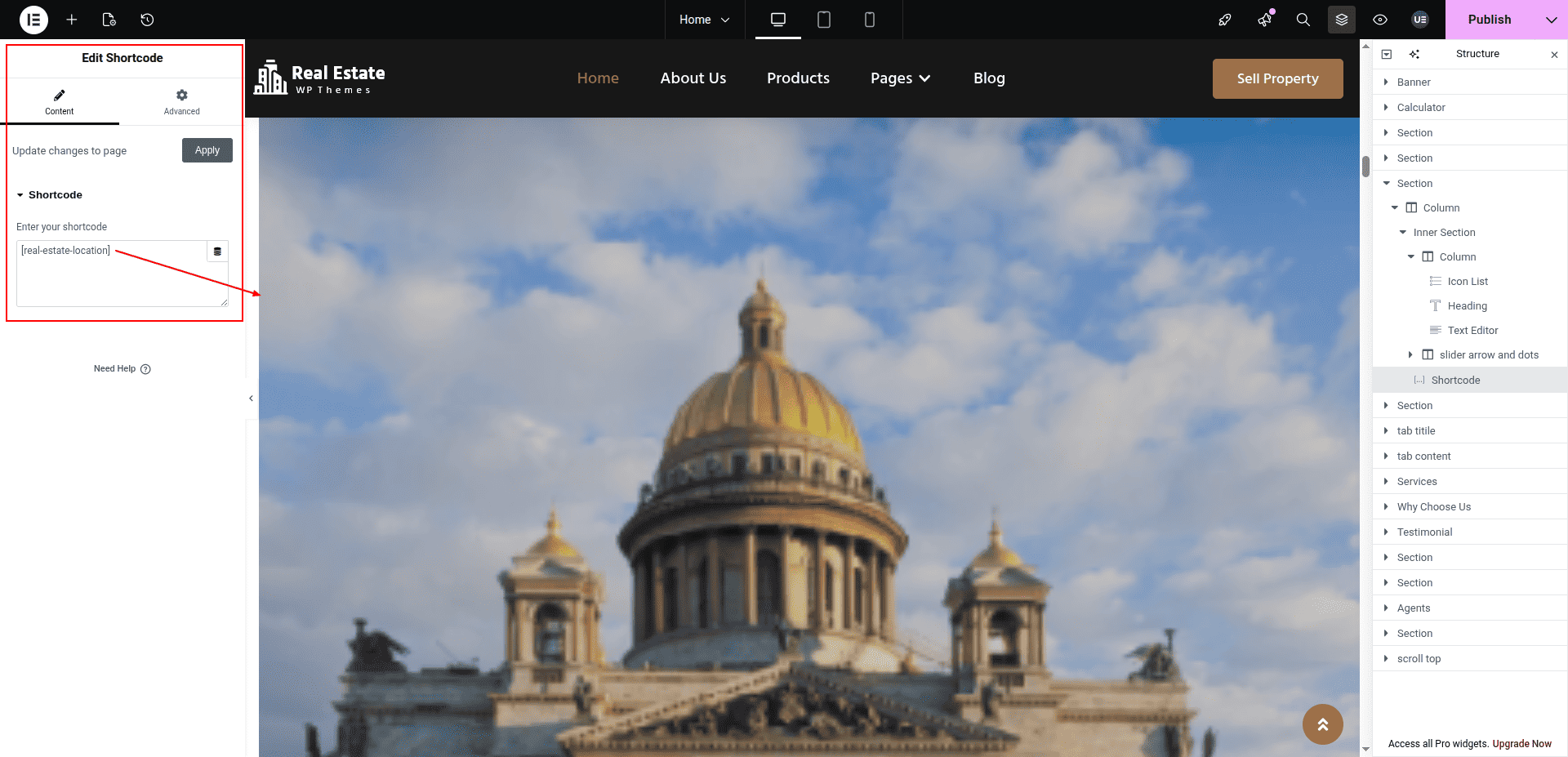
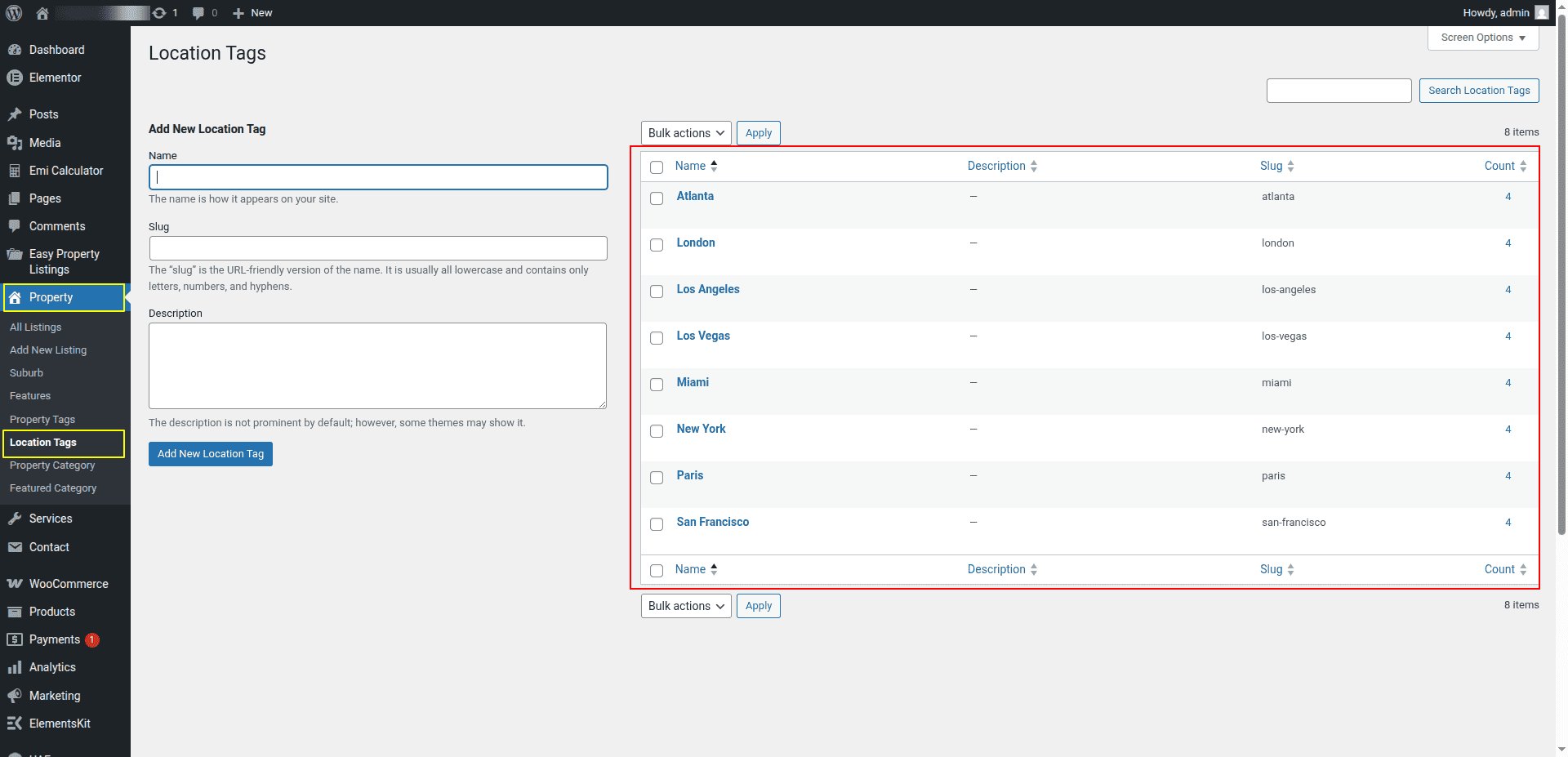
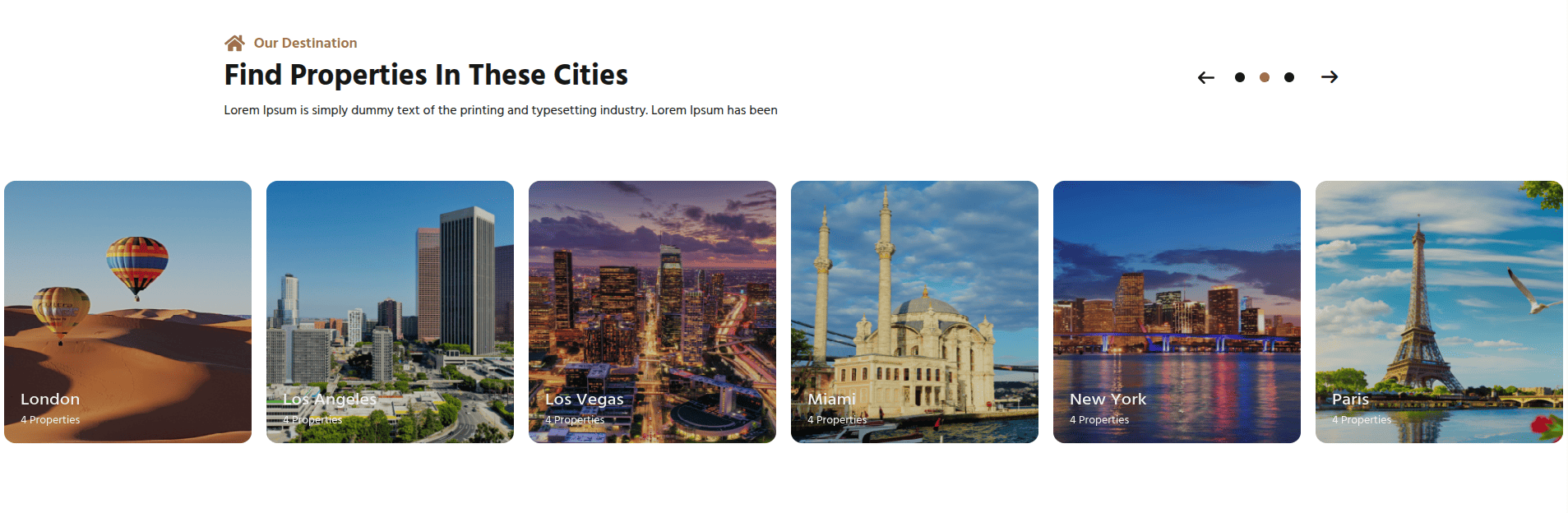
To configure the Our Destination section
Set up the Our Destination Section according to the instructions below.
To Edit this Section, Click On the "Edit With Elementor" Button which will open the Elementor Widget editor.
Our Destination shown in this section come directly from the dashboard.
This represents how a Our Destination Section section can be added and set up.
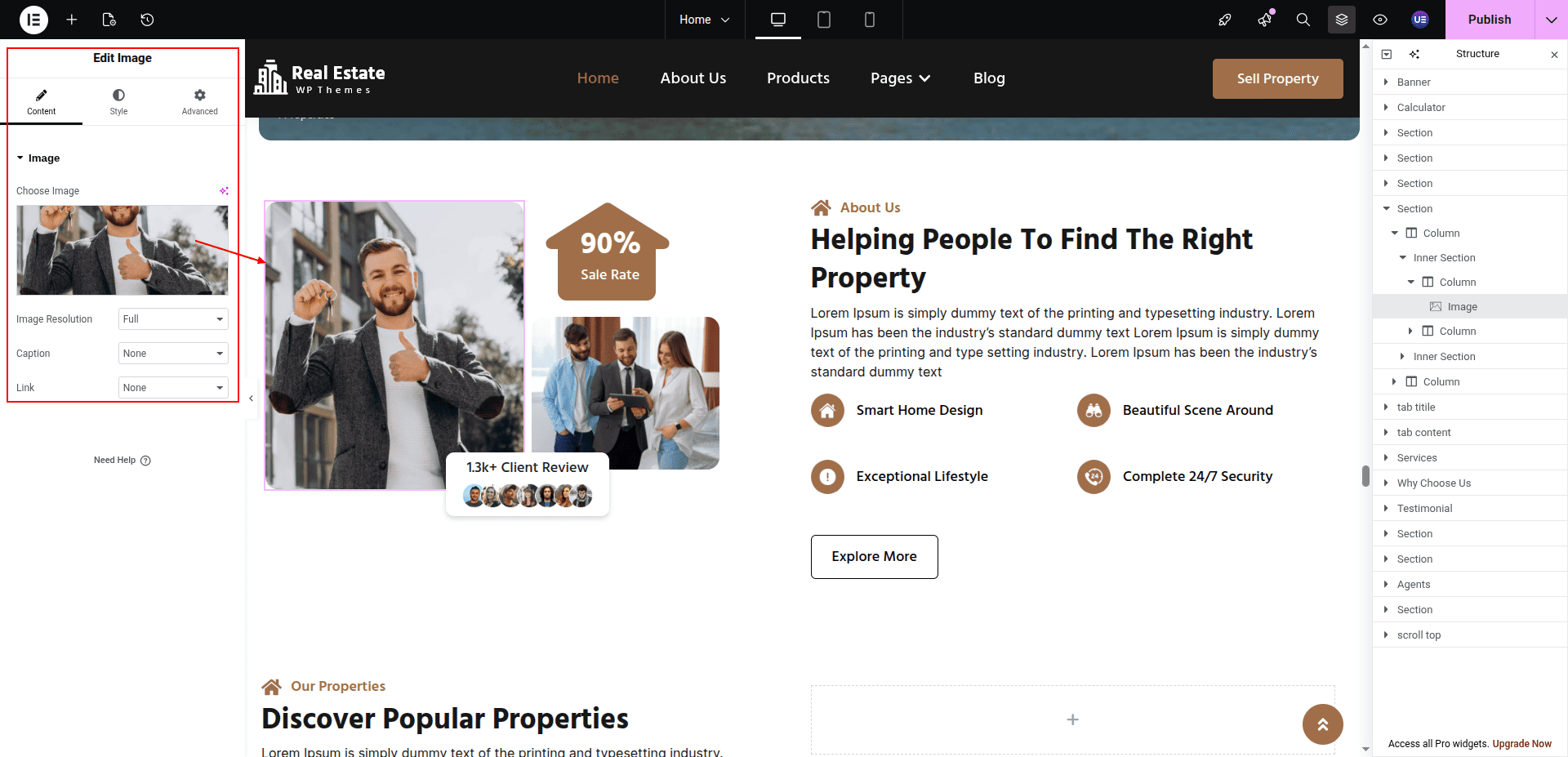
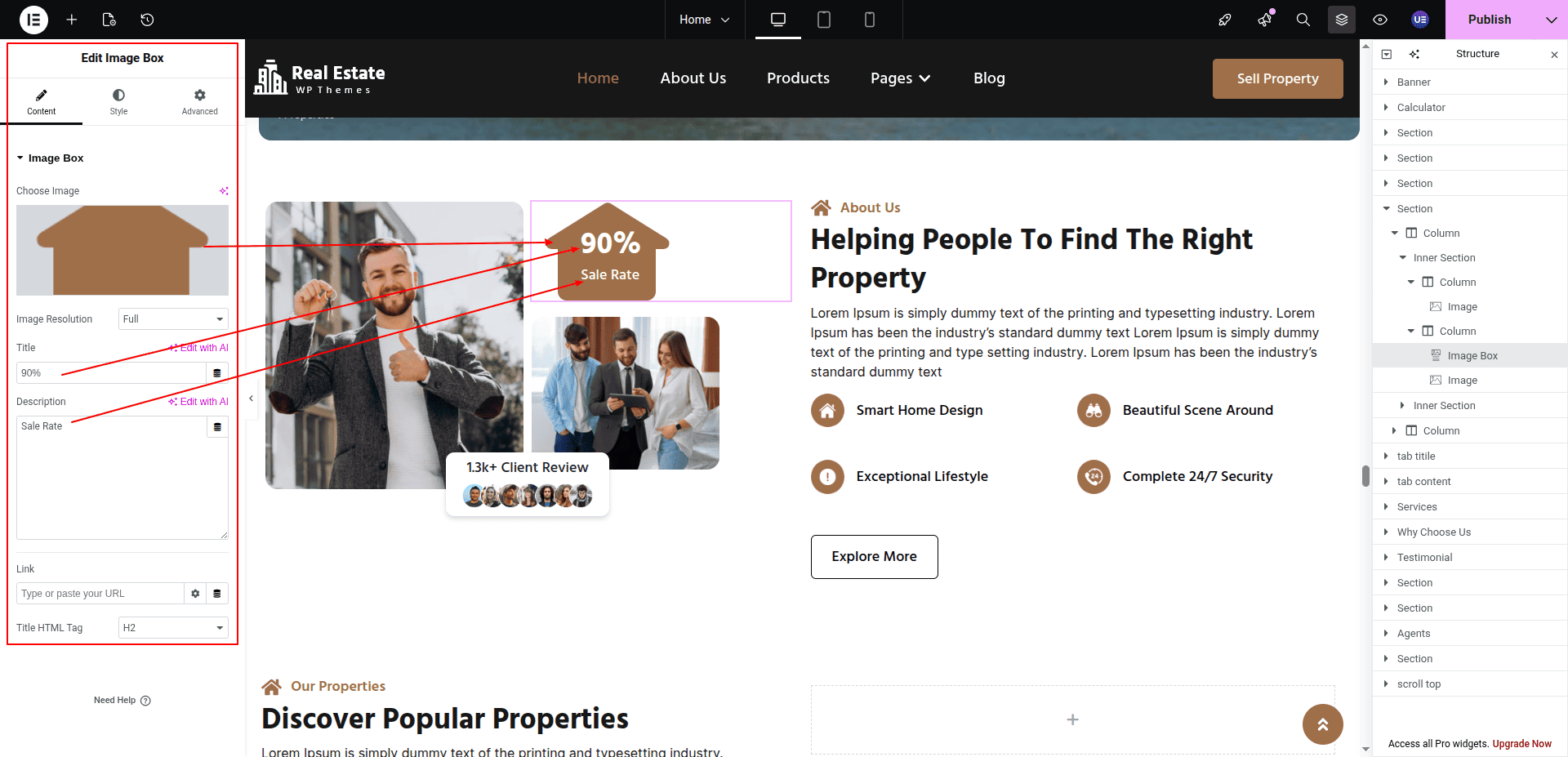
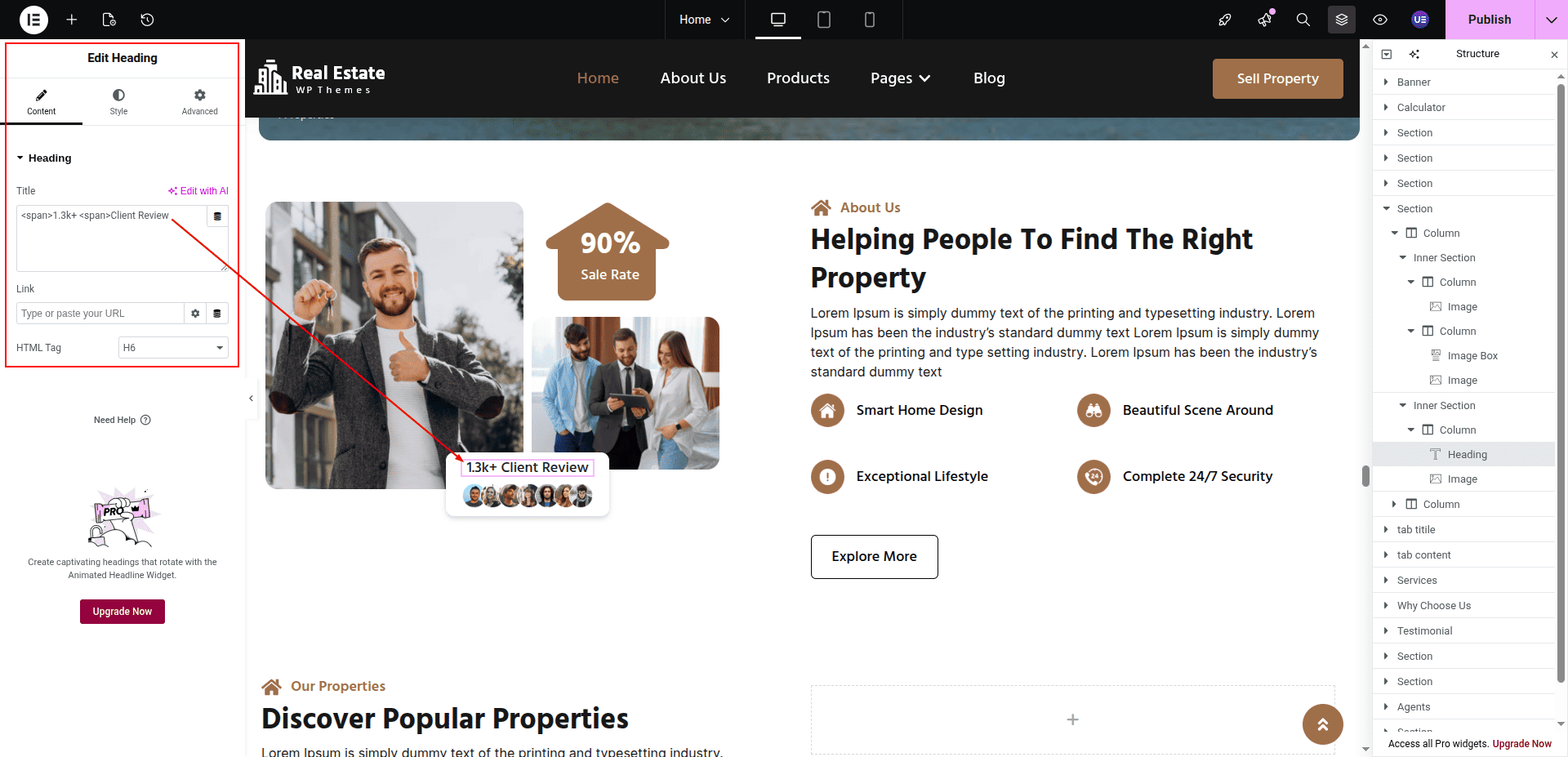
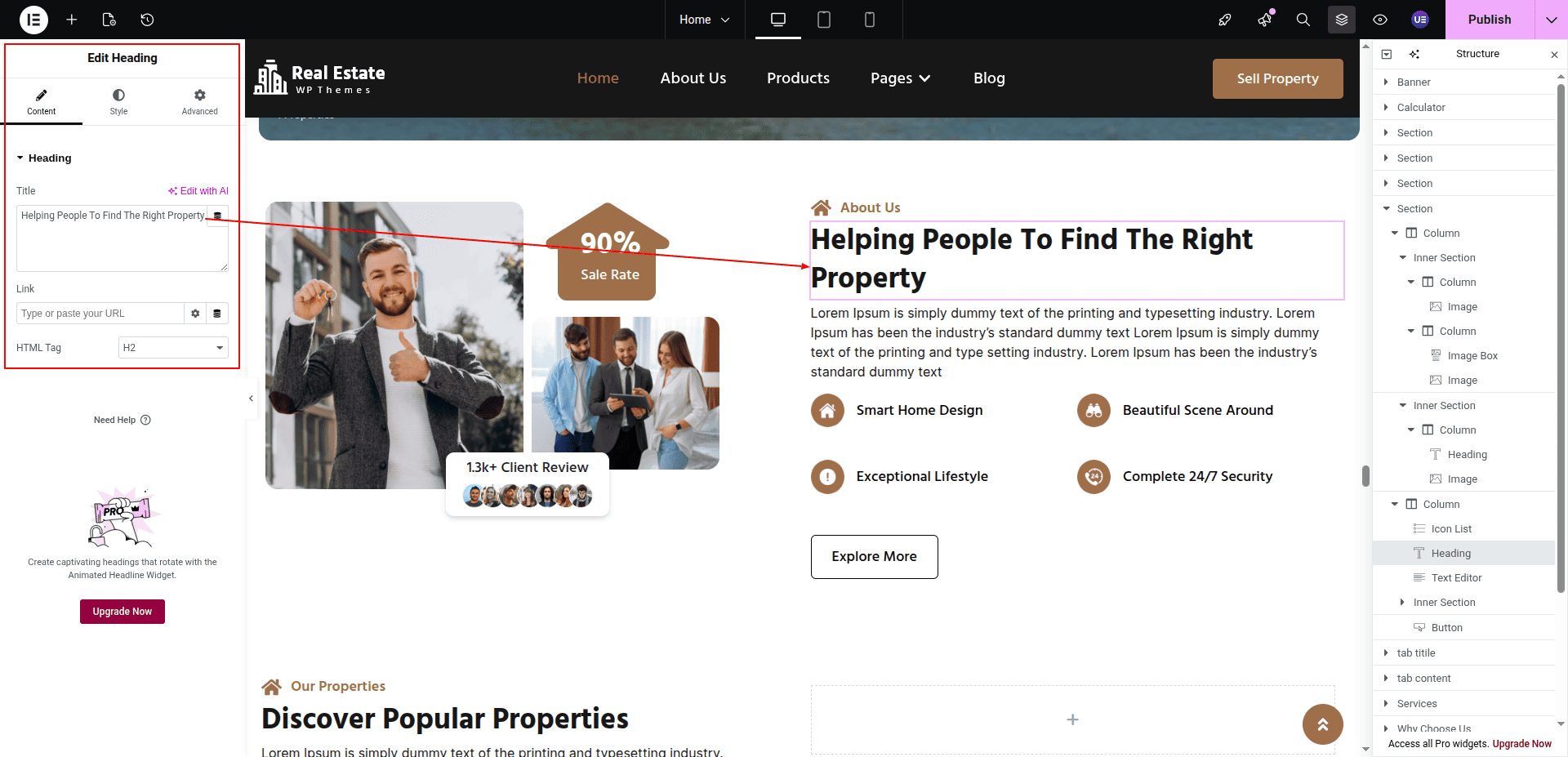
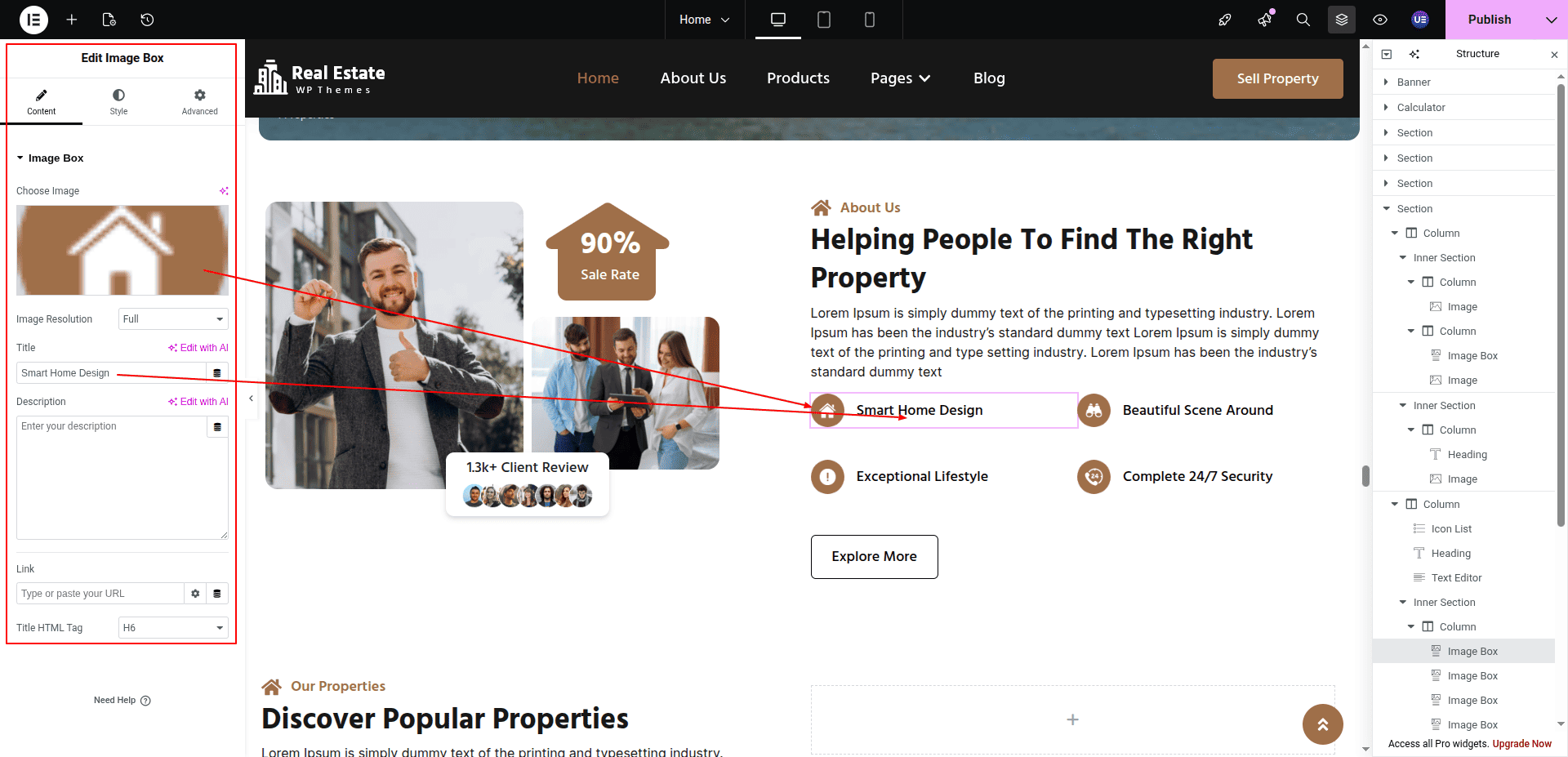
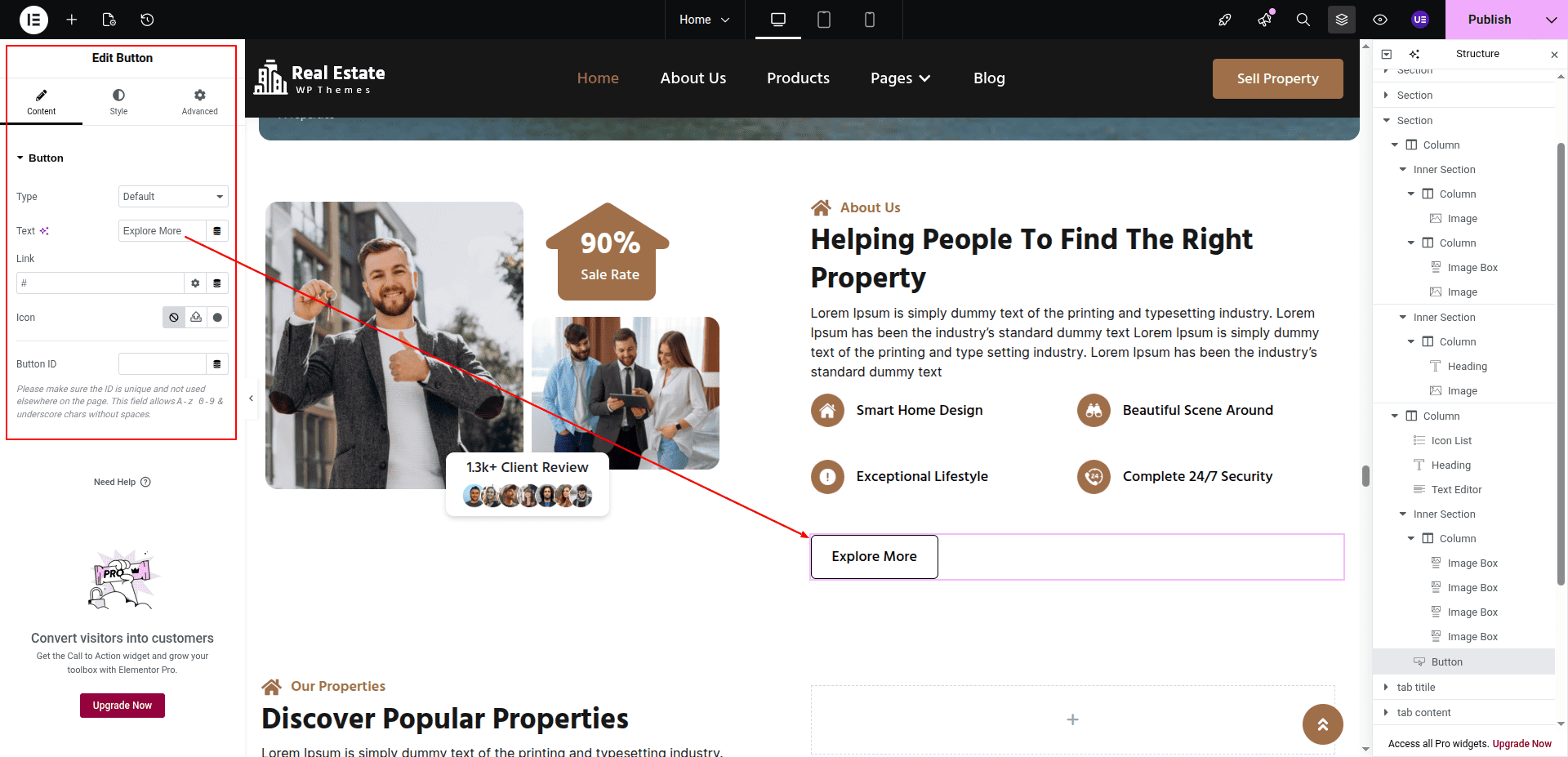
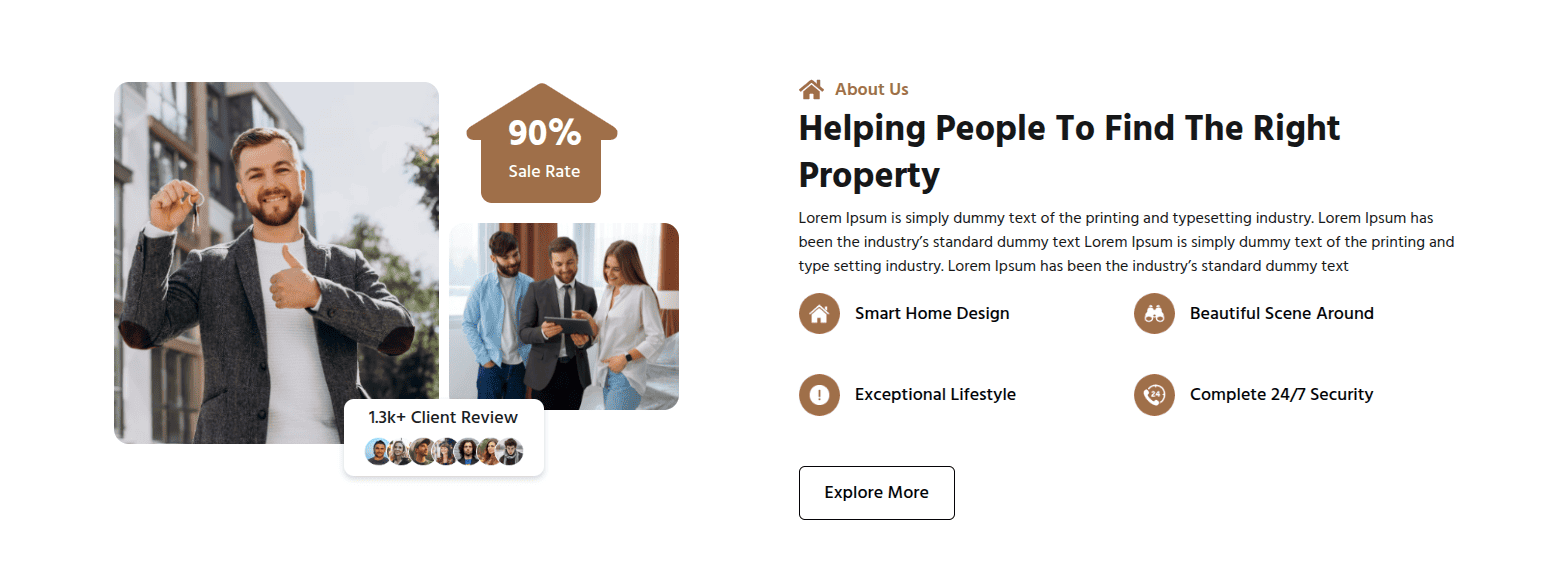
To configure the About Us section
Set up the About Us Section according to the instructions below.
To Edit this Section, Click On the "Edit With Elementor" Button which will open the Elementor Widget editor.
This represents how a About Us section can be added and set up.
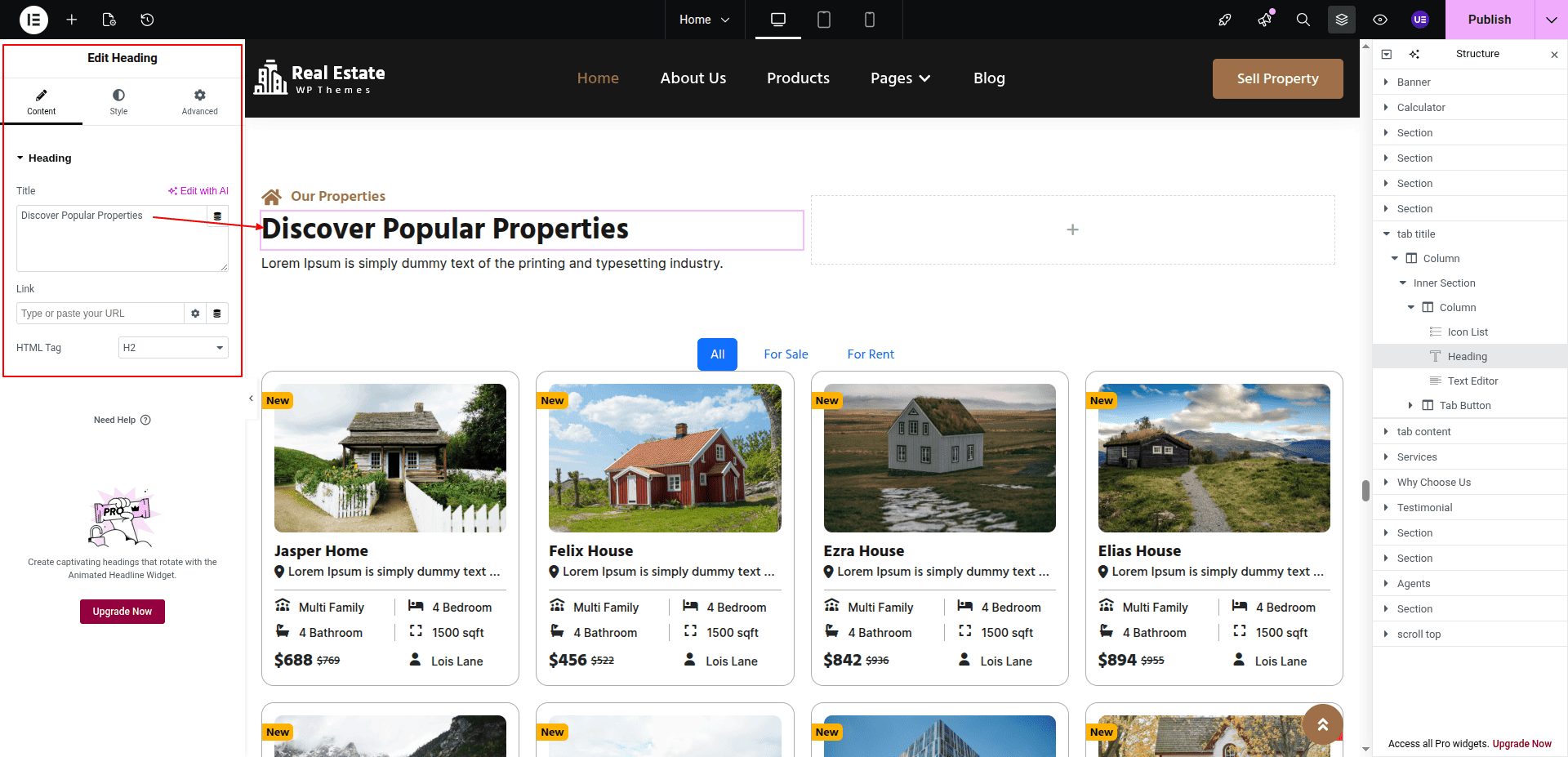
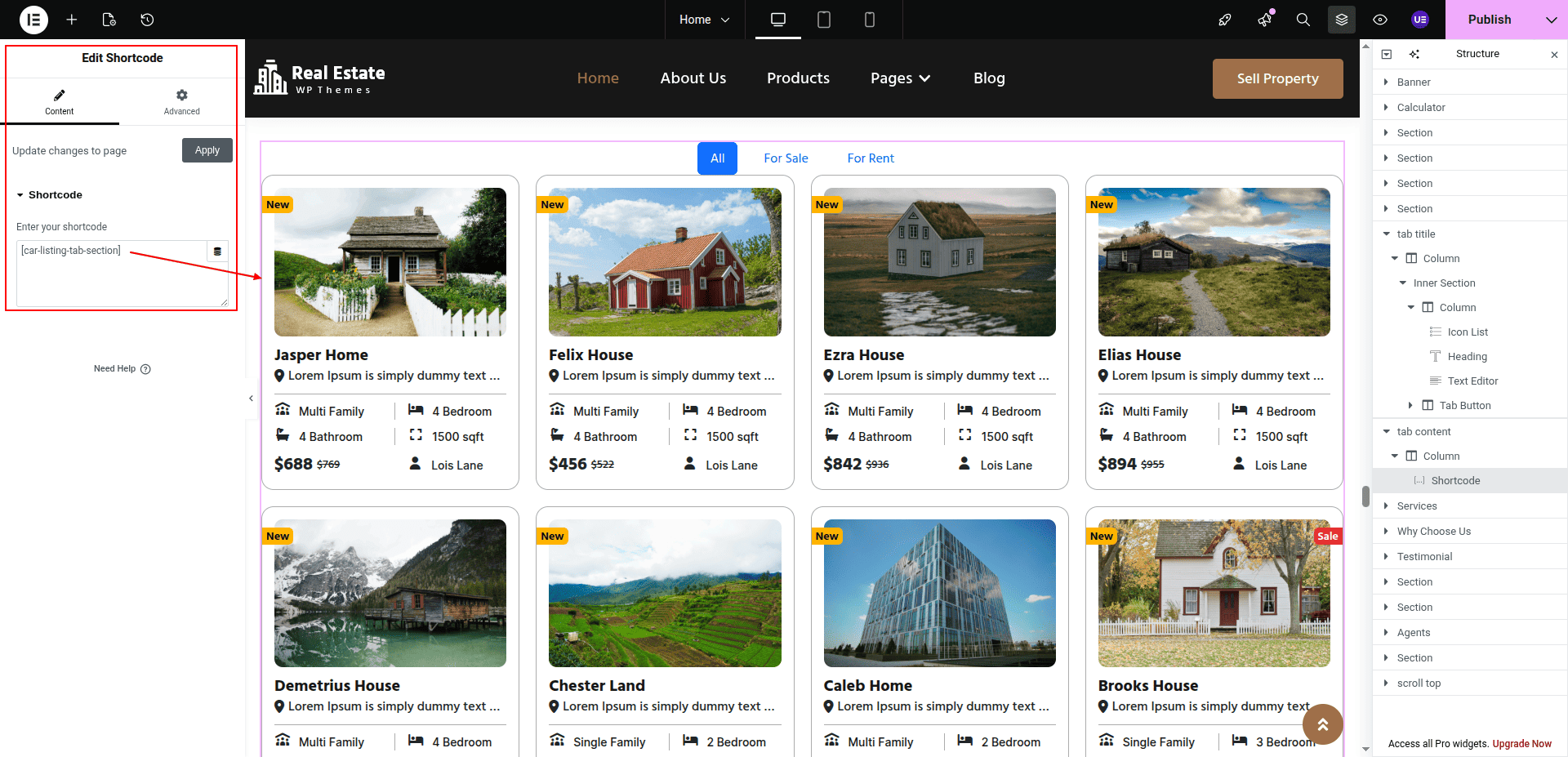
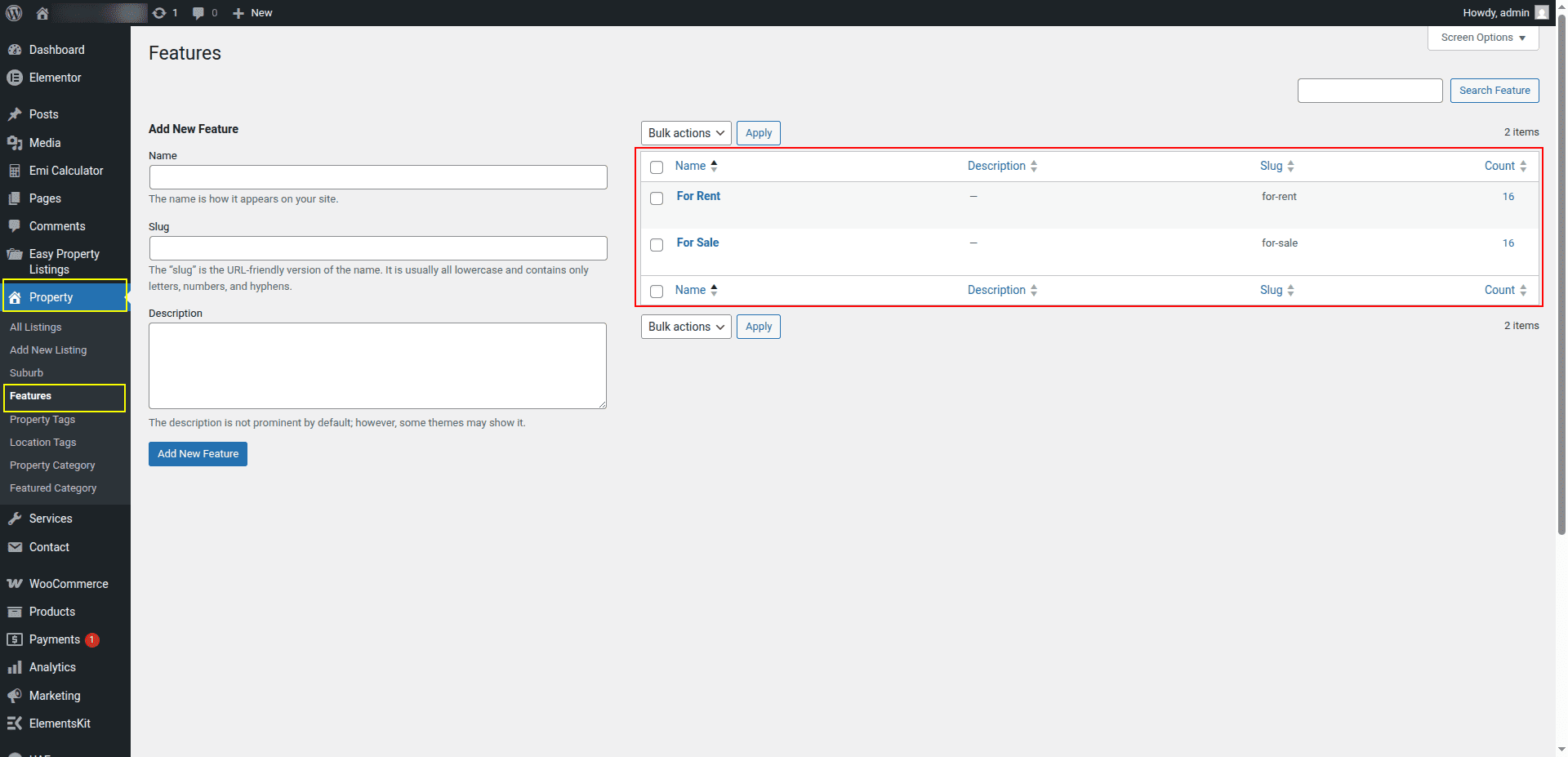
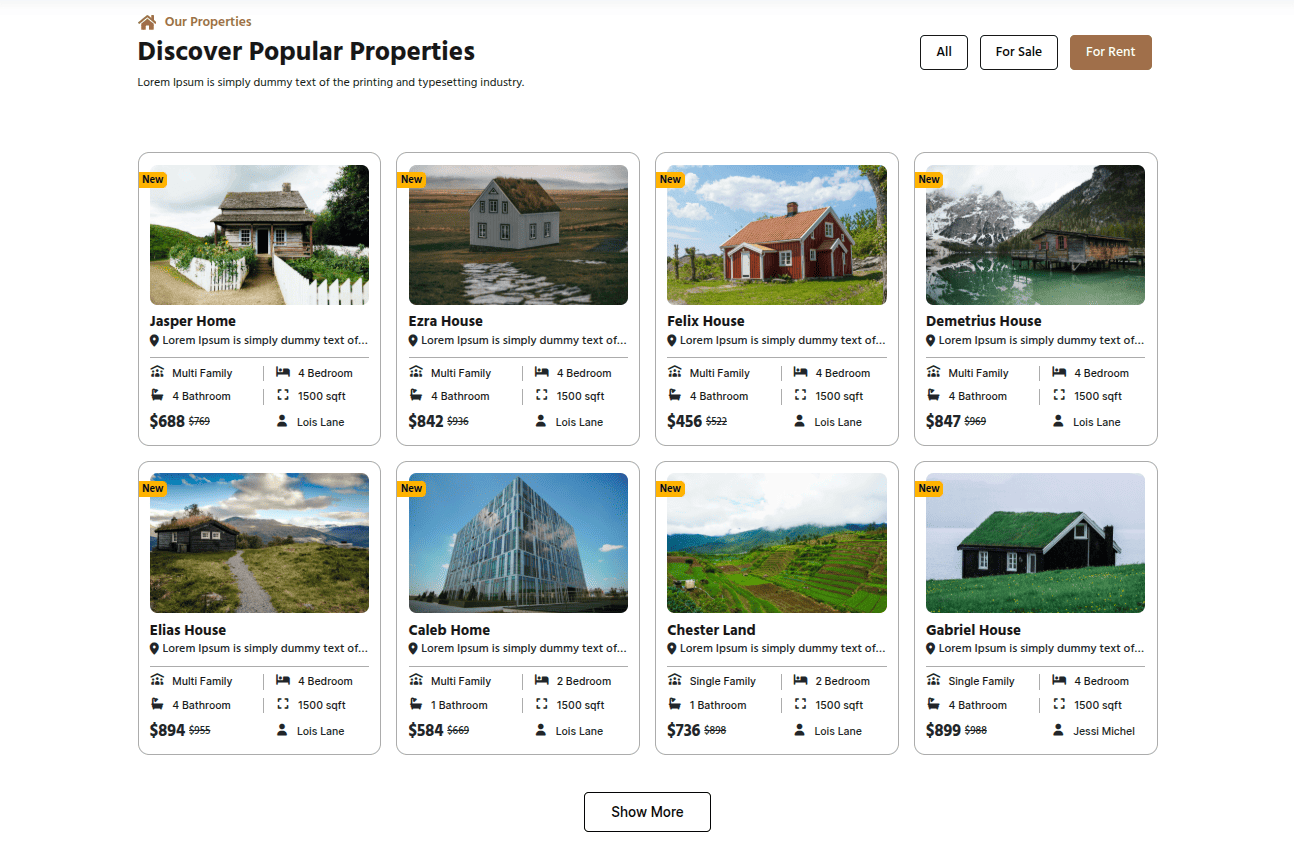
To configure the Popular Properties section
Set up the Popular Properties Section according to the instructions below.
To Edit this Section, Click On the "Edit With Elementor" Button which will open the Elementor Widget editor.
The Properties tags comes from the dashboard.
This represents how a Popular Properties section can be added and set up.
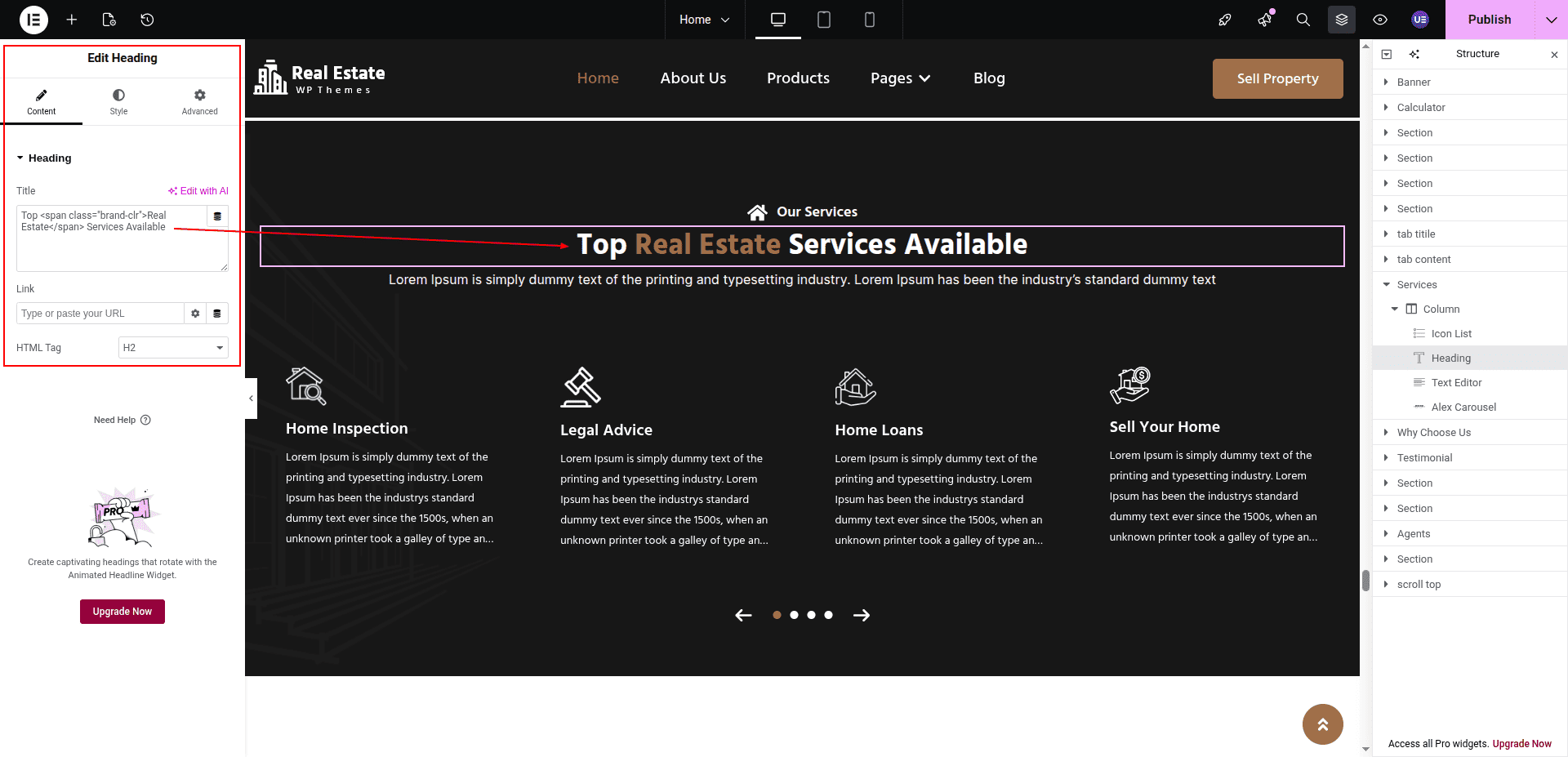
To configure the Our Services section
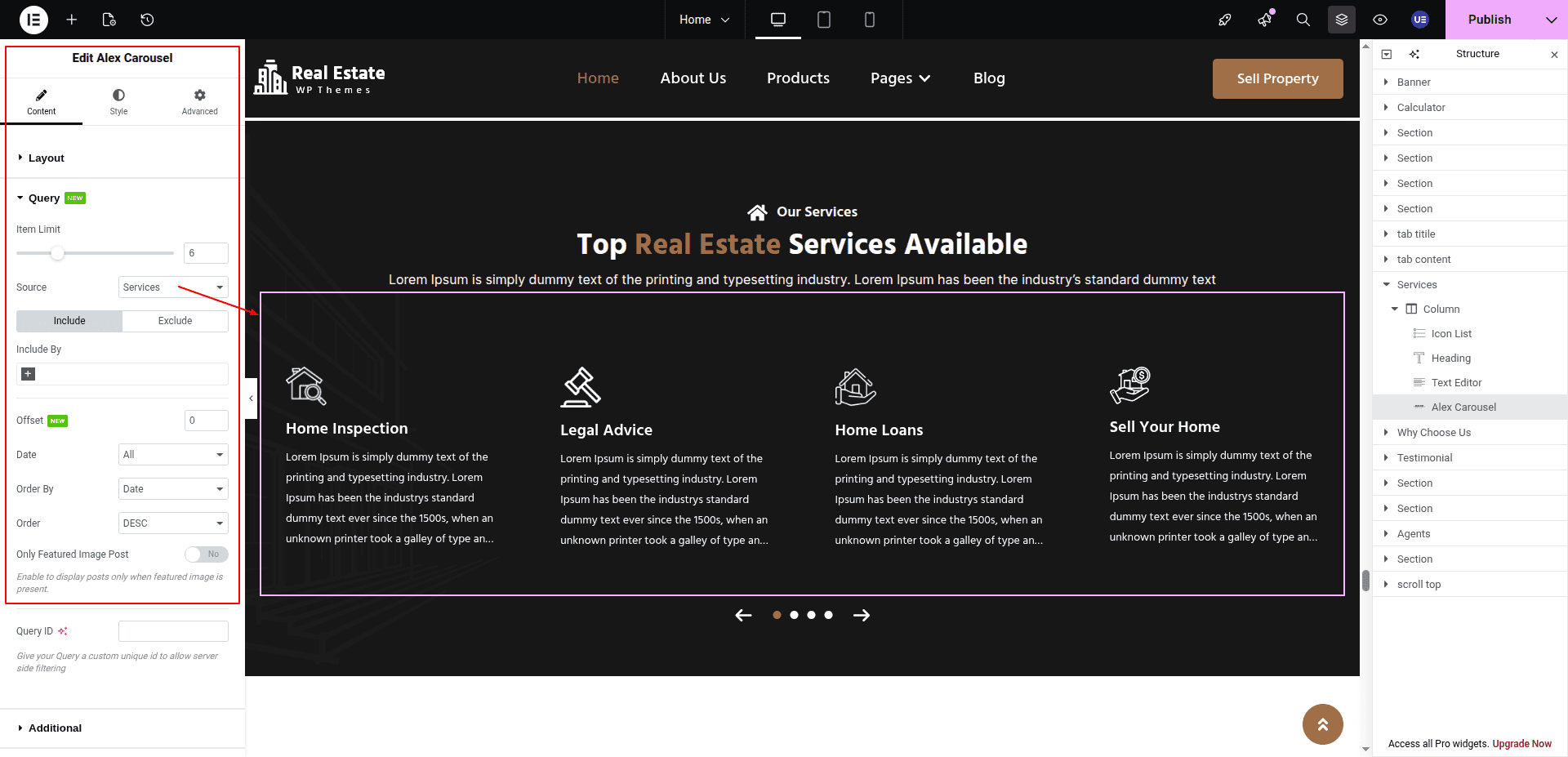
Set up the Our Services Section according to the instructions below.
To Edit this Section, Click On the "Edit With Elementor" Button which will open the Elementor Widget editor.
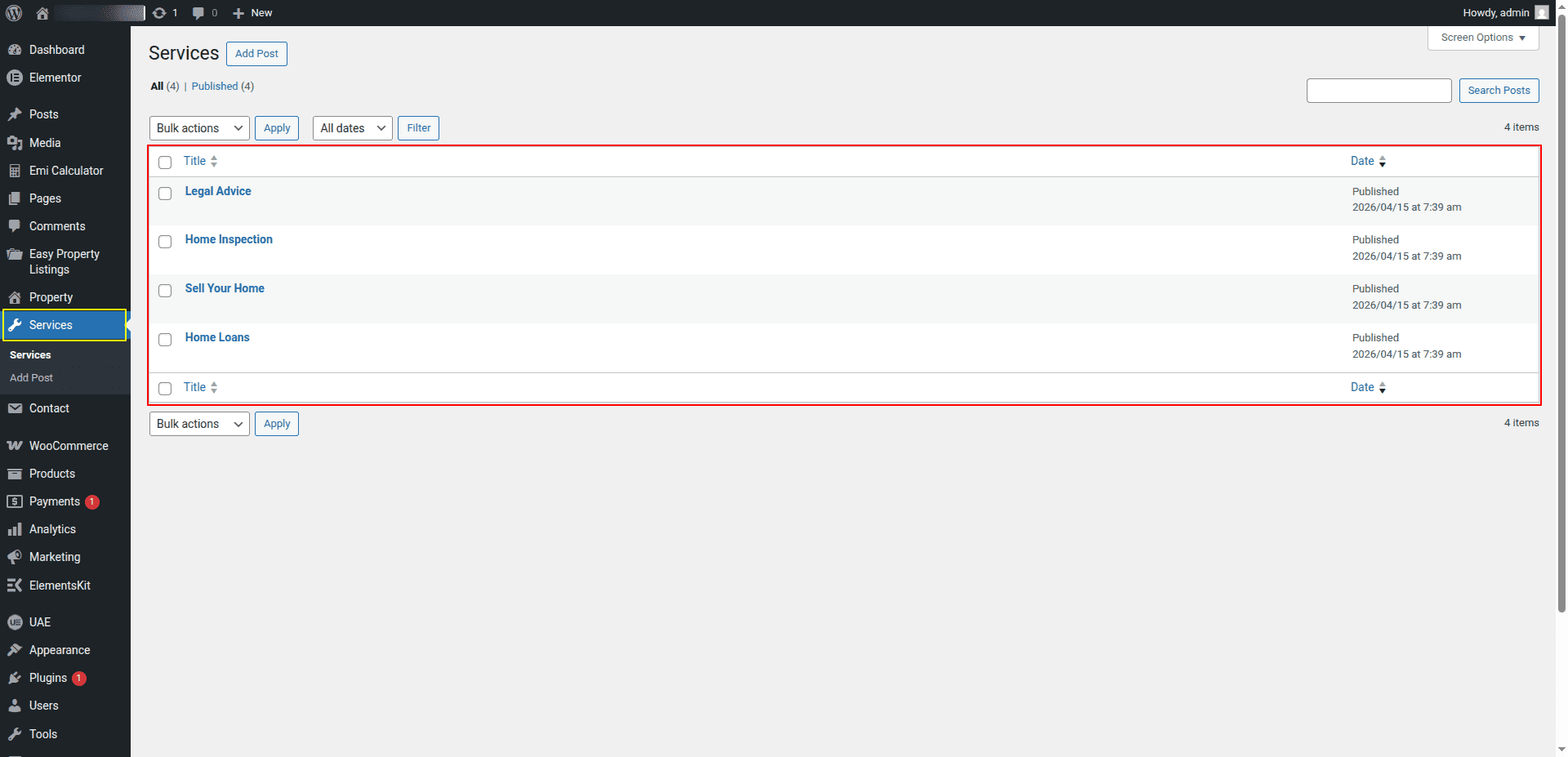
The Services comes from the dashboard.
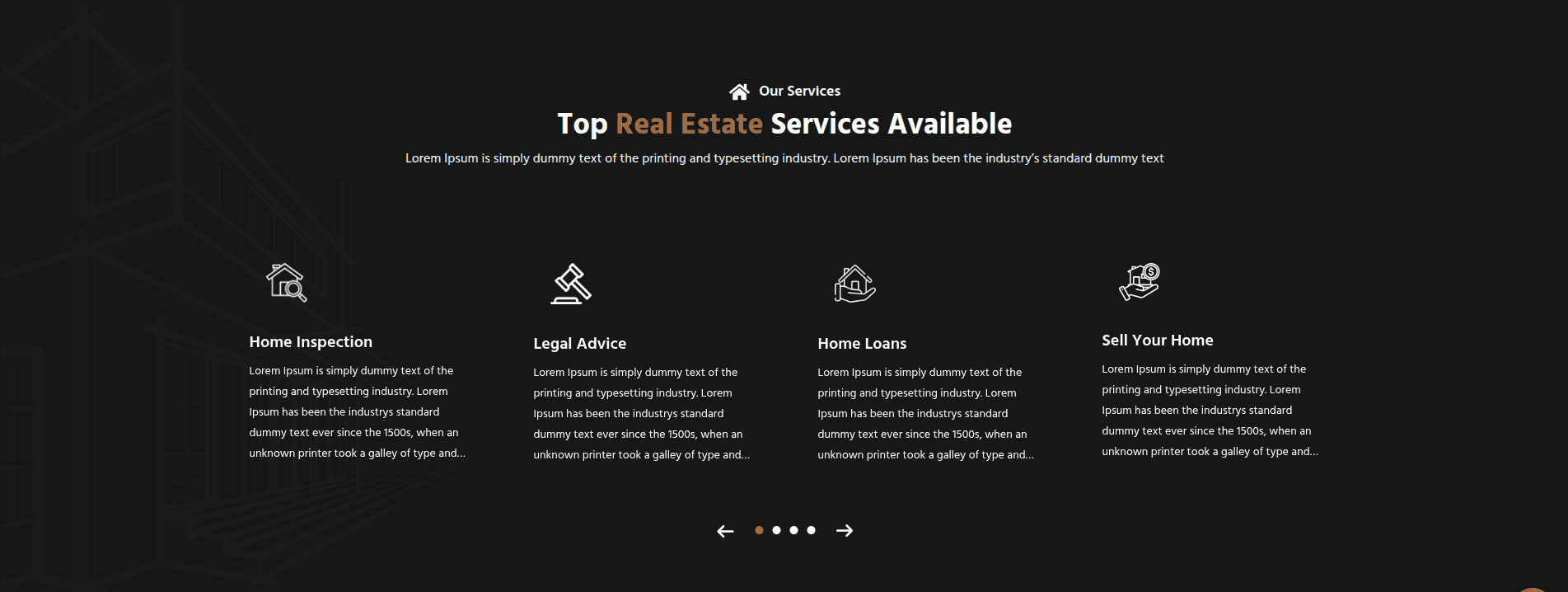
This represents how a Our Services section can be added and set up.
To configure the Why Choose Us section
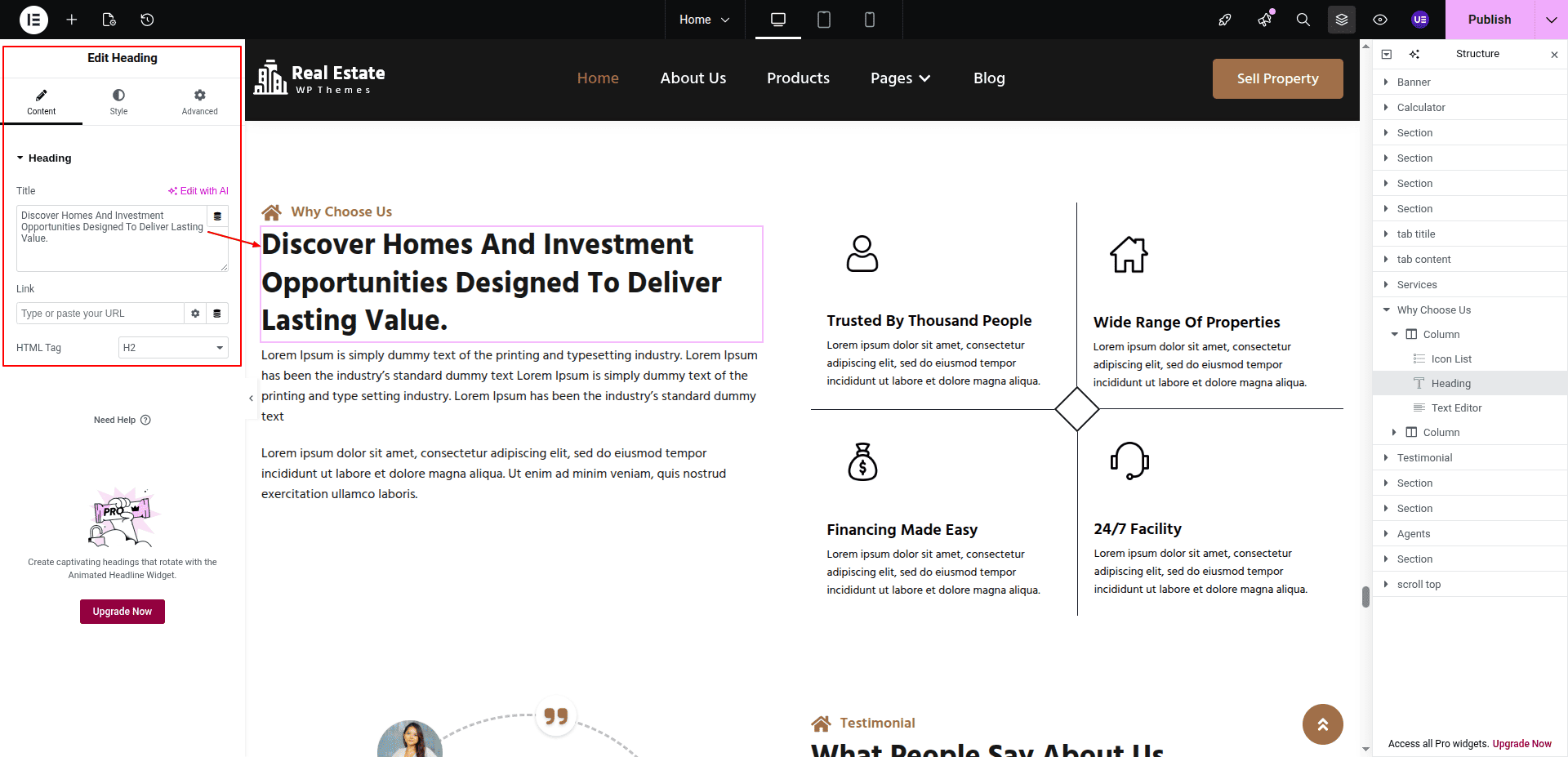
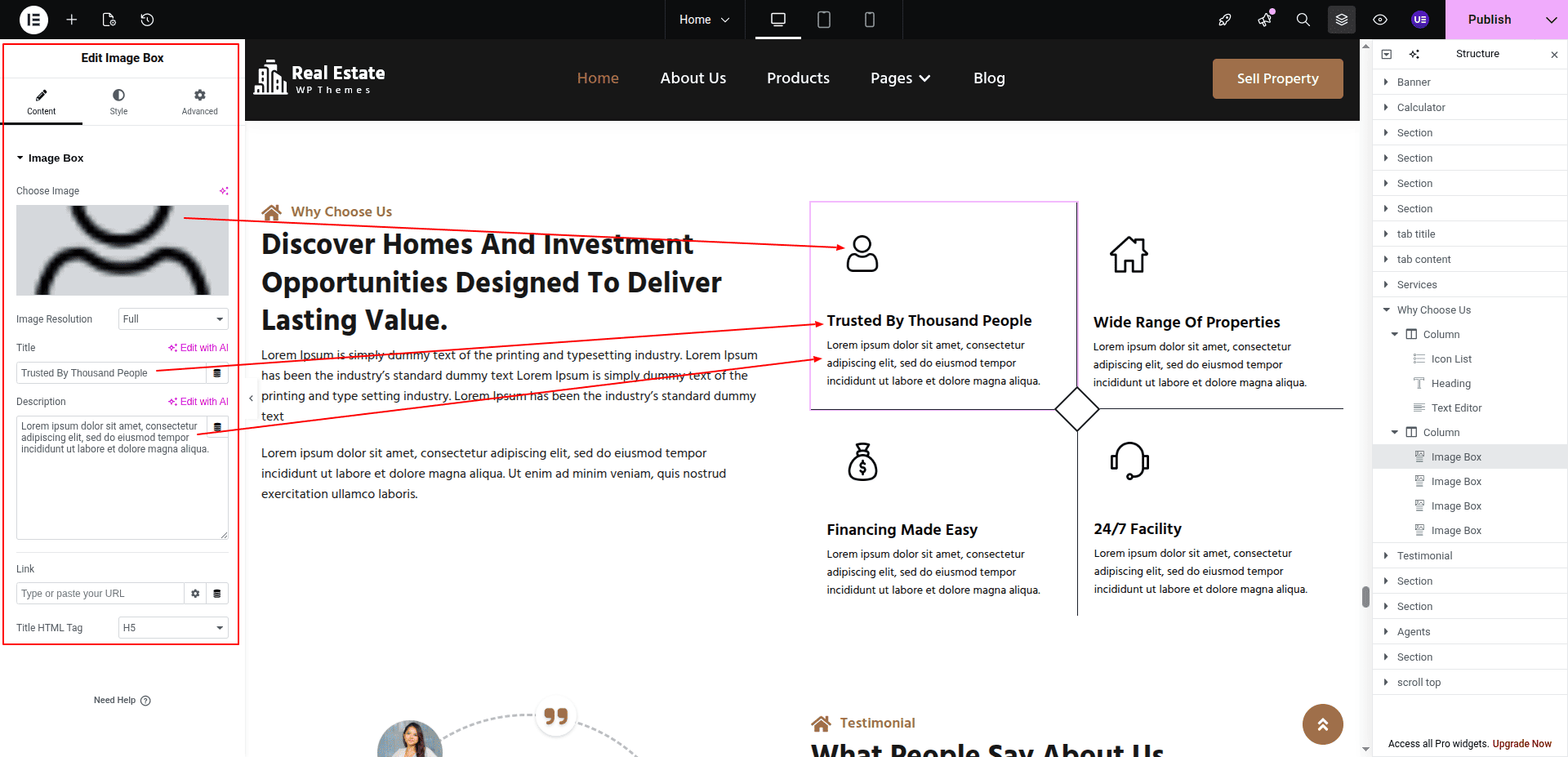
Set up the Why Choose Us Section according to the instructions below.
To Edit this Section, Click On the "Edit With Elementor" Button which will open the Elementor Widget editor.
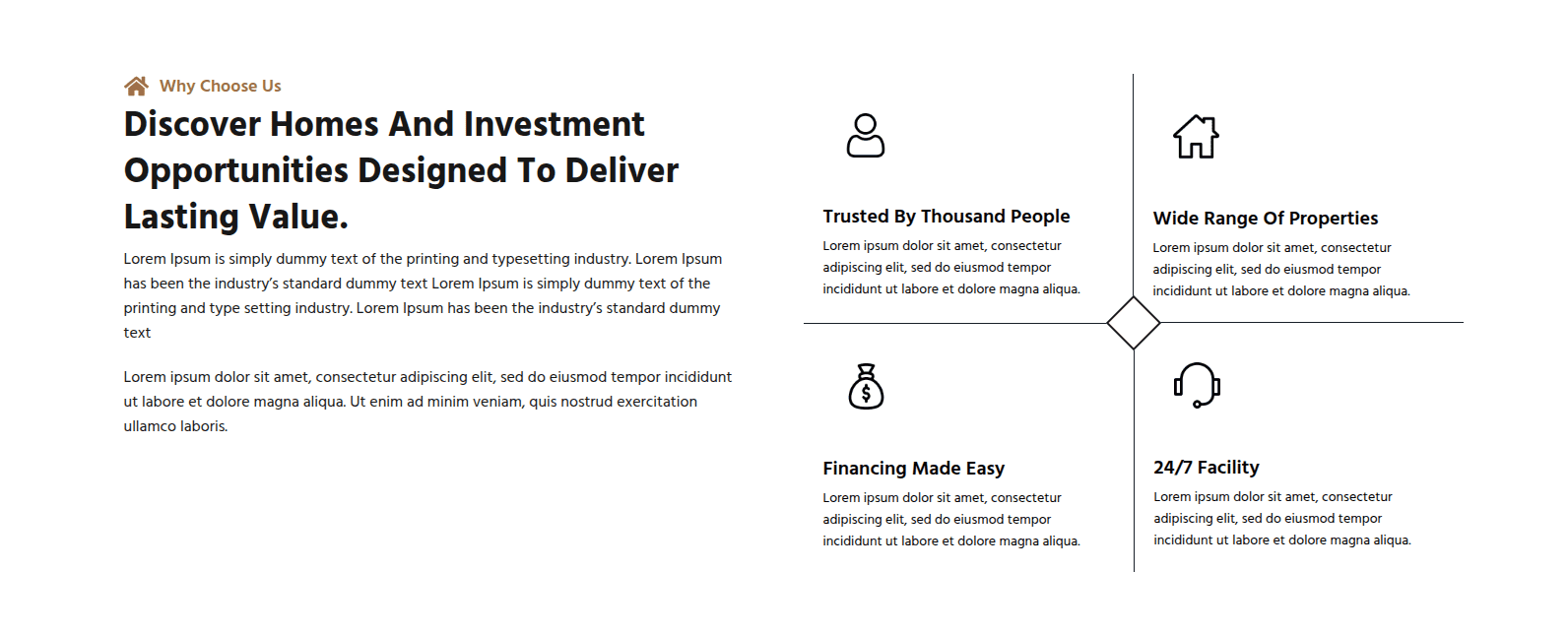
This represents how a Why Choose Us section can be added and set up.
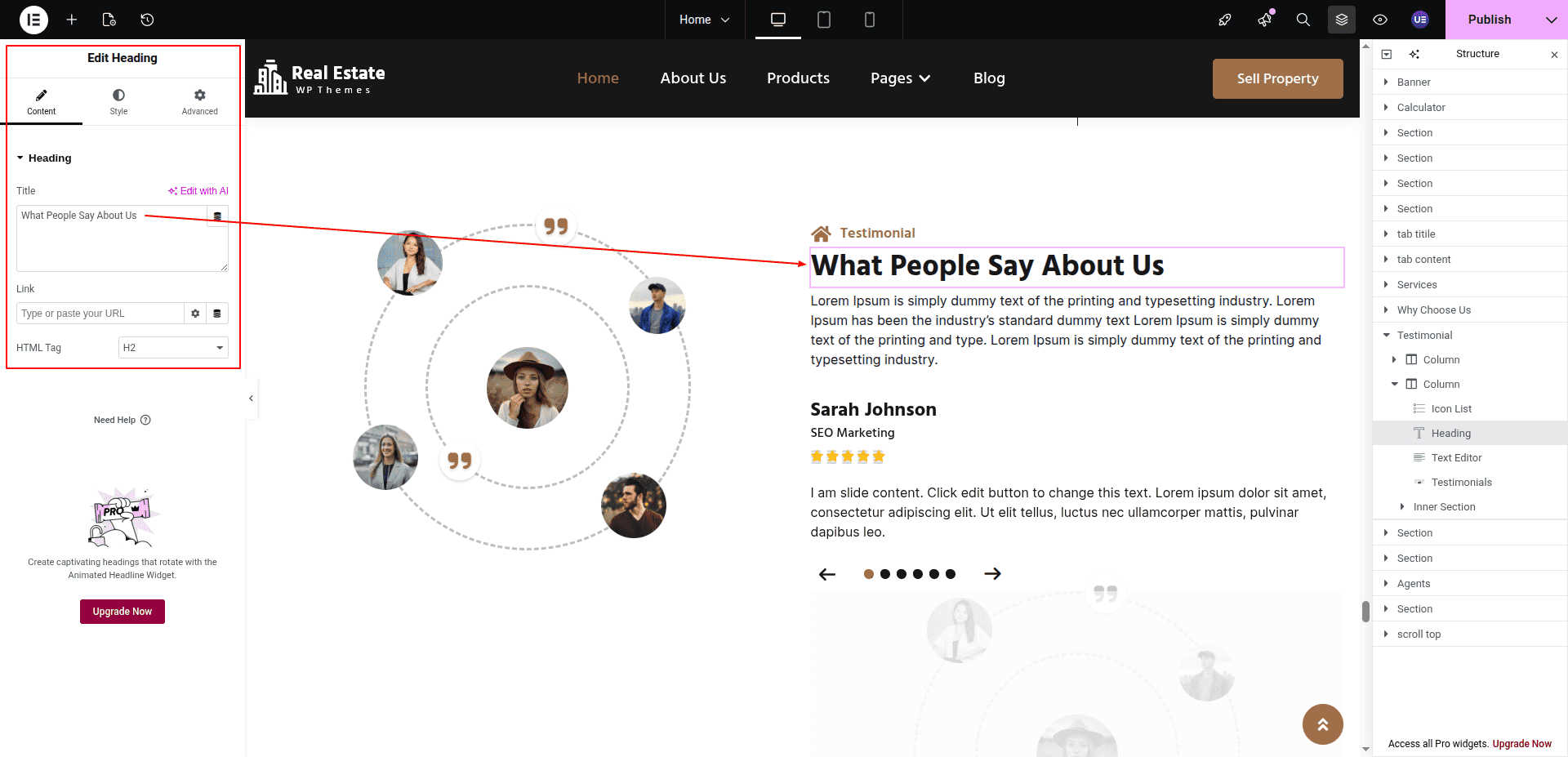
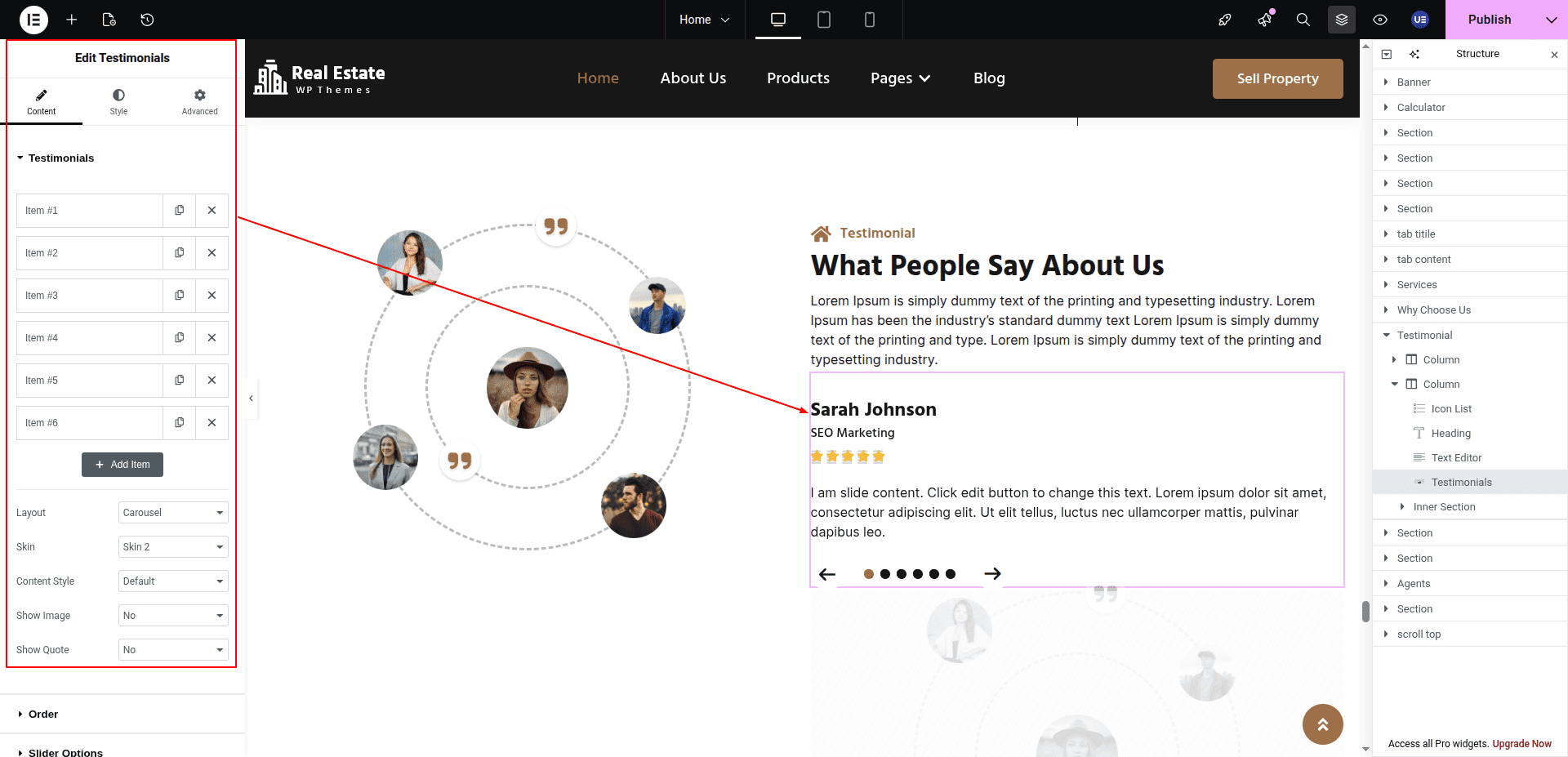
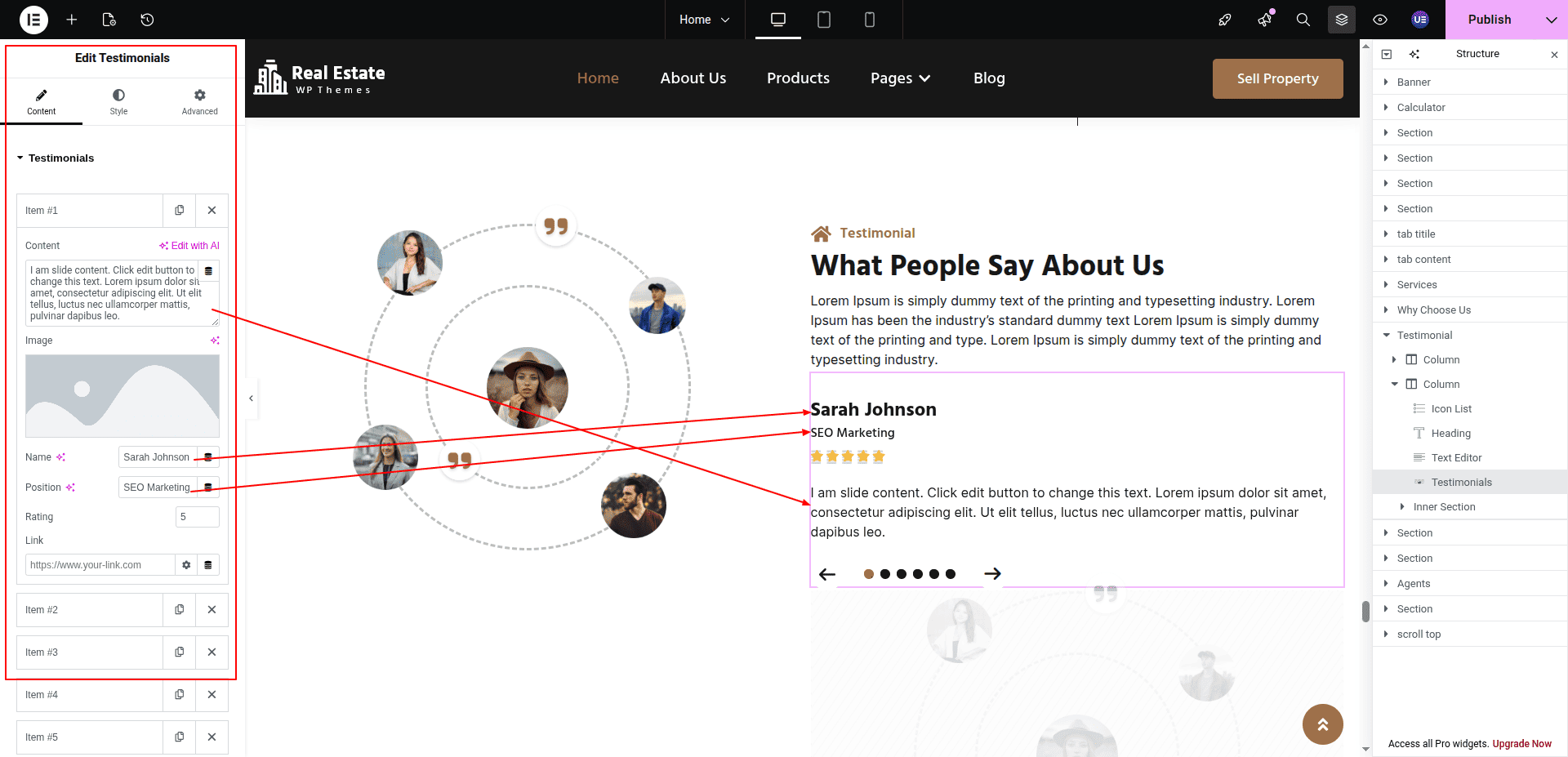
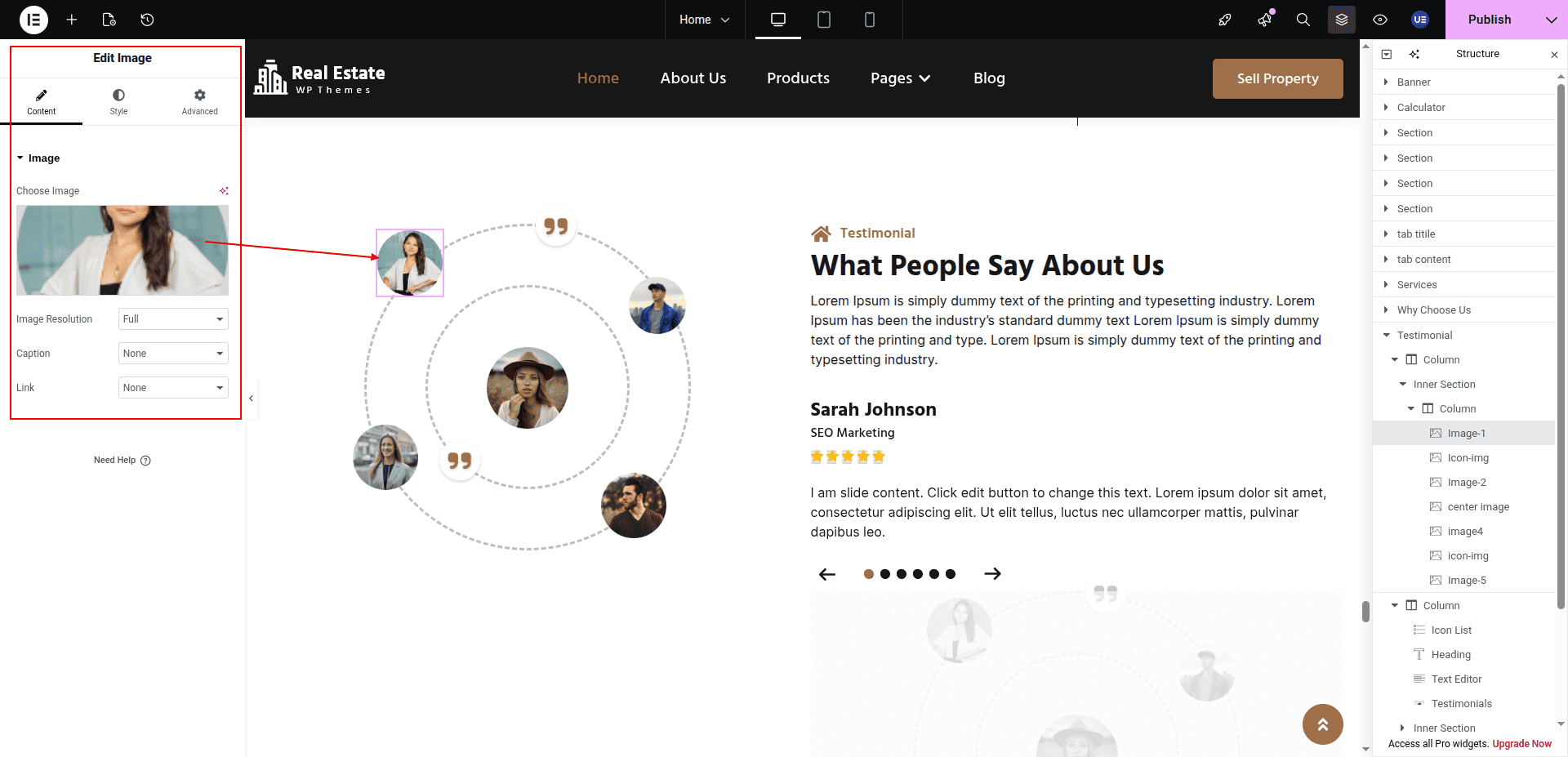
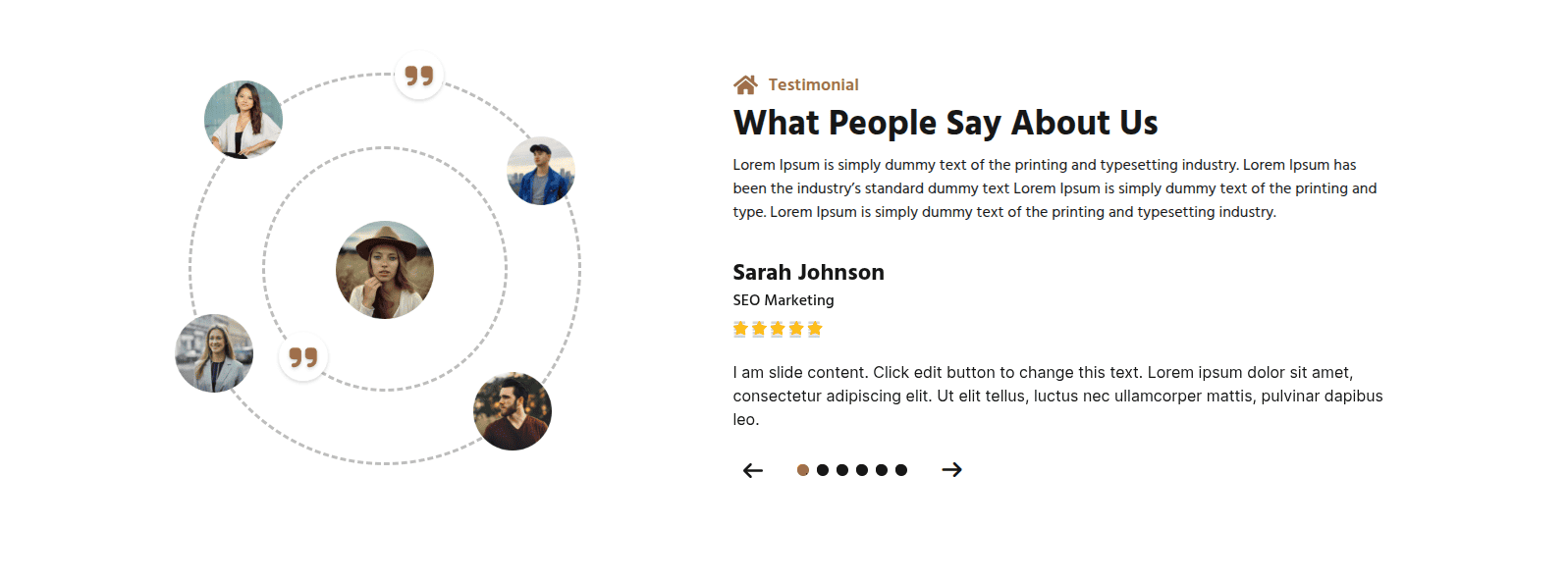
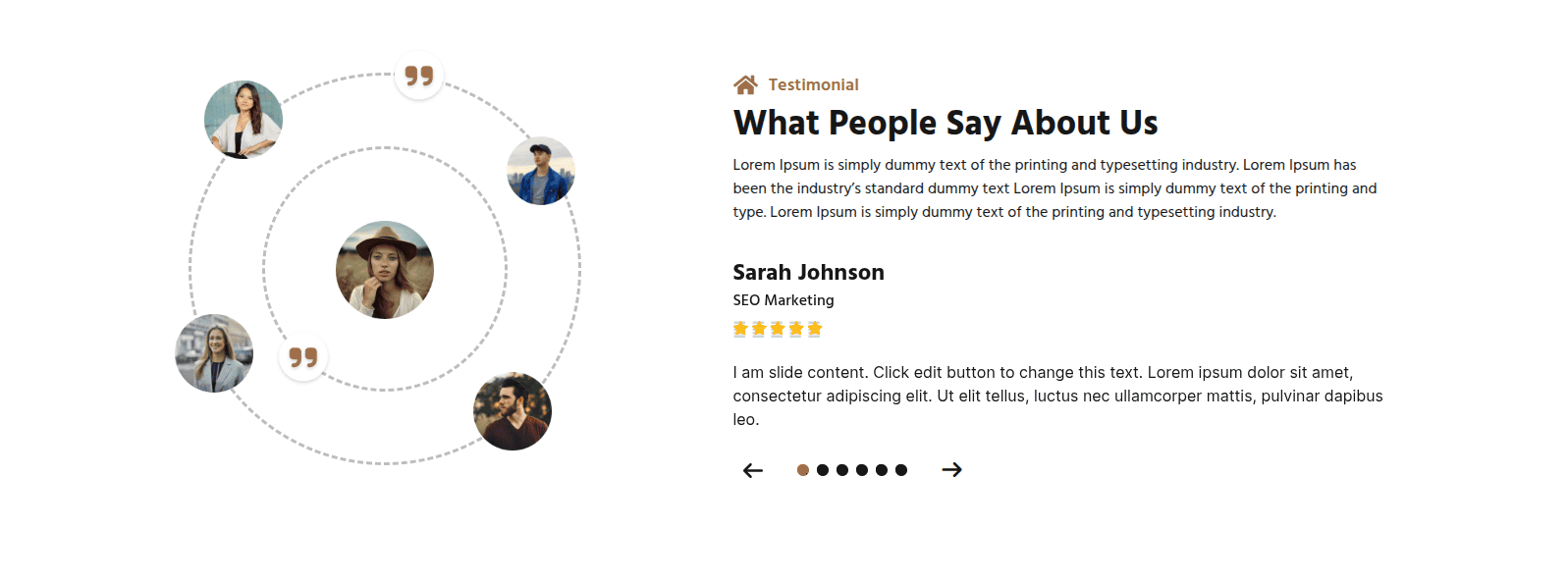
To configure the Testimonial section
Set up the Testimonial Section according to the instructions below.
To Edit this Section, Click On the "Edit With Elementor" Button which will open the Elementor Widget editor.
This represents how a Testimonial section can be added and set up.
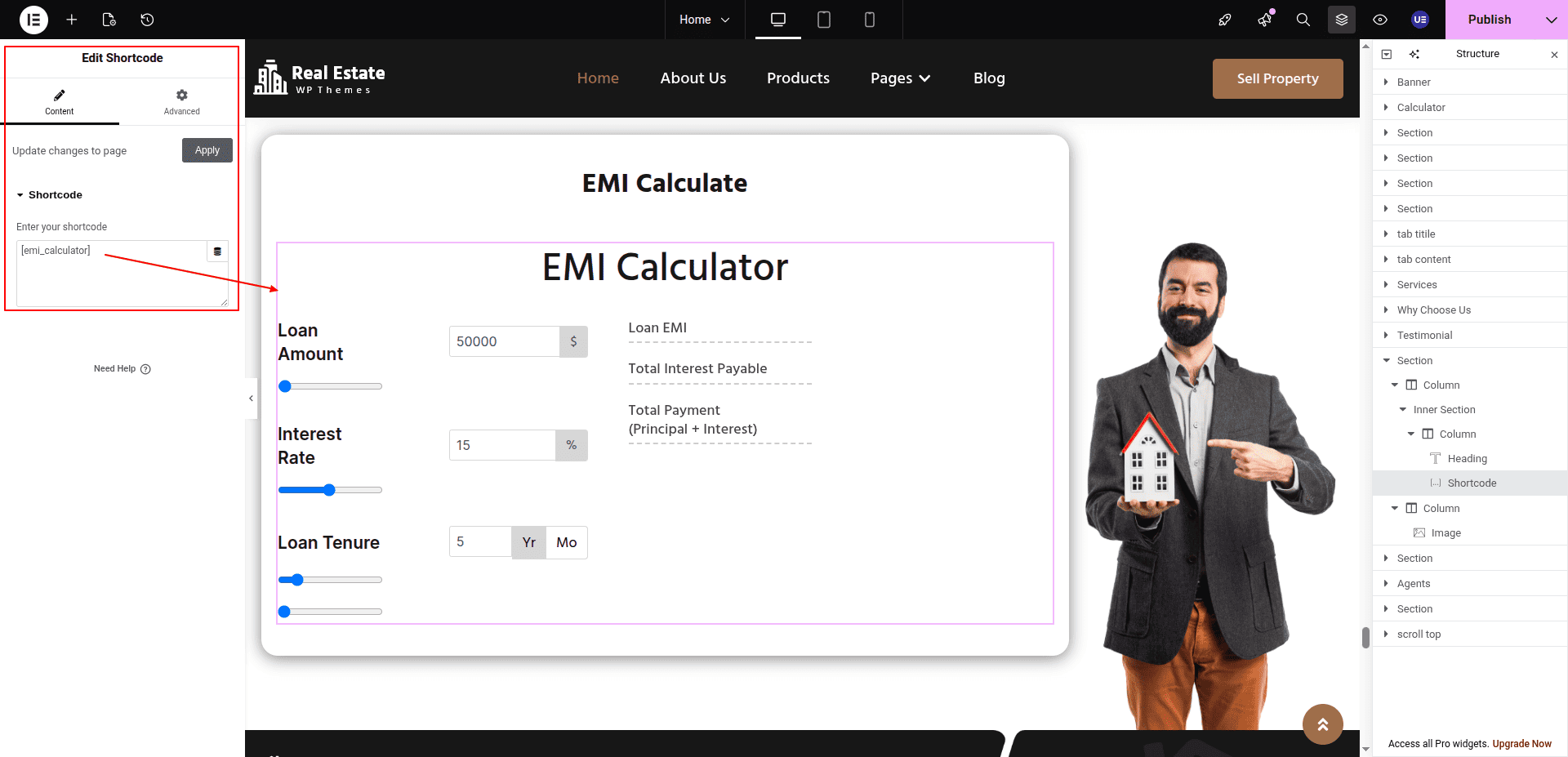
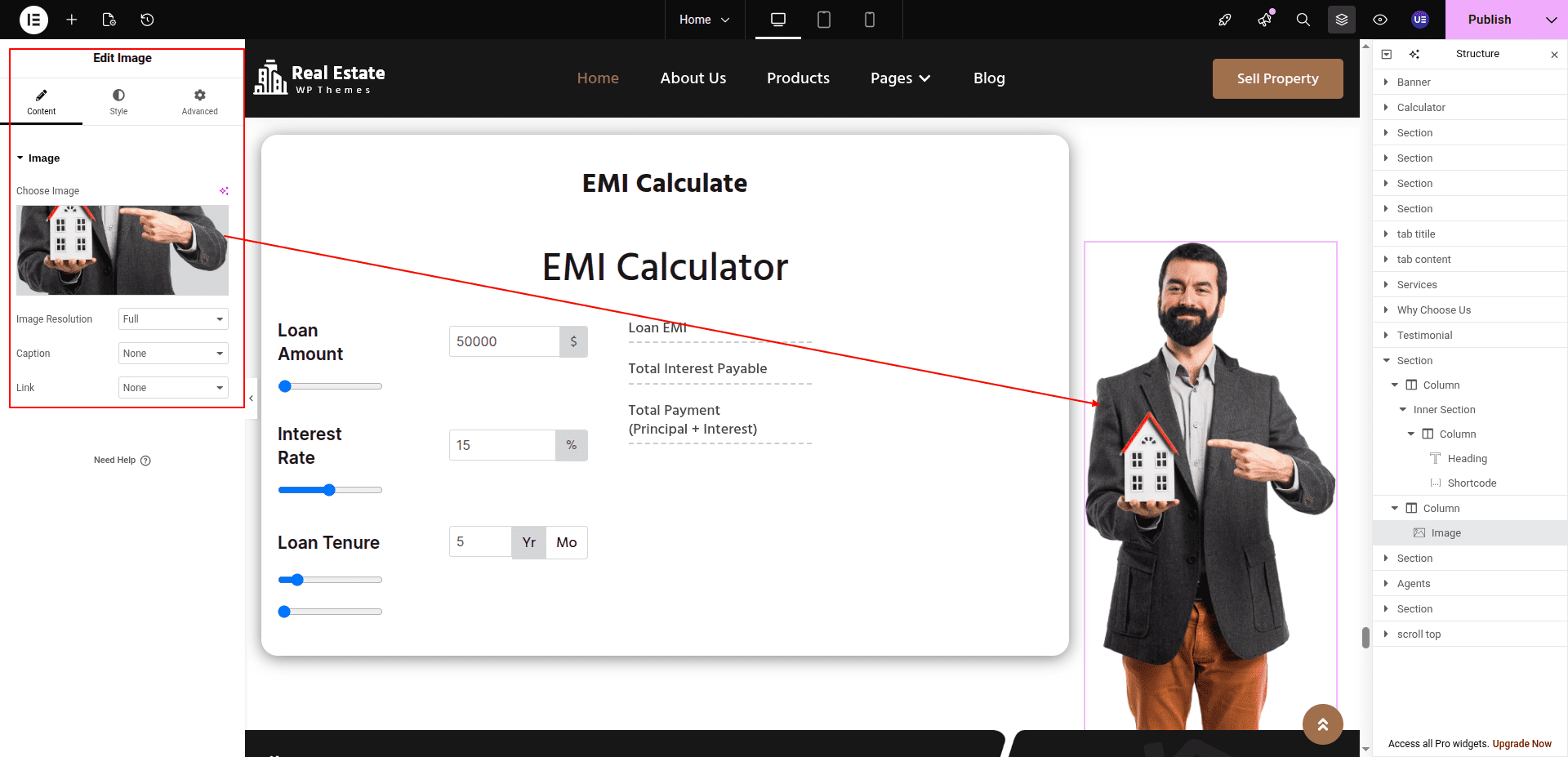
To configure the EMI Calculate section
Set up the EMI Calculate Section according to the instructions below.
To Edit this Section, Click On the "Edit With Elementor" Button which will open the Elementor Widget editor.
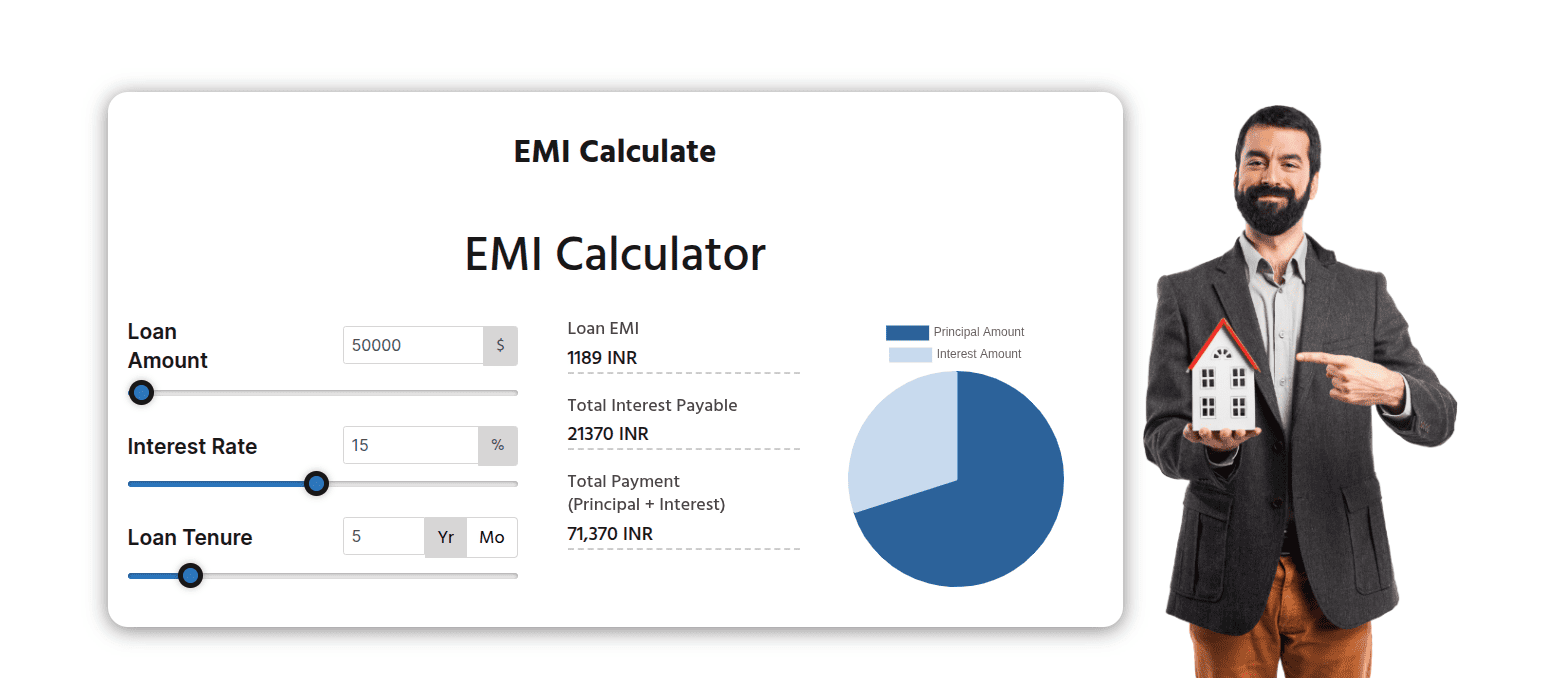
This represents how a EMI Calculate section can be added and set up.
To configure the News Letter section
Set up the News Letter Section according to the instructions below.
To Edit this Section, Click On the "Edit With Elementor" Button which will open the Elementor Widget editor.
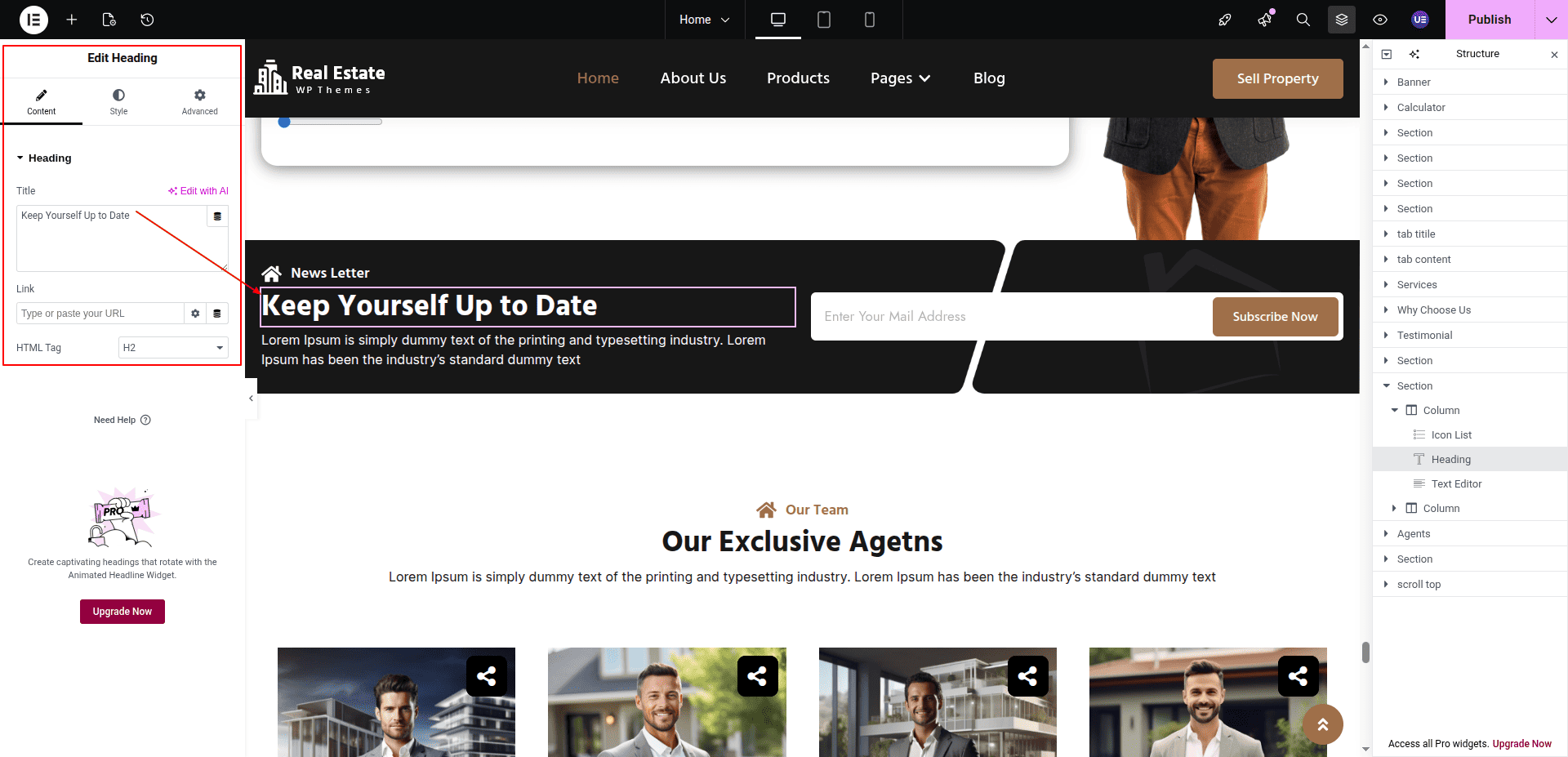
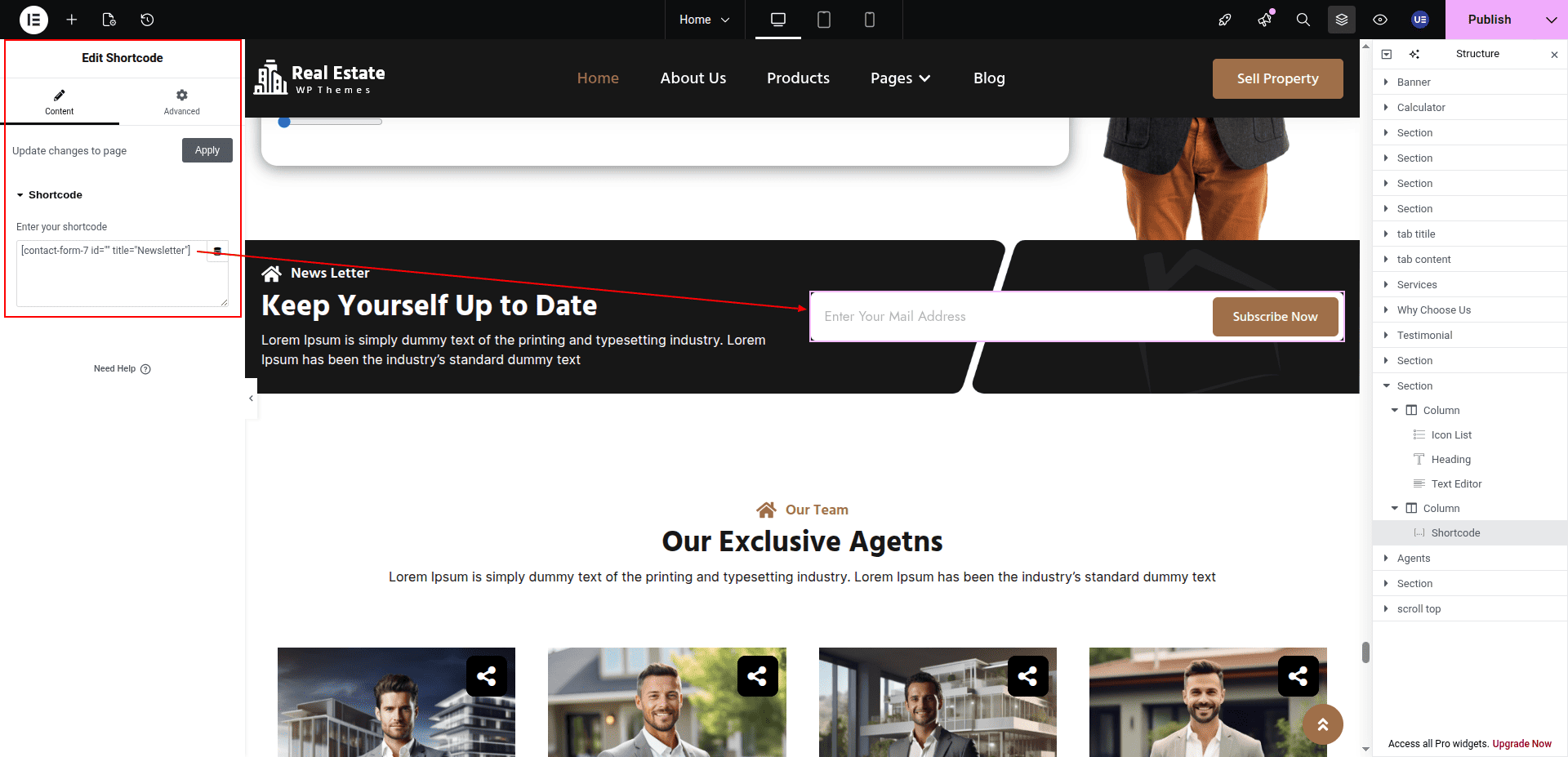
This represents how a News Letter section can be added and set up.
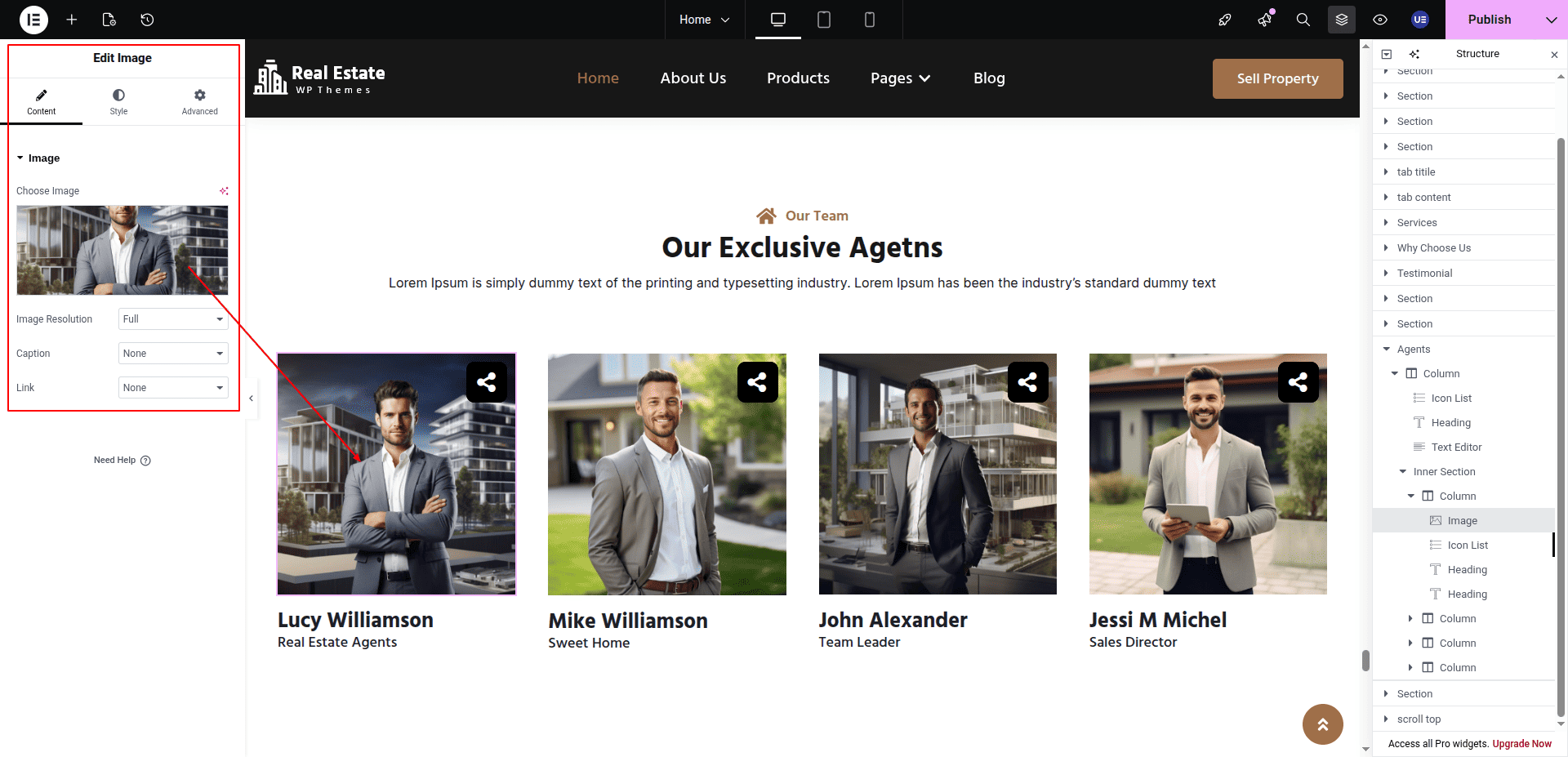
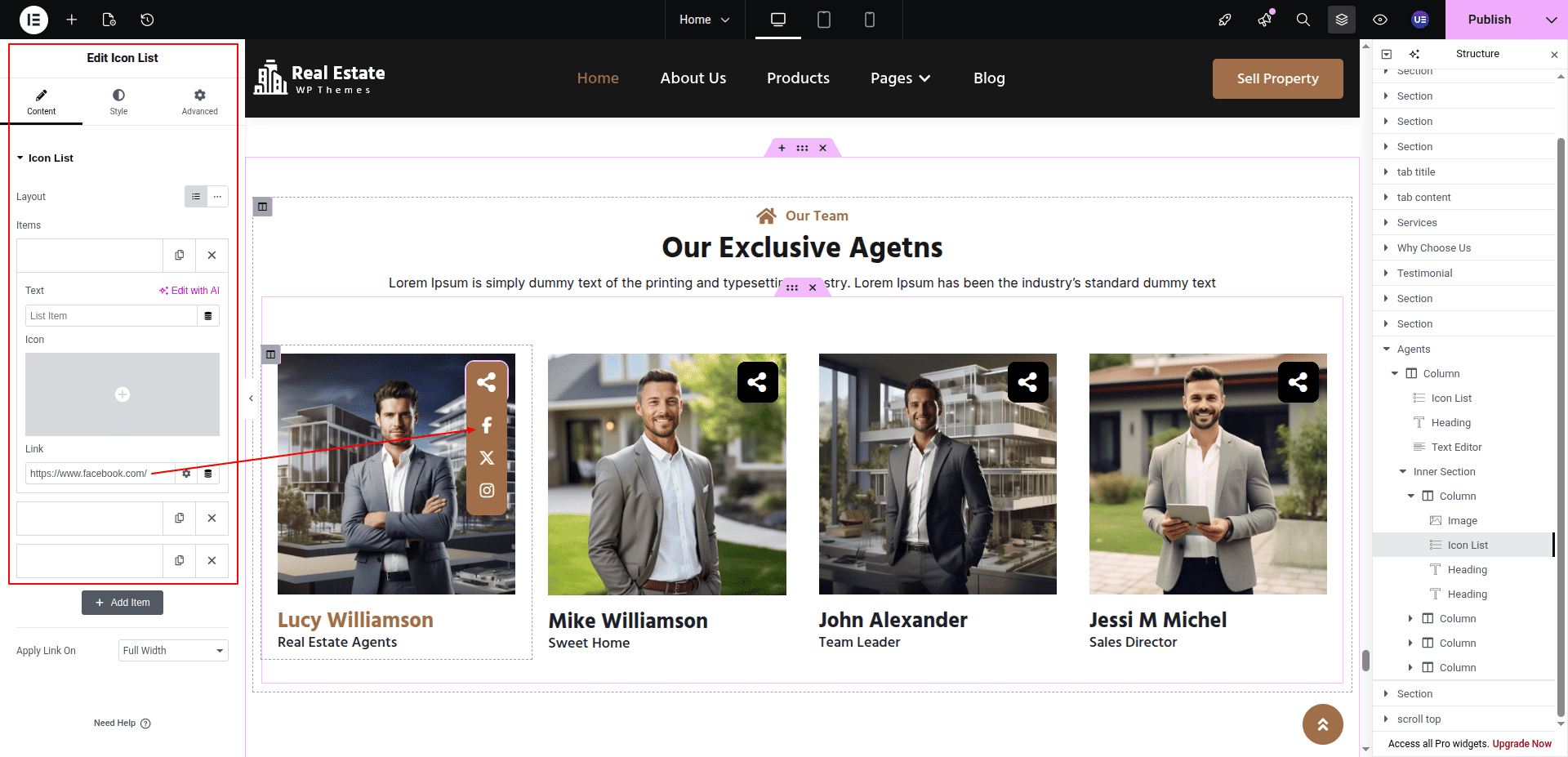
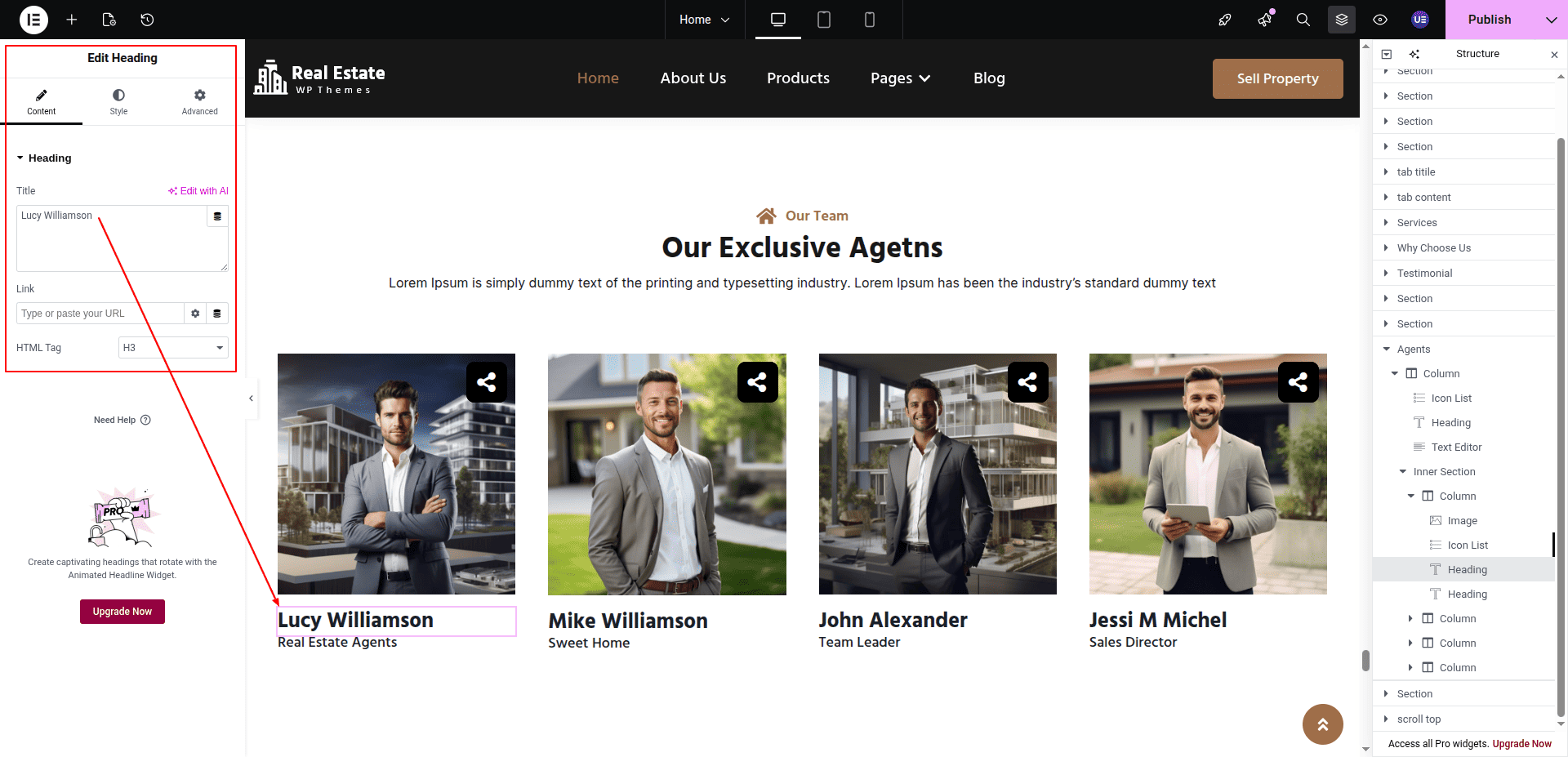
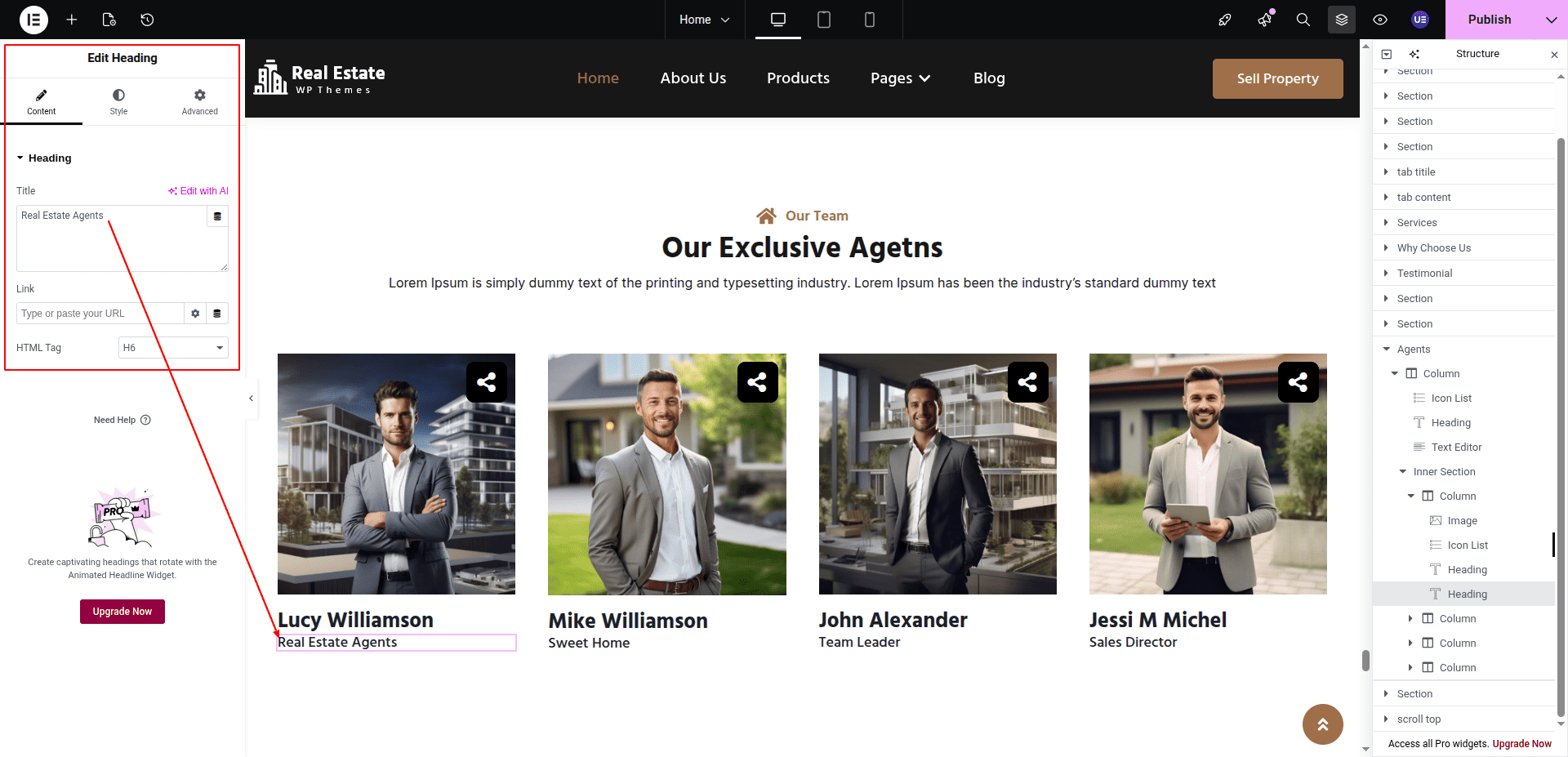
To configure the Our Team section
Set up the Our Team Section according to the instructions below.
To Edit this Section, Click On the "Edit With Elementor" Button which will open the Elementor Widget editor.
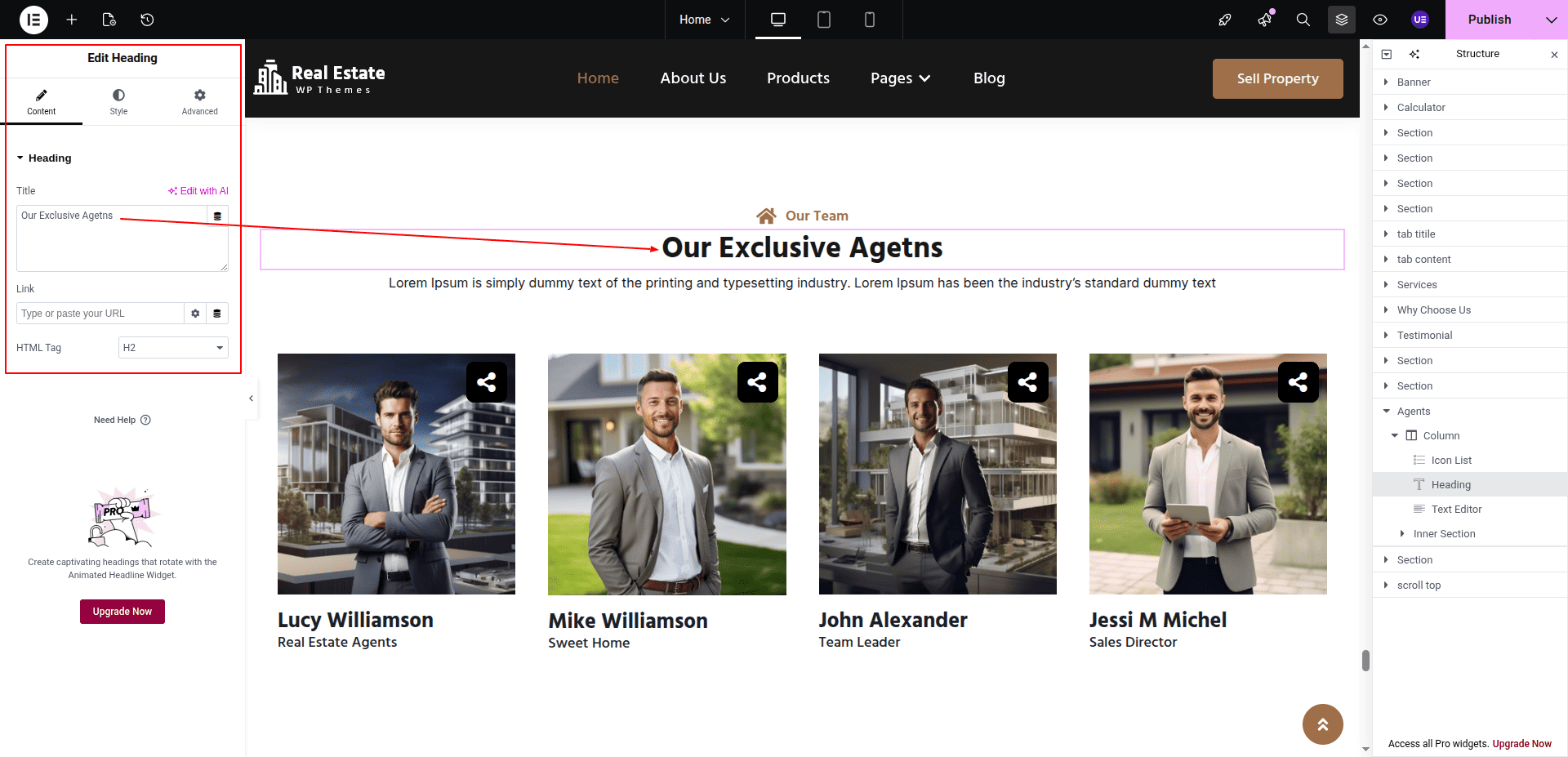
This represents how a Our Team section can be added and set up.
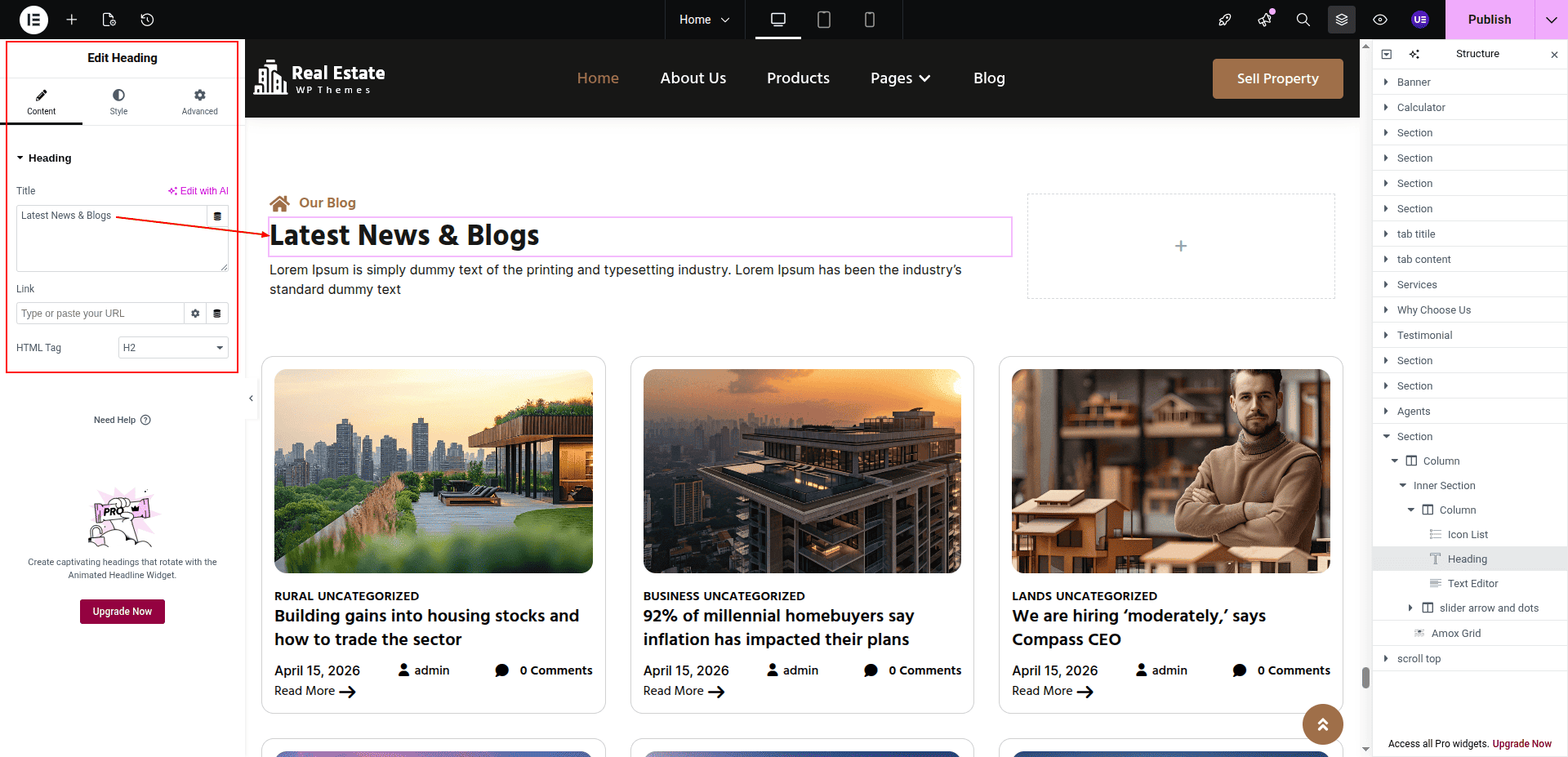
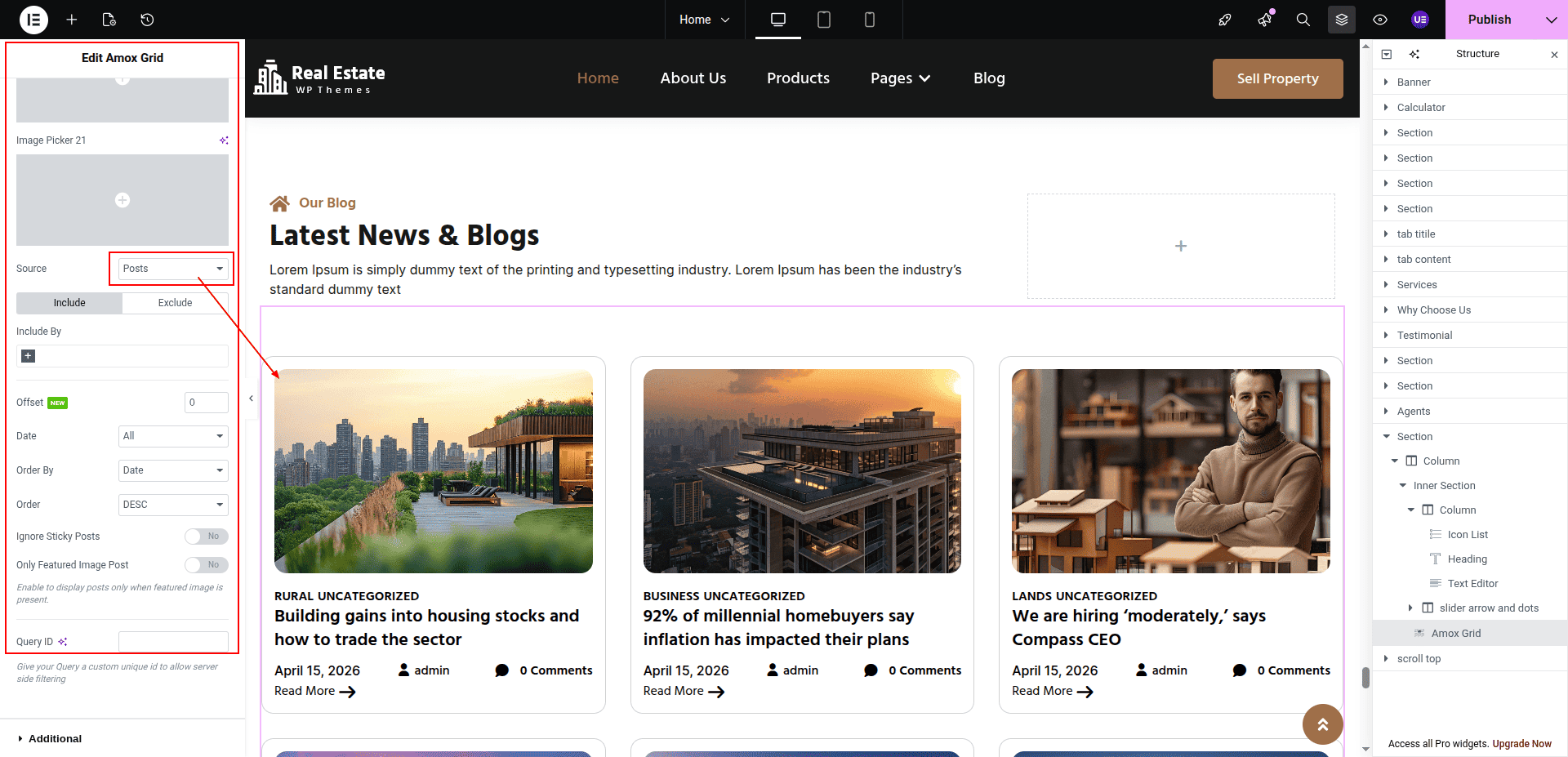
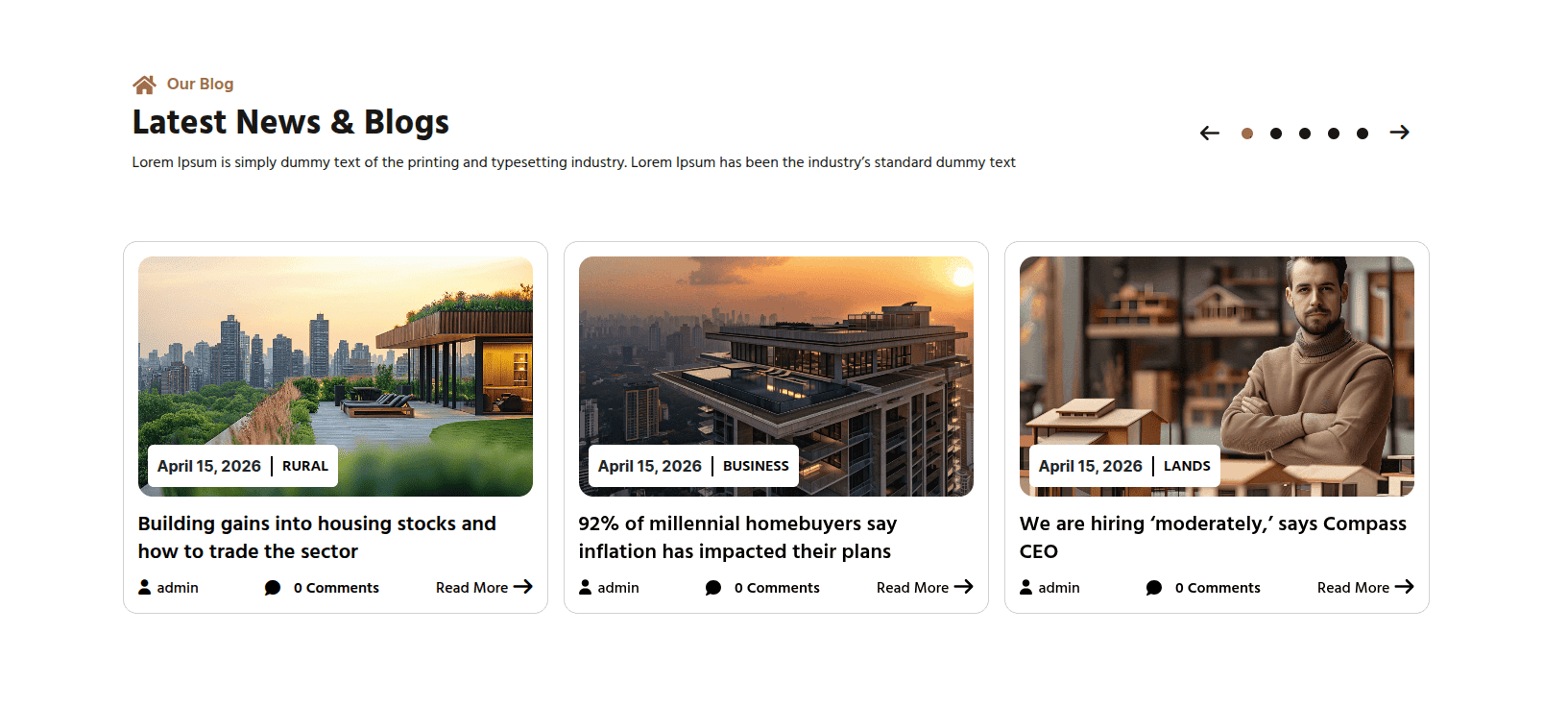
To configure the Our Blog section
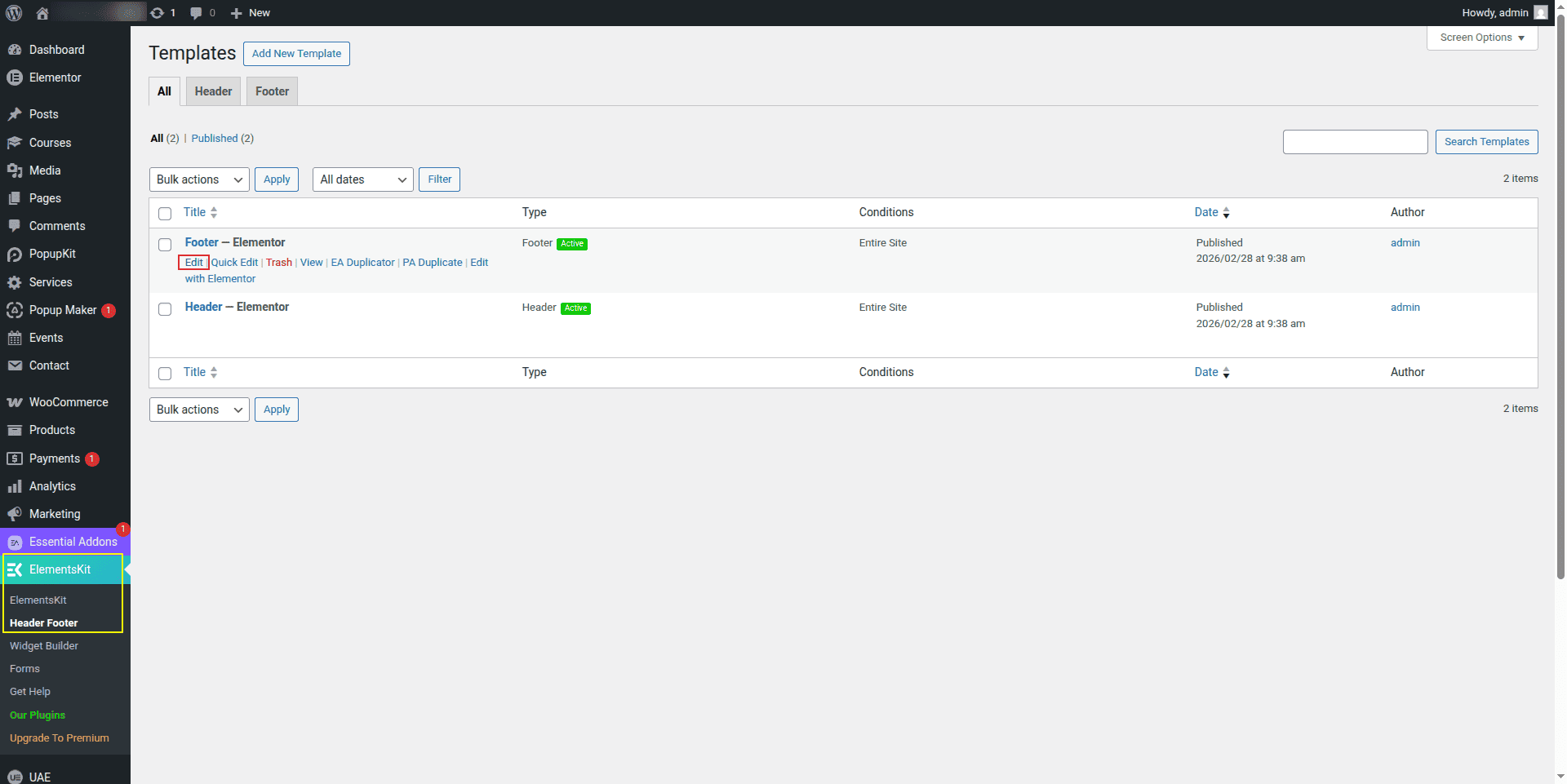
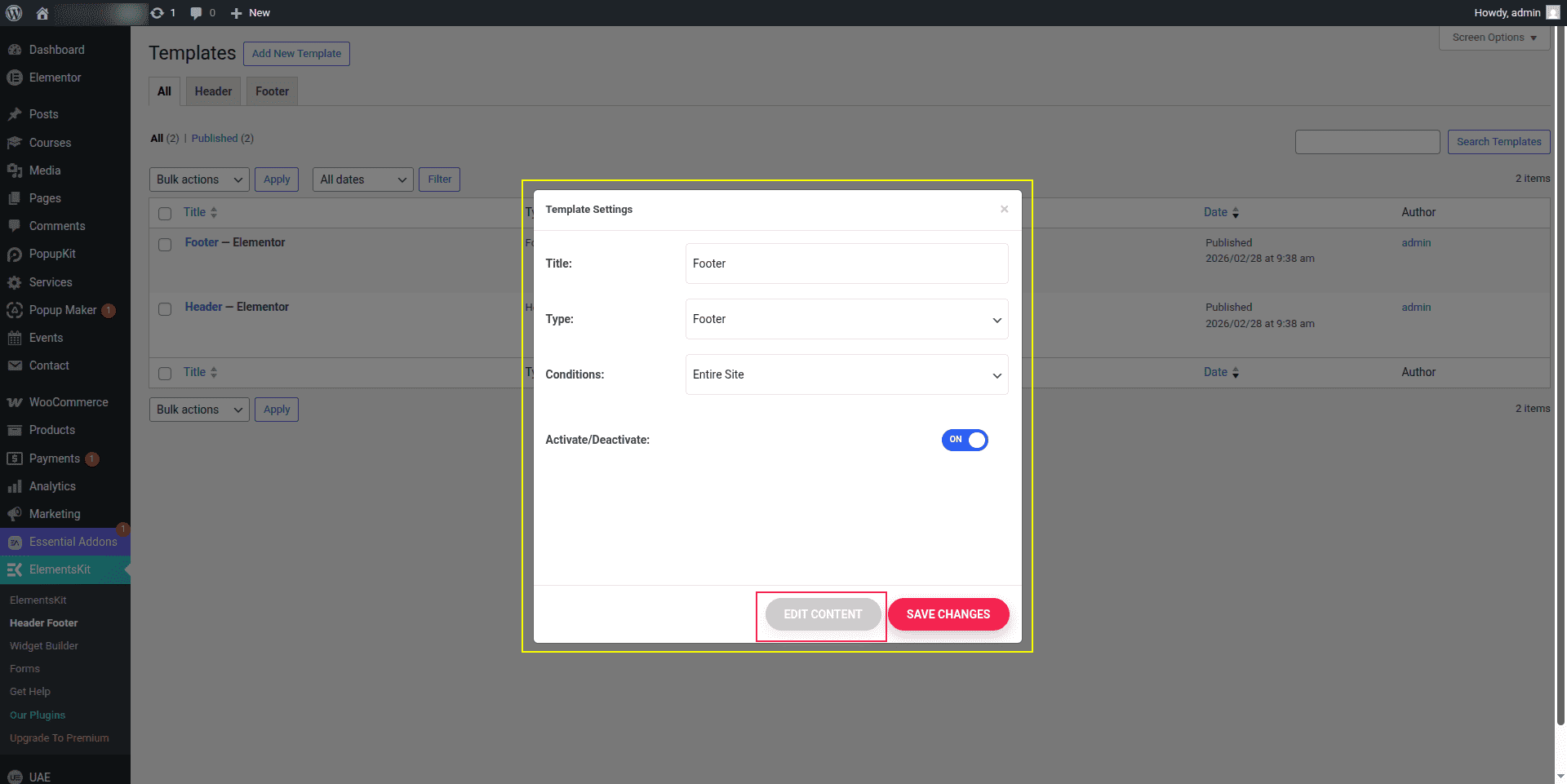
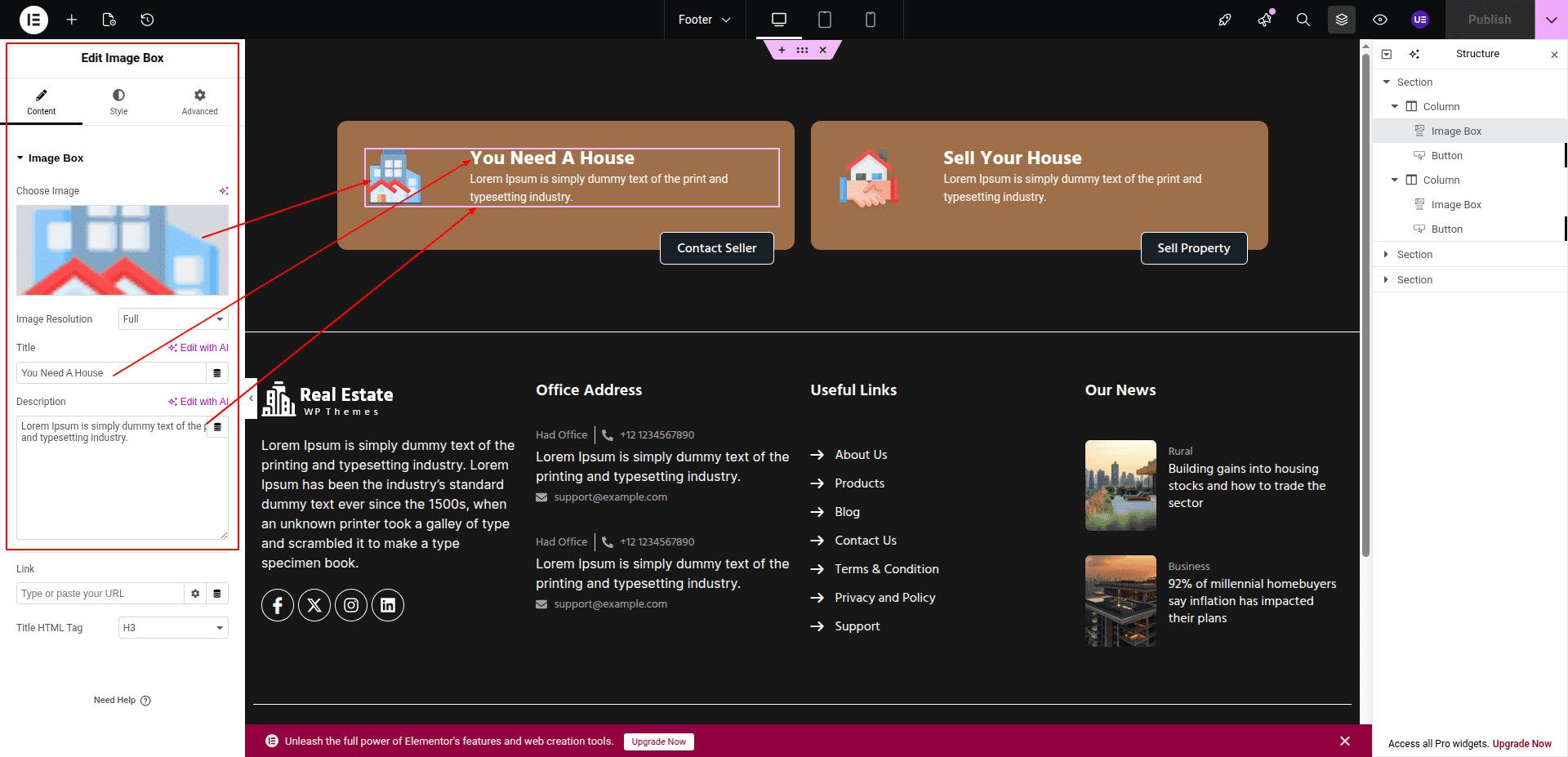
Set up the Our Blog Section according to the instructions below.
To Edit this Section, Click On the "Edit With Elementor" Button which will open the Elementor Widget editor.
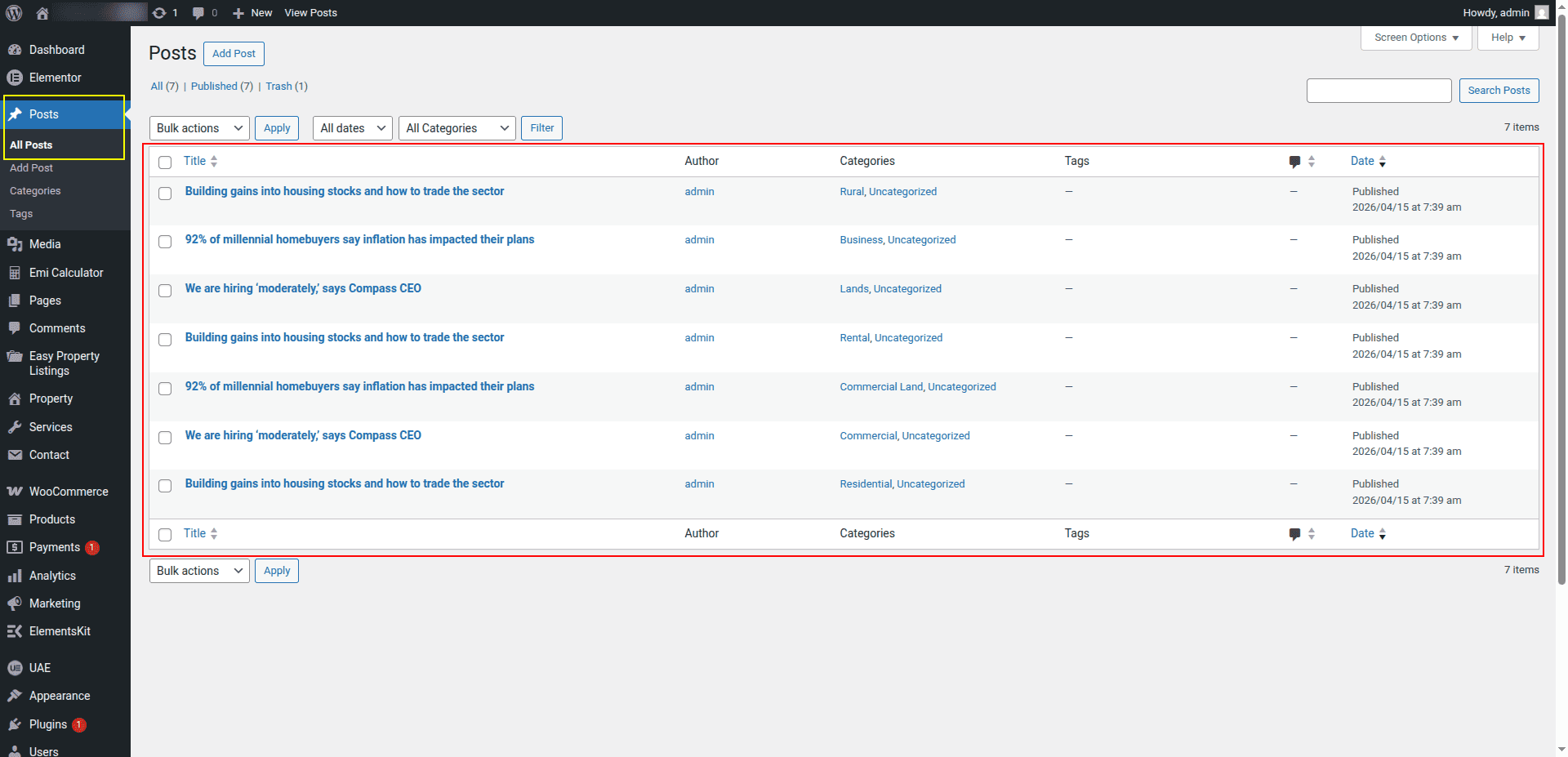
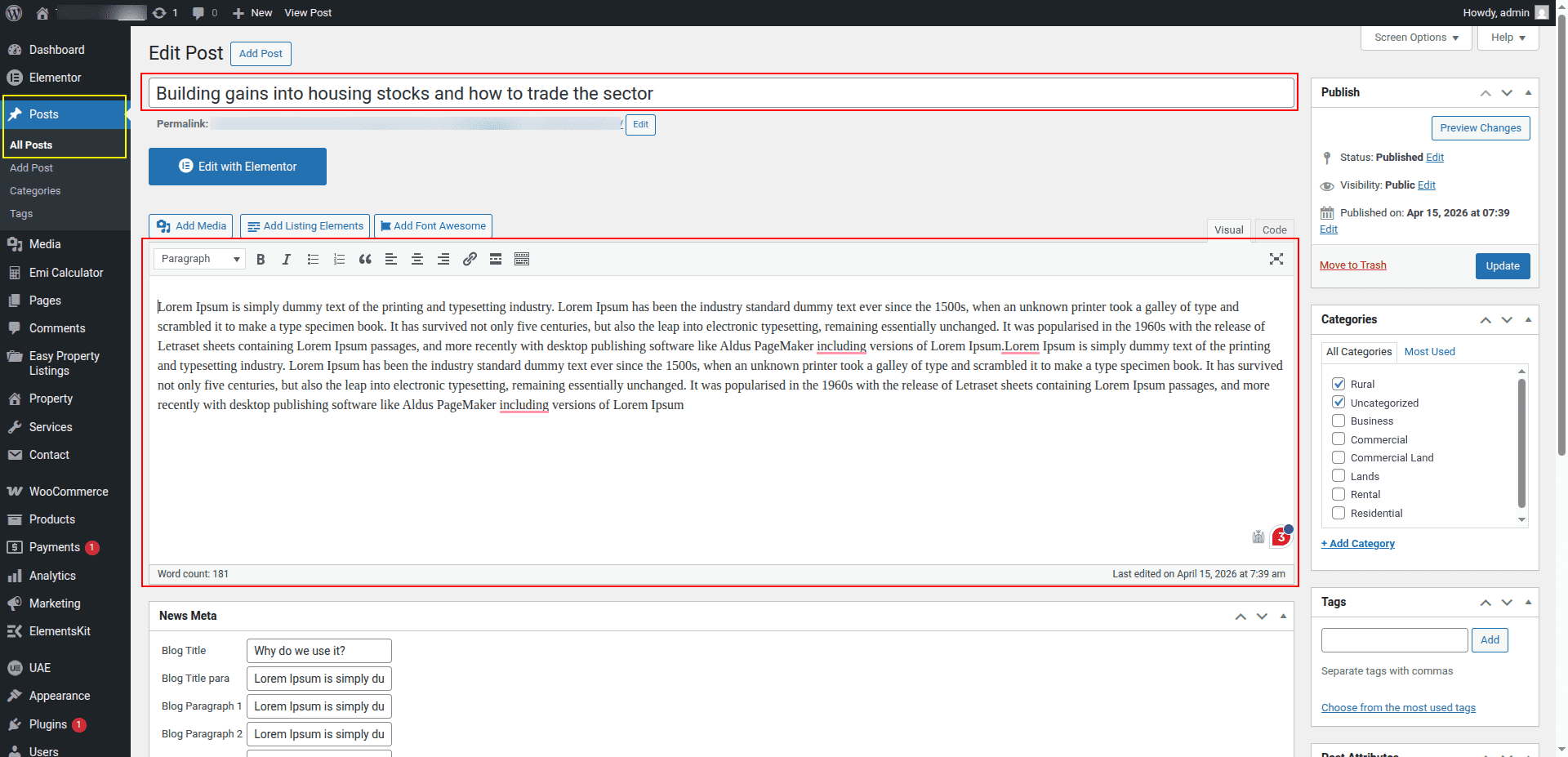
The post comes from the dashboard.
Here you can edit the post from the dashboard.
This represents how a Our Blog section can be added and set up.